# Rentalot
> Complete Markdown export of Rentalot public docs for AI agent ingestion.
Curated index: https://rentalot.ai/llms.txt
---
[Rentalot Documentation](https://rentalot.ai/docs.md)
import { Cards } from "nextra/components";
# Rentalot Documentation
Rentalot pre-screens rental prospects for you. Add your properties, share one prospect link, and every prospect who opens it answers your pre-screening questions (by text, or by voice if you turn it on). You get a contact record with their answers, ready to review, in your dashboard.
## What you can do with Rentalot
- **Keep your listings in one place.** Add properties by hand, paste a listing and let AI fill in the details, or import a spreadsheet from Zillow, AppFolio, Buildium, and similar tools.
- **Pre-screen every prospect the same way.** Your prospect link asks your questions, captures contact details, and creates the contact for you.
- **Review and respond quickly.** Approve or deny submissions, send booking links, and reply to prospect email from the dashboard.
- **Manage your rentals by chat.** Ask the management chat to look up properties, find contacts, or schedule showings in plain language.
- **Connect your own tools.** Use the REST API, MCP server, or CLI to connect Rentalot to your other software.
## Start here
## Task guides
## Developers and automation
## Who it's for
Rentalot is for independent landlords, property managers, and leasing agents who want to spend less time answering the same prospect questions and more time with qualified prospects.
Have a question? Check the [FAQ](/docs/faq) or [contact us](/contact).
---
[Getting Started](https://rentalot.ai/docs/getting-started.md)
import { Callout, Steps } from "nextra/components";
# Getting Started
This guide gets you from a new account to your first reviewed prospect. The core path takes about 15 minutes: add a property, publish your prospect link, test it, then review the submission.
When you open the dashboard, the setup checklist (**Get your prospect link ready**) on the **Overview** page follows the same steps. For a short guided tour of the dashboard, click **Restart tour** on the checklist.
### Create your account
Sign up at [rentalot.ai](https://rentalot.ai/signup) and confirm your email address with the verification link. Every new account starts on the 7-day Free Trial.
### Add your first property
Your account includes a sample property (**[Sample] 742 Sunflower Lane**) so you can explore. The checklist only counts a real property, so add one of your own:
1. In the checklist, click **Add property**. (You can also open **Properties** from the sidebar and click **Add Property**.)
2. Enter a **Property Title**. Save now to keep it as a private draft.
3. Add the details prospects ask about: address, rent, bedrooms, bathrooms, availability, pet policy, parking, and photos.
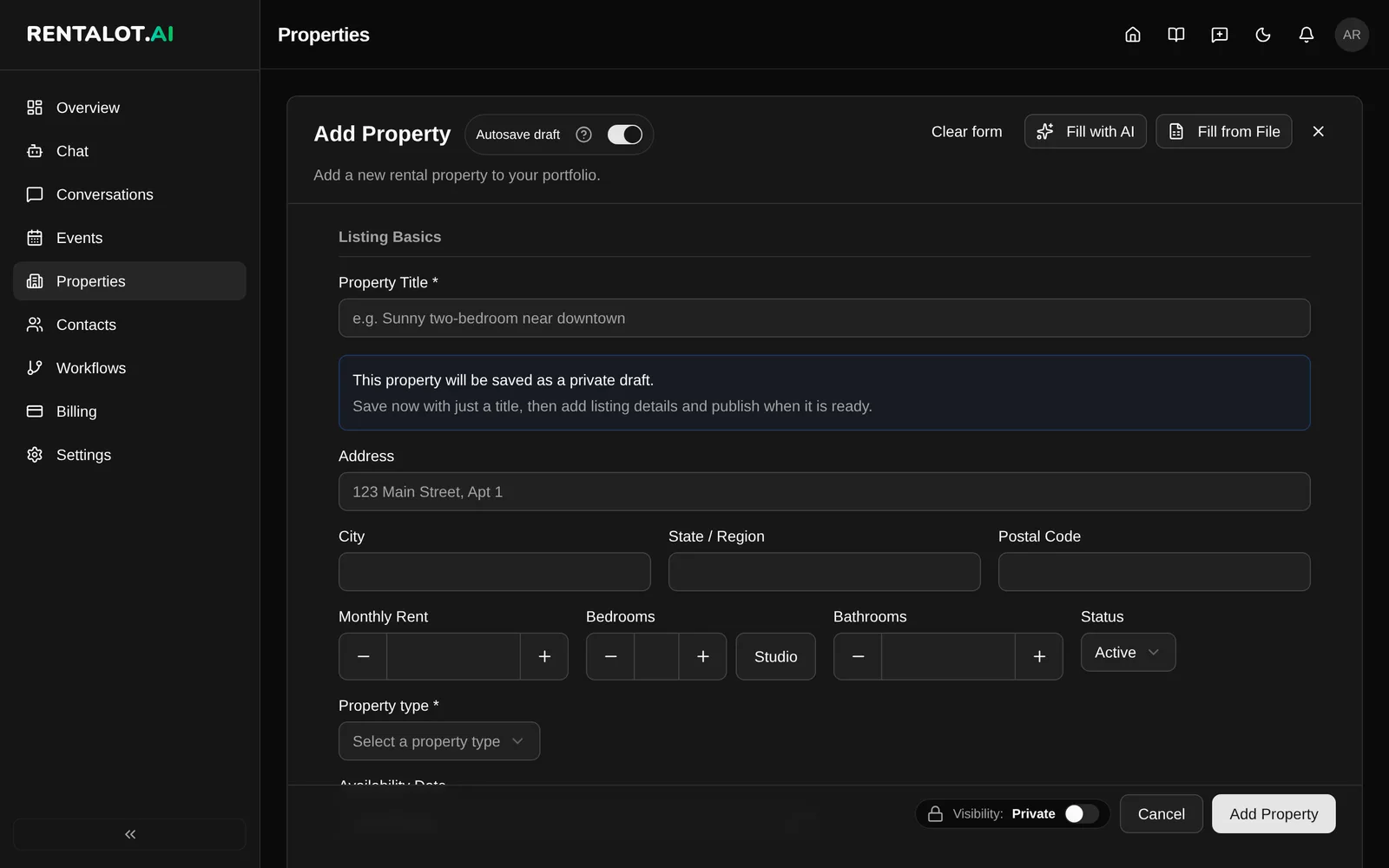
To publish a property, it needs a title, street address, monthly rent greater than zero, and a bathroom count greater than zero. The more detail you add, the better your AI agent can answer prospect questions.
Have many listings? [Import them from a spreadsheet](/docs/import-guide) instead.
### Publish your prospect link
Your prospect link is where prospects answer your pre-screening questions: `rentalot.ai/p/your-slug/prescreening`.
1. In the checklist step **Publish your prospect link**, turn on the switch. The status changes to **Active — prospects can reach your AI agent**.
2. Click **Copy prospect link** next to the URL.
You can change the same setting later in **Settings** > **Public Pages** > **Public prescreening enabled**. To change `your-slug`, edit **URL Slug** on that tab.
### Test the link yourself
Open the link in a private browser window, or use the **Open prospect link in a new tab** button in the checklist, and complete the questionnaire as if you were a prospect. Use an email address you can check.
When you finish, Rentalot creates a contact with your answers. If **Application completed** is on in **Settings** > **Notifications**, you also get an email about the new submission.
### Review the submission and respond
1. Open **Contacts** and select the contact you just created.
2. Open the pre-screening submission to read every answer.
3. Mark it **Approved** or **Denied**, and add private notes if you like.
4. Take the next step: send a booking link, share your property blast link, or reply to the prospect.
Once the test looks right, share your prospect link on listings, in email replies, and on flyers. See the [Rental Workflow Guide](/docs/rental-workflow) for the full prospect-to-showing flow.
### Ask your AI assistant
In the checklist step **Ask your AI assistant**, click **Open AI assistant**. The management chat opens with a suggested question ready to send, or pick one of the examples under **Try asking:**. The step checks off after your first message. See [Management chat and AI assistant](/docs/agent-behavior).
## Optional next steps
The checklist lists these under **Optional next steps**. Both need the **Starter** plan or higher. On the Free Trial they're marked **Starter+** with an **Upgrade to unlock** button that opens **Billing**.
- **Set up email.** Connect Gmail, Microsoft 365, or custom SMTP in **Settings** > **Integrations** so you can email prospects from your own address and reply from **Conversations**. See [Email](/docs/email).
- **Set up calendar.** Connect Google Calendar or Cal.com in **Settings** > **Integrations** so showings sync to your calendar. See [Showings](/docs/showings).
Your prospect link works without email or a calendar. Connect them when you're ready to respond and schedule from inside Rentalot.
## Keep going
- [Workflows](/docs/workflows): customize your pre-screening questions or build your own questionnaire.
- [Contacts](/docs/contacts): manage prospects, submissions, and next steps.
- [Management chat and AI assistant](/docs/agent-behavior): manage your rentals in plain language.
- [Slash Commands](/docs/slash-commands): instant lookups in the management chat.
---
[Rental Workflow Guide](https://rentalot.ai/docs/rental-workflow.md)
import { Callout } from "nextra/components";
# Rental Workflow Guide
A step-by-step guide to using Rentalot for your typical rental workflow — from first contact with a prospect to lease signing.
## Overview
The core Rentalot workflow looks like this:
1. **Send pre-screening link** to a prospect (new or existing contact)
2. **Prospect completes pre-screening** — Rentalot auto-creates their contact record
3. **Review and approve/deny** the submission on the contact details page
4. **Follow the contact checklist** — schedule showings, send follow-ups, track progress
Each step is explained below.
---
## Step 1: Send a Pre-Screening Link
Every agent gets a sharable pre-screening URL. You can send it to prospects via email, WhatsApp, text — whatever works.
### Finding your link
- Go to **Properties** and expand any listing — the workflow share links are listed there
- Or go to **Workflows** and click the **Copy Link** button on your pre-screening template
- For a specific property, use the property-scoped link which pre-fills the property context
### Who to send it to
- **New prospects** who haven't interacted with you yet — they'll fill in their name, email, and phone during the flow
- **Existing contacts** — you can generate a personalized link from their contact page that pre-fills their identity
### What happens on the prospect's end
The prospect sees a conversational questionnaire that collects:
- Personal info (name, email, phone)
- Budget and move-in timeline
- Household details (occupants, pets, vehicles)
- Employment and income
- Rental history
The flow is mobile-friendly and takes 3–5 minutes. Voice input is also available if you've enabled it.
---
## Step 2: Prospect Completes Pre-Screening
When a prospect finishes the questionnaire with valid contact info (email or phone), Rentalot automatically:
1. **Creates a contact record** with all the information they provided
2. **Stores the full submission** — viewable on the contact's detail page
3. **Runs qualification scoring** based on your configured thresholds (such as income ratio and credit score)
4. **Shows matching properties** to the prospect (if enabled in your workflow settings)
5. **Sends you a notification** so you know there's a new submission to review
No manual data entry needed. The contact appears in your **Contacts** list immediately.
---
## Step 3: Review the Submission
Go to **Contacts** and find the new prospect. Their detail page shows:
### Submission review
- Click on the pre-screening submission to see all their answers
- Use the **Approve** / **Deny** buttons to record your decision
- Add internal notes (visible only to you) with any context
### What to look for
- **Qualification score** — automatically calculated from your thresholds
- **Income-to-rent ratio** — does their stated income meet your minimum?
- **Move-in timeline** — does it align with your availability?
- **Red flags** — eviction history, incomplete answers, mismatched information
Approving or denying is optional but helps you track pipeline status. If **Notify prospect on review** is on in **Settings** > **Notifications**, the prospect gets an email with your decision.
---
## Step 4: Follow the Contact Checklist
Each contact has a checklist on their detail page to guide you through the remaining steps:
### Typical next steps after approval
1. **Schedule a showing**: ask the management chat ("schedule a showing for [contact] at [property]"). The showing appears on **Events**. See [Showings](/docs/showings).
2. **Send a booking link**: email the prospect a link to pick a showing time. Requires a Scheduling URL or Cal.com, a connected email account, and **Send booking link emails** turned on in **Settings** > **Notifications**.
3. **Follow up after the showing**: click **Send Nudge** on the contact's page and choose **Post-showing follow-up** (Pro+) or **Check-in (idle prospect)** (Starter+).
4. **Send application link**: share your rental application when you're ready to move forward
5. **Track status**: update the contact status as they progress (Prospect → Scheduled → Applicant → Renter)
### Follow-ups
Turn on **Enable auto follow-ups** in **Settings** > **General** > **Follow-ups**, and Rentalot checks in on its own when a prospect stops replying, up to three times. Turn on **Contact Nudges** in the same tab for email reminders before booked showings and other check-ins. You can still send a follow-up by hand with **Send Nudge** on any contact's page. See [Follow-ups & Nudges](/docs/follow-ups).
---
## Tips
- **Use the Management Chat** for quick actions — "draft an email to John about the Oak St apartment" or "show me contacts who completed pre-screening this week"
- **Connect your email** early. It lets you reply to prospects, send booking links, and send nudges from the dashboard.
- **Connect your calendar** — two-way sync means showings created in Rentalot appear on your calendar and vice versa
- **Enable voice** — prospects can complete pre-screening by voice instead of typing, which improves completion rates
- **Property Blast** — use the blast page to let prospects browse all your listings and express interest in bulk
---
[Properties](https://rentalot.ai/docs/properties.md)
# Properties
Properties are the core of Rentalot. The more detail you add, the better your AI agent can answer prospect questions.
## Adding a Property
From the dashboard, go to **Properties** > **Add Property**. Enter a **Property Title** to save immediately as a private draft, then add listing details when you have them.
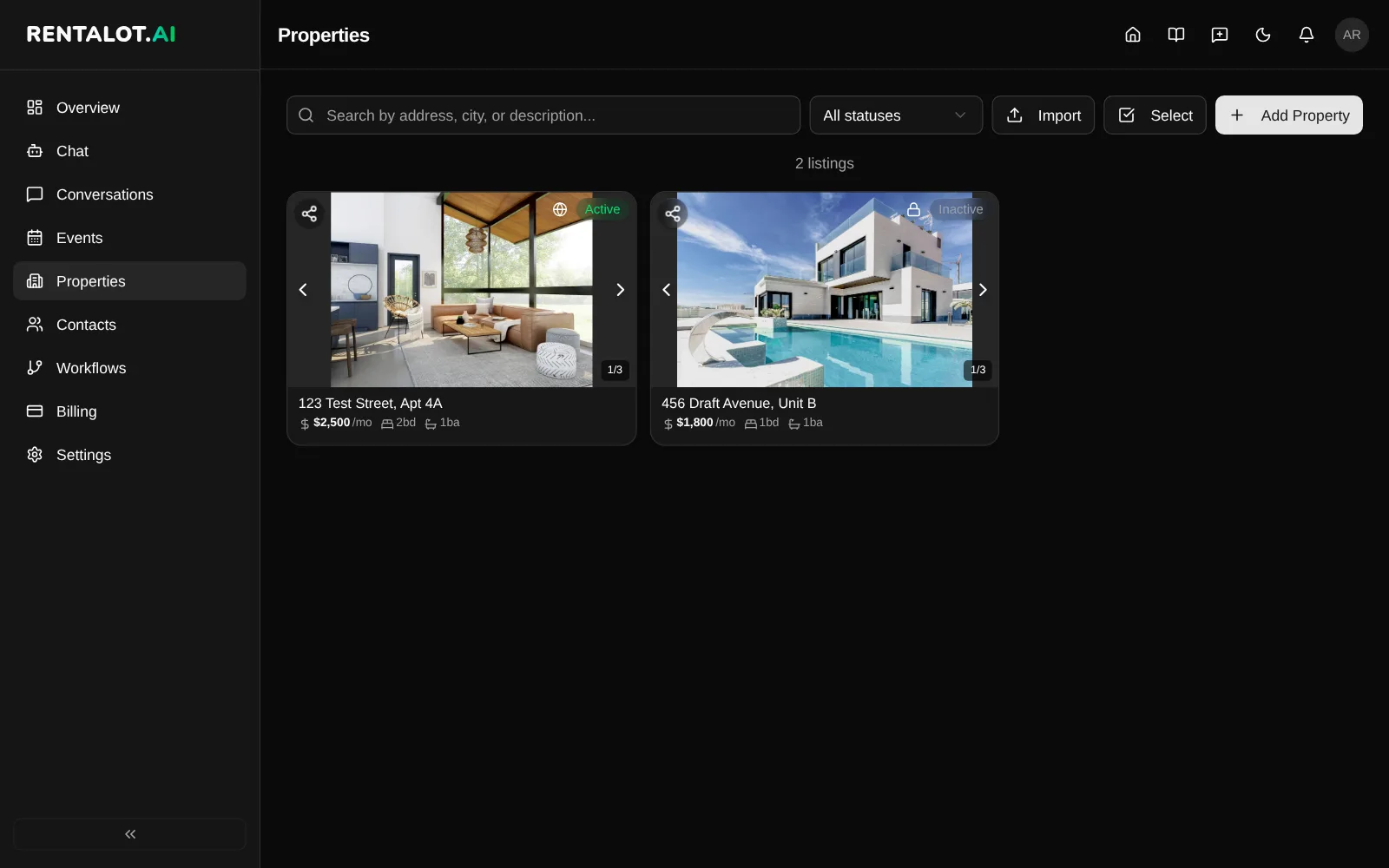
### Draft Requirement
- **Property Title** — a recognizable internal or public listing name
New dashboard properties start private. To make a property public, add a title, full address, positive monthly rent, and a positive bathroom count. The form lists every missing requirement if publishing is blocked.
### Recommended Fields
These help your agent answer common prospect questions:
- **Description** — a paragraph describing the unit and its appeal
- **Bedrooms** — choose **Studio** for a rental with no separate bedroom. Imports and API requests represent Studio as `bedrooms: 0`.
- **Availability** — when the unit is available
- **Amenities** — in-unit laundry, dishwasher, AC, balcony, etc.
- **Pet policy** — allowed breeds/sizes, pet deposit, monthly pet rent
- **Parking** — included, garage, street, additional cost
- **Lease terms** — minimum lease length, renewal options
- **Utilities included** — what's covered vs. tenant-paid
- **Move-in costs** — security deposit, first/last month, application fee
### Property types
Choose **House**, **Apartment**, **Condo**, **Townhouse**, or **Room**. A complete new dashboard listing requires a selection. You can still save an incomplete private draft or edit an existing listing whose type is unknown without guessing. Studio describes the bedroom layout, not the property type.
## Bulk Import
Import properties from a spreadsheet file instead of adding them one-by-one.
Go to **Properties** > **Import**, then drag and drop your file or click to browse.
### Supported Formats
| Format | Extensions |
|--------|-----------|
| CSV | `.csv` |
| TSV | `.tsv` |
| Excel | `.xlsx`, `.xls` |
| JSON | `.json` (array of objects) |
**Limits:** 500 rows max, 10 MB max file size.
### How It Works
1. **Upload** — drop your file; it's parsed instantly in the browser (nothing uploaded yet)
2. **Auto-detect** — if your file came from a known property management tool, Rentalot recognizes the format and pre-maps all columns automatically
3. **Map columns** — review the mapping. Adjust or skip columns as needed.
4. **Validate** — click Validate to check for errors. Fix or skip invalid rows.
5. **Import** — confirmed rows are created as properties.
### Auto-Detected Formats
Rentalot automatically recognizes exports from these tools:
| Tool | Detected By |
|------|-------------|
| **AppFolio** | Unit Directory report (merges split address columns) |
| **Buildium** | Unit list export (merges multi-line addresses) |
| **Zillow** | Property listing export |
| **Rent Manager** | Unit report |
| **Propertyware** | Property export (includes year built, pet policy, deposit) |
When a format is detected, you'll see a "Detected: AppFolio Unit Directory" (or similar) badge. All columns are pre-mapped — just review and import.
### Column Name Matching
For files that aren't from a recognized tool, Rentalot falls back to generic column name matching. It recognizes common variations:
| Property Field | Recognized Column Names |
|---------------|------------------------|
| Address | `address`, `street`, `street_address`, `location` |
| Monthly Rent | `rent`, `monthly_rent`, `price`, `rent_amount` |
| Bedrooms | `bedrooms`, `beds`, `br` |
| Bathrooms | `bathrooms`, `baths`, `ba` |
| Square Footage | `sqft`, `square_footage`, `sq_ft`, `area` |
| Pet Policy | `pets`, `pet_policy`, `pet_friendly` |
| Deposit | `deposit`, `security_deposit` |
Values are coerced automatically: `"$1,500"` → `1500`, `"3 BR"` → `3`, `"Yes"` → `allowed`, `"03/15/2026"` → `2026-03-15`.
### Tips
- Export from AppFolio, Buildium, or any property management tool as CSV.
- Include at least **Address**, **Rent**, **Bedrooms**, and **Bathrooms** — these are required.
- The more fields you include, the better your agent can answer prospect questions.
For step-by-step export instructions for each platform, see the [Property Import Guide](/docs/import-guide). For programmatic imports, see the [Properties API](/docs/api-reference/properties).
## Public Rental Browsing
The public rental directory shows eligible public listings with at least one usable public photo. A property without photos can still have its existing public detail/profile page, but it will not appear in the global rental directory. Add photos to make an otherwise eligible listing discoverable there.
Renters can sort by **Recommended**, **Price (low to high)**, **Price (high to low)**, **Beds**, **Baths**, **Square feet**, **Newest**, or **Oldest**. Recommended currently shows newer listings first. Beds, baths, and square feet show larger values first, with unknown square footage last.
**Beds/Baths** offers **Studio** to match exactly zero bedrooms, separately from the minimum-bedroom choices. **Type** opens large labeled icon choices. Select multiple types to match any of them, combined with your other filters. Apply saves the choices in the URL, while cancel leaves the current search unchanged.
**More filters** groups move-in date, pets, selectable amenity icons, and minimum/maximum home size. Selections use the same amenity and feature values as Add/Edit Property. Pet filters distinguish allowed or negotiable from no pets, not animal species or size. Internet Included and Yard keep their actual meanings rather than promising high-speed service or every kind of outdoor space. Filters stay in the URL so renters can reload, go back, and share their search.
### City suggestions
The search field accepts a city, a street address, or a keyword. Choose a suggestion to add a removable location chip. Press Enter or the **Search** button to apply what you typed: text that exactly names a suggested place (for example "Austin, TX") becomes a location, and anything else, such as "4648 Tilden Avenue Unit 7" or "pool", becomes a removable keyword chip. Every word of a keyword must match the listing's title, address, unit, city, state, ZIP, description, amenities or features; words like "Unit" and "Apt" are ignored. The rental-page title and location search live in the Rentalot header. On mobile, search moves to its own header row. **Add a location or keyword** in the search dropdown lets you add more, up to 10 locations. Results can match any selected city/state pair while still meeting the keyword and all other filters. Removing one chip leaves the others and your filters intact. Selections survive reload, back, sorting, filters and pagination.
Suggestions cover the US, DC and Puerto Rico. For other locations, use **Enter a city or state manually** to add a paired region.
**Use my location** is optional and asks for permission only when you click it. Location is processed on your device to apply the closest supported city or place. This is approximate, not your exact city or administrative boundary. The action is hidden once any region is selected. If location is denied, unavailable or too imprecise, keep typing or use manual location entry. Precise coordinates are never stored or added to the URL.
## Public Listing Inquiries
When a property is **Public** and **Active**, prospects can submit inquiries directly from its eligible listing page. Each inquiry creates a contact and conversation in your dashboard, and you'll receive an **email notification** with the prospect's name, message, and contact info so you can respond promptly.
**Public** controls visibility, not availability. A public **Rented** property keeps its direct link for reference with a clear unavailable notice and no inquiry form. It is excluded from available-rental search results and recommendations. The dashboard property page shows **Rented** beside the Public/Private control so you can see both states together. Private properties remain hidden, and existing publication-expiry and trial rules still apply.
### Listing details
Public listings put photos first, followed by the title, rent, and key facts. The
header keeps location search, **Listings**, and sign-in navigation available. Use
**Back to listings** to return to the rental directory.
On wider screens, the contact form sits beside the property details. On phones,
the same form moves into the page flow. Rental facts, policies, amenities, included
utilities, and descriptions show information supplied for that property. A listing
represents one rental, not a building with multiple floor plans. Missing details
are not replaced with estimated fees or neighborhood scores.
Failed inquiry submissions keep your entered details available for correction or
retry. Suggested inquiry messages, a preferred move-in date field, a location map,
and similar rentals on the listing page are coming soon.
## Bulk Operations
Toggle multi-select mode from the Properties page to select multiple properties at once. From there you can bulk delete with a single confirmation.
## Editing and Removing
Edit any property from the dashboard or its detail page (which also has a Delete button). Changes take effect immediately — your agent will use updated information for all future conversations.
Removing a property stops the agent from answering questions about it. Existing conversations referencing that property are preserved in your inbox.
---
[Property Import Guide](https://rentalot.ai/docs/import-guide.md)
# Property Import Guide
Migrate your properties into Rentalot from any property management tool in minutes. No manual data entry required.
## Quick Start
1. Export your properties from your current tool (see platform guides below)
2. Go to **Properties** > **Import** in your Rentalot dashboard
3. Drop in the file — Rentalot auto-detects the format and maps columns
4. Review, validate, and import
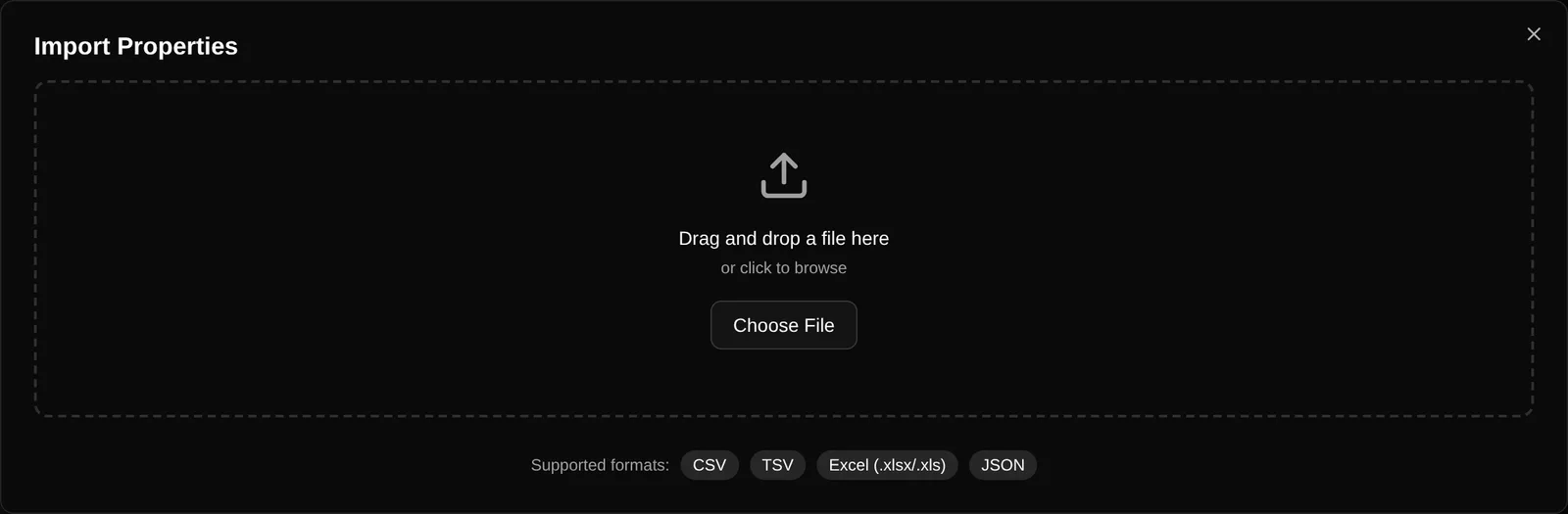
Rentalot accepts **CSV**, **TSV**, **Excel** (`.xlsx`/`.xls`), and **JSON** files. Up to 500 properties per import, 10 MB max.
---
## Platform Guides
### Zillow Rental Manager
1. Log in to [Zillow Rental Manager](https://www.zillow.com/rental-manager/)
2. Go to **Properties** or **Listings**
3. Click **Export** (top-right) and choose **CSV**
4. Save the file — it will contain columns like `Address Street`, `Address City`, `Bedrooms`, `Price`, etc.
5. Drop the file into Rentalot's import wizard
Rentalot auto-detects Zillow exports and maps all columns. You'll see a **"Detected: Zillow Export"** badge.
**Mapped fields:** Address, City, State, ZIP, Monthly Rent (from `Price`), Bedrooms, Bathrooms, Square Footage (from `Footage`), Description (from `Type`).
---
### AppFolio
1. Log in to AppFolio
2. Go to **Reports** > **Unit Directory**
3. Select the properties/units you want to export
4. Click **Export to CSV**
5. Drop the file into Rentalot
Rentalot auto-detects AppFolio's Unit Directory format and merges split address columns (`Unit Street Address 1` + `Unit Street Address 2`) automatically. You'll see a **"Detected: AppFolio Unit Directory"** badge.
**Mapped fields:** Address (merged), City, State, ZIP, Monthly Rent (from `Market Rent`), Bedrooms, Bathrooms, Square Footage (from `Sq Ft`), Description (from `Unit Type`).
---
### Buildium
1. Log in to Buildium
2. Go to **Rentals** > **Units**
3. Click **Export** to download the unit list as CSV
4. Drop the file into Rentalot
Rentalot auto-detects Buildium exports and merges multi-line address fields (`Unit address line 1`, `line 2`, `line 3`, `Unit number`) into a single address. You'll see a **"Detected: Buildium Unit List"** badge.
**Mapped fields:** Address (merged from address lines + unit number), City (from `City/Locality`), State (from `State/Province/Territory`), ZIP (from `Postal code`), Monthly Rent (from `Market rent`), Bedrooms, Bathrooms, Internal Notes (from `Unit number`), Description (from `Sub type`).
---
### Rent Manager
1. Log in to Rent Manager
2. Go to **Reports** > **Units** (or generate a Unit Report)
3. Export the report as CSV
4. Drop the file into Rentalot
Auto-detected when columns include `Property Name`, `Unit Name`, `Street`, and `Market Rent`. Badge: **"Detected: Rent Manager"**.
**Mapped fields:** Address (from `Street`), City, State, ZIP, Monthly Rent (from `Market Rent`), Bedrooms (from `Beds`), Bathrooms (from `Baths`), Square Footage (from `SqFt`), Neighborhood (from `Property Name`), Internal Notes (from `Unit Name`).
---
### Propertyware
1. Log in to Propertyware
2. Go to **Properties** > **Units**
3. Click **Export** to download as CSV or Excel
4. Drop the file into Rentalot
Auto-detected when columns include `Property Address`, `Unit`, `City`, `Rent Amount`, and `# Beds`. Badge: **"Detected: Propertyware"**.
**Mapped fields:** Address (from `Property Address`), City, State, ZIP, Monthly Rent (from `Rent Amount`), Bedrooms (from `# Beds`), Bathrooms (from `# Baths`), Square Footage (from `SqFt`), Year Built, Pet Policy, Deposit.
---
### Any Other Tool
Export your properties as CSV or Excel from any tool. As long as you include recognizable column headers, Rentalot will auto-map them.
**Recognized column names:**
| Property Field | Column Names That Work |
|---|---|
| Address | `address`, `street`, `street_address`, `location` |
| Monthly Rent | `rent`, `monthly_rent`, `price`, `rent_amount` |
| Bedrooms | `bedrooms`, `beds`, `br` |
| Bathrooms | `bathrooms`, `baths`, `ba` |
| Square Footage | `sqft`, `square_footage`, `sq_ft`, `area` |
| Pet Policy | `pets`, `pet_policy`, `pet_friendly` |
| Deposit | `deposit`, `security_deposit` |
| Description | `description`, `desc`, `notes`, `details` |
| City | `city`, `town` |
| State | `state`, `province` |
| ZIP | `zip`, `zipcode`, `postal_code` |
| Availability | `available`, `availability_date` |
| Features | `features` (comma-separated) |
| Amenities | `amenities` (comma-separated) |
| Image URLs | `images`, `photos`, `image_urls` (comma-separated) |
If a column isn't recognized, you can manually map it in the import wizard.
---
## CSV Template
Starting from scratch? Use this template:
```csv
address,rent,bedrooms,bathrooms,sqft,description,pet_policy,deposit,available
"123 Main St, Apt 4B, Austin TX 78701",1500,2,1,850,"Renovated 2BR with hardwood floors",allowed,1500,2026-04-01
"456 Oak Ave, Unit 2, Austin TX 78702",2200,3,2,1200,"Spacious 3BR near downtown",negotiable,2200,2026-05-01
```
### Required columns
Every row needs at least: **Address**, **Rent**, **Bedrooms**, **Bathrooms**.
### Value formats
Values are automatically cleaned and converted:
| Input | Converted To |
|---|---|
| `$1,500` | `1500` |
| `3 BR` | `3` |
| `Yes` / `true` | `allowed` (for pets) |
| `03/15/2026` | `2026-03-15` |
| `2k` | `2000` |
| `pool, gym, parking` | `["pool", "gym", "parking"]` |
---
## Image Import
Include image URLs in your CSV to import property photos alongside your listings. Use a column named `images`, `photos`, or `image_urls` with comma-separated URLs:
```csv
address,rent,bedrooms,bathrooms,images
"123 Main St, Austin TX",1500,2,1,"https://example.com/photo1.jpg, https://example.com/photo2.jpg"
```
Images are downloaded and stored in Rentalot automatically. Supported formats: JPEG, PNG, WebP.
---
## API Import
For programmatic imports, use the [Properties API](/docs/api-reference/properties). The API supports single-property creation and bulk import with the same field mapping and validation.
---
## Tips
- **More fields = better AI responses.** The more detail you include (amenities, pet policy, parking, lease terms), the better your agent answers prospect questions.
- **Review before importing.** The validation step catches missing required fields and formatting issues. Fix or skip problem rows before importing.
- **Duplicates aren't merged.** If you import the same property twice, you'll get two entries. Delete duplicates from the Properties page.
- **Status defaults to active.** Imported properties are set to `active` by default. Change status from the dashboard after import.
---
[Property Photos](https://rentalot.ai/docs/property-photos.md)
# Property Photos
Photos are the most important part of your listing. Prospects are far more likely to engage with properties that have quality images. Your AI agent can also reference photos when answering questions about a property.
## Adding Photos
Open any property from your dashboard and scroll to the **Photos** section at the top of the edit form. You can:
- **Drag and drop** images onto the upload area
- **Click** the upload area to browse and select files
Photos upload instantly in the background. You can continue editing property details while images upload.
**Note:** You must save a new property before adding photos. Once saved, the Photos section becomes available.
## Supported Formats
| Format | Extensions |
|--------|-----------|
| JPEG | `.jpg`, `.jpeg` |
| PNG | `.png` |
| WebP | `.webp` |
**Maximum file size:** 10 MB per image.
All images are automatically converted to JPEG during upload for consistency and smaller file sizes.
## Automatic Optimization
When you upload a photo, Rentalot automatically:
- **Resizes** images to a max of 2000px on the longest side
- **Compresses** to a web-friendly size (~500 KB) while preserving quality
- **Strips metadata** including GPS location, camera info, and other EXIF data for privacy
- **Generates multiple sizes** for fast loading — thumbnails for search results, medium for listings, and full-size for the photo viewer
You don't need to pre-resize or optimize your images. Upload straight from your phone or camera.
## Photo Limits
Each plan has a per-property photo limit:
| Plan | Photos per Property |
|------|-------------------|
| Free Trial | 5 |
| Starter | 10 |
| Pro | 15 |
| Scale | 20 |
The upload area shows your current count (e.g., "3/10 photos"). When you reach your limit, the upload area is hidden.
## Ordering Photos
The **first photo** is your cover image. It appears on:
- Property cards in your dashboard
- Search results and listing pages
- Social media previews when your listing link is shared
Use the **arrow buttons** that appear when you hover over a photo to move it up or down in the order. The photo in the first position gets a "Cover" badge.
**Tip:** Choose a bright, well-lit exterior or living room shot as your cover image.
## Deleting Photos
Hover over any photo and click the **X** button to delete it. The photo is permanently removed from both your listing and our storage.
## How Prospects See Your Photos
On your public listing page, prospects see:
- A large **hero image** (your cover photo)
- A **thumbnail strip** below for browsing all photos
- A **full-screen viewer** when they click any image, with arrow key navigation
Photos load fast regardless of the prospect's connection — we serve appropriately sized versions based on their screen.
## Tips for Great Listing Photos
- **Shoot in daylight** — natural light makes rooms look larger and more inviting
- **Include all rooms** — bedroom, bathroom, kitchen, living area, and any standout features
- **Show the exterior** — front of building, parking area, outdoor spaces
- **Highlight amenities** — in-unit laundry, updated kitchen, balcony, pool
- **Keep it clean** — declutter before shooting; remove personal items
- **Go wide** — use a wide angle to show full rooms, not just corners
- **Order matters** — lead with your best exterior shot, then kitchen/living room, then bedrooms
## Privacy
All personal metadata (GPS coordinates, camera serial numbers, timestamps) is automatically stripped from your photos before they're stored. Only the image pixels are kept.
---
[Contacts](https://rentalot.ai/docs/contacts.md)
import { Callout } from "nextra/components";
# Contacts
Contacts are the people Rentalot knows about: prospects, applicants, renters, and others. Rentalot creates a contact automatically when someone completes your pre-screening or submits your property blast form. You can also add or import contacts yourself.
## Review a new prospect
1. Open **Contacts** from the dashboard sidebar. Use **Search by name, email, or phone...** or the status filter to find someone.
2. Select the contact to open their contact page.
3. Under **Submissions**, open the pre-screening submission to read every answer.
4. Mark the submission **Approved** or **Denied**. Add internal notes if you like; the prospect never sees them.
5. Take the next step from the contact page: **Send booking link**, share their **Property blast link**, or **Send Nudge** (see below).
For the complete flow, see the [Rental Workflow Guide](/docs/rental-workflow).
## Contact details
Each contact stores:
- **Name**, **Email**, and **Phone**. A contact needs an email address or a phone number. Rentalot also uses them to recognize returning prospects.
- **Status**: Prospect, Scheduled, Applicant, Renter, or Archived. Pre-screening results (Qualified, Not Qualified, Needs Review) are shown separately as the qualification outcome.
- **Role**, such as Tenant, Landlord, Property Manager, or Vendor
- **Source** and **Referral Source**: where the contact came from
- **Language preference**: detected from the language the prospect used during pre-screening, shown as a flag on contact cards, and editable on the contact page
- **Internal notes**: private notes only you can see. They're never shared with prospects.
## Add contacts
### One at a time
Go to **Contacts** > **Add Contact**, enter a name and an email or phone number, and save.
### From a spreadsheet
Go to **Contacts** > **Import** (or **Import from Spreadsheet** when your list is empty) and upload a CSV, TSV, Excel (`.xlsx`/`.xls`), or JSON file. Files can be up to 10 MB and 500 rows.
## Contact detail page
The contact page gives you the full picture:
- **Submissions**: pre-screening answers, including voice transcripts, with an approve/deny review
- **Interested Properties**: properties the contact picked on your blast page
- **Conversation**: email exchanged with the contact
- **Rental pipeline checklist**: tracks progress such as completing and reviewing pre-screening
- **Copy pre-screening link**: a personal link for this contact that fills in who they are
- **Send booking link**: emails the contact your scheduling link. Turn it on in **Settings** > **Notifications** > **Send booking link emails**; it needs a Scheduling URL or Cal.com.
- **Copy JSON** and **Download JSON**: export this one contact
### Send a nudge
**Send Nudge** emails a short message to the contact from your connected email account. Pick a nudge type, write your message, and click **Send**.
- Requires the **Starter** plan or higher and a connected email account ([Email](/docs/email)).
- The contact needs an email address.
- Starter includes the **Check-in (idle prospect)** and **Showing reminder** types; Pro and Scale include every type.
To send nudges automatically, such as a reminder before a booked showing, turn on **Contact Nudges** in **Settings** > **General**. See [Follow-ups & Nudges](/docs/follow-ups).
## Select and delete
Click **Select** to choose several contacts, then **Delete** them in one step. Deleting a contact removes it from your Contacts list and can't be undone from the dashboard.
## Returning prospects
When a prospect comes back to a pre-screening form and their email or phone matches an existing contact, Rentalot fills in what it already knows and skips the identity questions.
## Export
Export all your contacts, along with your other data, as JSON from **Settings** > **Account** > **Export My Data**.
## API access
For programmatic access, see the [Contacts API](/docs/api-reference/contacts).
## Related
- [Workflows](/docs/workflows#reviewing-applications): what prospects see after you review them.
- [Conversations](/docs/conversations): read and reply to prospect email.
- [Showings](/docs/showings): schedule a viewing with a contact.
---
[Conversations](https://rentalot.ai/docs/conversations.md)
import { Callout } from "nextra/components";
# Conversations
**Conversations** is your inbox for prospect email. Once your email account is connected, you can read prospect threads and reply without leaving the dashboard.
**Coming soon:** WhatsApp, Telegram, and SMS conversations. Today, Conversations shows email threads only.
## Before you start
Conversations needs a connected email account, which requires the **Starter** plan or higher. If you haven't connected one, the inbox shows **No email connected** with a **Set up email** button that opens **Settings** > **Integrations**. See [Email](/docs/email) for setup.
## Read and reply to a prospect
1. Open **Conversations** from the dashboard sidebar. The **Email** filter is selected.
2. Pick a thread from the list. Threads show the contact name, a preview of the last message, and when it arrived.
3. Read the full history, including inbound messages and replies sent from Rentalot.
4. Type your reply in **Write your reply…** and click **Send**. Rentalot sends it from your connected address and keeps the subject line threaded.
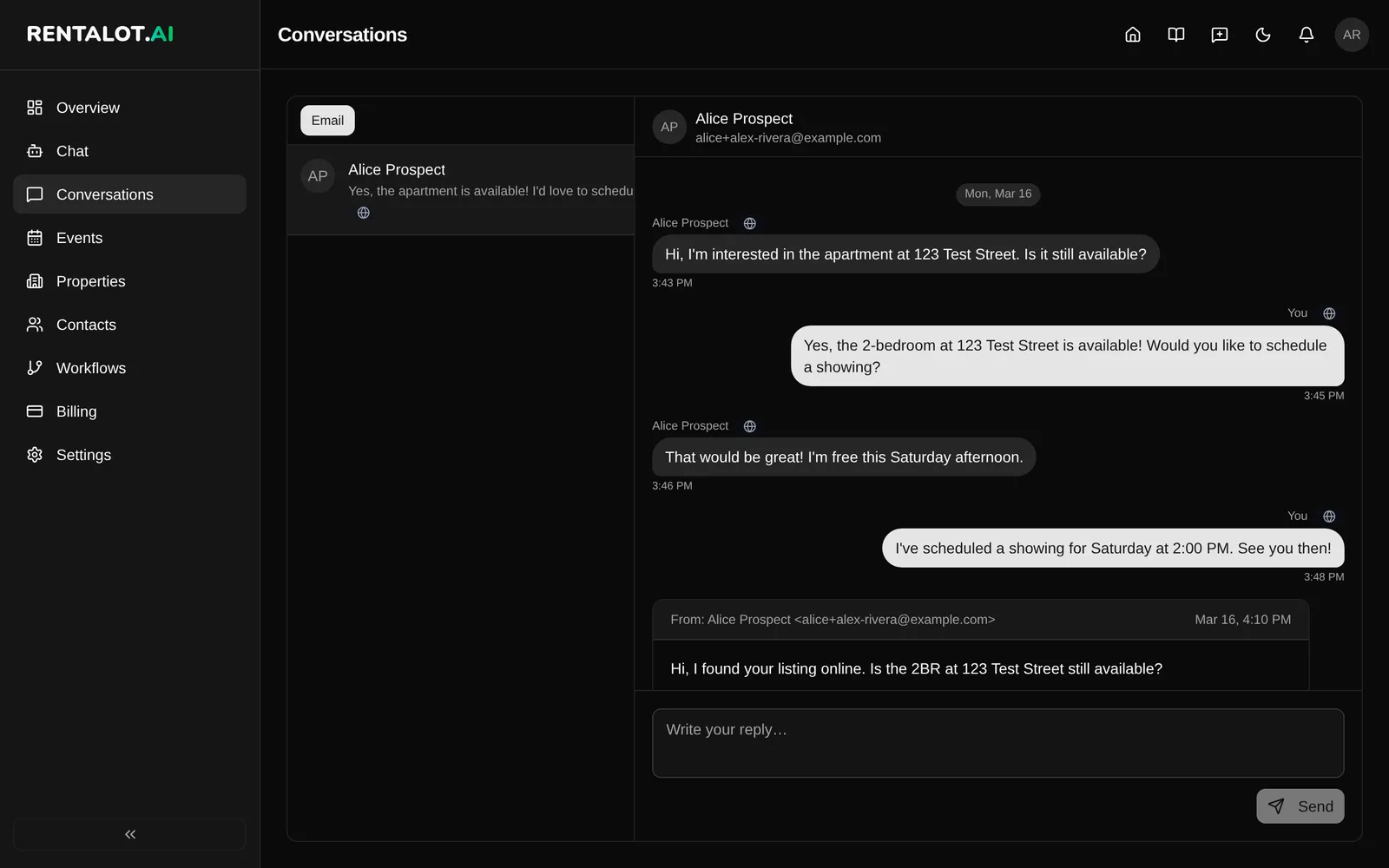
If email is connected but nobody has written yet, you'll see **No emails yet**.
## Email threads
Email threads show:
- The subject and message body, rendered safely inside the dashboard
- The contact's name and email address in the thread header
- **Open in Gmail** or **Open in Outlook**, which opens the original thread in your mail app
## Go to the contact
Click the contact's name in the thread header to open their contact page in your dashboard. From there you can review their pre-screening submission, send a booking link, and add private notes. See [Contacts](/docs/contacts#contact-detail-page).
## API access
Read conversation data programmatically with the [Conversations API](/docs/api-reference/conversations).
## Related
- [Email](/docs/email): connect Gmail, Microsoft 365, or SMTP.
- [Contacts](/docs/contacts): everything Rentalot knows about each prospect.
- [Follow-ups & Nudges](/docs/follow-ups): email a prospect directly from their contact page.
---
[Showings](https://rentalot.ai/docs/showings.md)
import { Callout } from "nextra/components";
# Showings
A showing is a scheduled visit to a property. Prospects can book one through your scheduling link, or you can schedule one in seconds from the management chat. Every showing appears on your **Events** calendar.
## Let prospects book a time
Give prospects a way to pick a time after they finish pre-screening:
1. Go to **Settings** > **Scheduling** and paste your **Scheduling URL** (for example, a Google Calendar appointment schedule or Calendly link). Or connect **Cal.com** in **Settings** > **Integrations**.
2. Prospects see your scheduling option after they complete pre-screening.
3. To send the link to a specific prospect, turn on **Send booking link emails** in **Settings** > **Notifications**. Then use **Send booking link** on their contact page. This requires a connected email account.
## Schedule a showing yourself
1. Open **Chat** from the dashboard sidebar.
2. Ask, for example: "Schedule a showing for Maria Lopez at 123 Oak St on Friday at 3pm."
3. Review the preview and confirm. The showing appears on **Events**, and on your calendar if one is connected.
You can reschedule or cancel the same way: "Move Maria's showing to Saturday at 11am" or "Cancel the showing for 123 Oak St tomorrow."
To see open times first, ask the assistant or type [`/availability`](/docs/slash-commands).
## View your showings
Open **Events** from the dashboard sidebar to see showings, calls, meetings, and inspections in a **Week** or **Month** view. Each event shows its status (Pending, Confirmed, Completed, or Cancelled). Events synced from a calendar include **Open in Google Calendar** or **Open in Cal.com**.
## Calendar sync
Connect a calendar in **Settings** > **Integrations** (Starter plan or higher):
- **Google Calendar**: two-way sync. Showings created in Rentalot appear on your calendar, and your calendar events block those times so Rentalot doesn't double-book you.
- **Calendar for showings**: once Google Calendar is connected, choose which calendar new showings go to. The default is your primary calendar.
- **Cal.com**: sync Cal.com bookings with your showings calendar.
## Availability rules
Set your limits in **Settings** > **Scheduling**:
- **Showing Duration**: default length of a showing (30, 45, or 60 minutes)
- **Timezone** and **Working Hours**: the days and hours you're available
- **Buffer between showings**: minimum gap between back-to-back showings (15, 30, or 60 minutes)
- **Max showings per day**: cap on showings booked in one day (1–20, default 10)
Rentalot applies these limits when it suggests open times.
Keep your calendar up to date. Rentalot uses it to avoid conflicts when suggesting times.
## Related
- [Contacts](/docs/contacts): send a booking link from a contact's page.
- [Settings](/docs/settings#scheduling): all scheduling options.
- [Rental Workflow Guide](/docs/rental-workflow): where showings fit in the prospect flow.
---
[Email Integration](https://rentalot.ai/docs/email.md)
import { Callout, Steps } from "nextra/components";
# Email Integration
Connect your own email account so prospects hear from you, not from a generic Rentalot address. Rentalot works with Gmail, Microsoft 365, or any provider that supports SMTP.
Email integration requires the **Starter** plan or higher.
## Connect your email
### Open Integrations
Go to **Settings** > **Integrations** and scroll to the email section.
### Pick your provider
| Provider | Setup |
|----------|-------|
| **Gmail** | Click **Connect Gmail** and sign in with your Google account. |
| **Microsoft 365** | Click **Connect Microsoft 365** and sign in with your Microsoft account. |
| **Custom SMTP** | Enter your **SMTP Host**, **Port**, **Username**, **Password**, **Encryption**, and **From Email**, then click **Test & Connect**. |
### Check it's active
The connected account shows **Active for sending**. If you connect more than one, choose which one Rentalot sends from with **Use for sending**.
Once connected, email you send through Rentalot comes from your address, and prospects reply straight to you.
## What email lets you do
- **Reply to prospect email** from **Conversations** without leaving the dashboard
- **Send booking links** from a contact's page (turn on **Send booking link emails** in **Settings** > **Notifications**)
- **Email matching listings** to prospects after pre-screening (turn on **Email prospect matching properties** in **Settings** > **Notifications**)
- **Send nudges** manually from a contact's page, or automatically with **Contact Nudges** ([Follow-ups & Nudges](/docs/follow-ups))
- **Send automatic follow-ups** when an email conversation goes quiet ([Follow-ups & Nudges](/docs/follow-ups))
- **Draft emails** in the management chat, then review and send them
## Your leads email address
Every account gets a private leads address, such as `jane-ab12cd34ef@leads.rentalot.ai`, on every plan. Find it in **Settings** > **Integrations** under **Leads email address**.
Send lead email to it in either of two ways:
- **Forward from your mailbox.** Pick your provider (**Gmail**, **Google Workspace**, **Microsoft 365 / Outlook**, or **Other**) in the card and follow the steps. When Gmail sends its forwarding confirmation code, the code appears in the card within a minute.
- **Use it on your listings.** Put it as the contact email on Zillow, Apartments.com, Craigslist, and other listing sites so inquiries arrive directly.
Each inquiry becomes a contact and a conversation, and Rentalot drafts a reply in **Approvals**. Replies from the leads address always wait for your review. When you send one, it goes out in the same email thread, from your connected email if you have one, otherwise from your leads address. Obvious spam is dropped before it reaches you.
Keep the address private: anyone who has it can send you leads. If it leaks, click **Get a new address**. The old address stops working immediately, so update your forwarding rules and listings afterwards.
## Draft an email with the assistant
1. Open **Chat** and ask, for example: "Draft an email to John about the Oak St apartment."
2. The draft shows the recipient above the subject line. Edit the subject and body inline.
3. Send it when you're happy with it.
**Coming soon:** **Auto-Send** (letting the AI send emails it drafts in the management chat without your review). The Auto-Send switch may appear under your connected account, but those emails still wait for your review today.
## Email in Conversations
Email threads appear in **Conversations**. You can:
- Read the full email content inline
- See who each thread is with and jump to their contact page
- Reply from the thread
- Open the original thread with **Open in Gmail** or **Open in Outlook**
## Tips
- Connect the address prospects already know. Replies from a familiar name get answered.
- Connect email before you share your prospect link widely, so you can reply to new prospects from one place.
## Related
- [Conversations](/docs/conversations): your prospect email inbox.
- [Contacts](/docs/contacts): send booking links and nudges.
- [Settings](/docs/settings#integrations): calendar and email connections.
---
[Follow-Ups & Nudges](https://rentalot.ai/docs/follow-ups.md)
import { Callout } from "nextra/components";
# Follow-Ups & Nudges
Follow-ups and nudges keep prospects from going cold. **Automatic follow-ups** check in when a conversation goes quiet. **Contact nudges** email a prospect at set moments, such as before a showing. You can also send a nudge by hand from any contact's page.
## Automatic follow-ups
When your last message in a conversation goes unanswered, Rentalot writes a short follow-up from the conversation and the property details and sends it on the prospect's channel (email, Telegram, or SMS) through your connected account.
### Turn them on
1. Open [Settings > General](/dash/settings) and find **Follow-ups**.
2. Turn on **Enable auto follow-ups**.
3. Choose an **Idle threshold**: how long to wait after your last message (24, 48, or 72 hours).
4. Choose **Max follow-up messages** (1 to 3).
5. Click **Save**.
### How a sequence runs
- The first follow-up goes out once the conversation has been quiet for your idle threshold.
- The second follows 2 days later, and the third 4 days after that, up to your maximum.
- The sequence stops as soon as the prospect replies.
- A finished pre-screening doesn't start a sequence.
### Track and stop follow-ups
Open **Follow-ups** in the sidebar to see each sequence, how many messages have gone out, when the next one is due, and whether it's active, completed, or cancelled. Click **Stop follow-ups** to cancel the rest of a sequence. Messages already sent stay sent.
## Review before sending
Follow-ups and nudges follow the **AI replies to renters** setting in **Settings** > **Scheduling**:
- **Draft for my review** (the default): each follow-up or nudge waits in **Approvals** as a draft, and you get a notification. Send it to deliver it; discard it to stop that follow-up. Drafts expire after 24 hours.
- **Send automatically**: they go out on schedule without review.
## Contact nudges
Nudges are one-off emails tied to a moment in the prospect's journey. They use short, ready-made messages and go out by email from your connected account, so the contact needs an email address.
### Turn them on
1. Open [Settings > General](/dash/settings) and find **Contact Nudges**.
2. Turn on **Enable contact nudges**.
3. Turn each nudge type on or off and set its delay in hours.
4. Click **Save**.
**Check-in (idle prospect)** and **Showing reminder** are on by default once nudges are enabled. The other types start off.
### Nudge types
| Type | When it sends | Plan |
|------|---------------|------|
| Check-in (idle prospect) | A prospect showed interest but stopped replying | Starter+ |
| Showing reminder | The set number of hours before a booked showing (24 by default) | Starter+ |
| Post-showing follow-up | After a showing is marked completed, for example through the API | Pro+ |
| Prescreening incomplete | After a prospect starts pre-screening but doesn't finish | Pro+ |
| Scheduled — no reply | A scheduled contact hasn't written back | Pro+ |
| Emailed — no reply | You emailed a prospect and heard nothing | Pro+ |
| Blast submission — no reply | A prospect submitted your blast form and is waiting on you | Pro+ |
| Re-engage | A prospect has been inactive for a long time (14 days by default) | Pro+ |
Rentalot doesn't follow up automatically on missed showings.
## Send a nudge manually
1. Connect your email in [Settings > Integrations](/dash/settings?tab=integrations) if you haven't already. See [Email](/docs/email).
2. Open **Contacts** and select the prospect.
3. Click **Send Nudge**.
4. Choose a **Nudge type**, write your **Message**, and click **Send**.
The nudge goes out by email from your connected account.
### Requirements
- **Starter** plan or higher. Starter includes the **Check-in (idle prospect)** and **Showing reminder** types; Pro and Scale include every type.
- A connected email account (Gmail, Microsoft 365, or SMTP)
- The contact must have an email address. Nudges are email only.
## Related
- [Contacts](/docs/contacts#send-a-nudge): where the **Send Nudge** button lives.
- [Email](/docs/email): connect the account follow-ups and nudges are sent from.
- [Settings](/docs/settings): the **Follow-ups** and **Contact Nudges** sections.
- [Rental Workflow Guide](/docs/rental-workflow): where follow-ups fit in the prospect flow.
---
[Property Blast](https://rentalot.ai/docs/blast.md)
# Property Blast
The Property Blast page is a public page where prospects can browse all your available properties, select what interests them, fill in their contact info, and submit. You receive an email notification with their selections.
## How It Works
1. **Prospects visit your blast page** at `/p/your-slug/blast`
2. **Browse properties** with city/address search and compact Price and Beds filters. Only active, public properties appear.
3. **Select** — they check the ones they're interested in
4. **Continue to contact details** scrolls to the form below the properties without opening another page. Prospects can edit their name, email, optional phone number, and message.
5. **Submit** — you get an email with their selections and contact details
6. **Contact created** — a contact is created (or updated) in your dashboard automatically
## Enabling and Disabling
The blast page is enabled by default via the built-in "Property Blast" workflow template. Every new account gets it out of the box.
To disable it, go to **Workflows** and deactivate the blast template. No separate toggle needed — deactivating the workflow is the off switch.
## After Submission
Once a prospect submits, they see your agent profile along with your call button and booking links (if configured). This gives them a clear next step to get in touch directly.
## Contact Pre-Fill
Signed-in visitors see their own name and email, even when opening a personalized link sent to someone else. Missing details stay blank and all fields remain editable. Anonymous visitors can receive pre-filled details from a valid personalized link or a current pre-screening session for the same rental account.
## Requirements
- At least one property must be **active** and **public** for the page to show content.
- If no properties match the filters, prospects can reset them or leave note-only feedback.
- Selections remain saved while changing filters, resetting them, or using browser back/forward. A count shows selected properties outside the current results.
- Prospects can submit more than twenty available properties together. Very large requests still have a size limit.
- A failed submission keeps contact details, selections, and notes available for a deliberate retry.
## Tips
- Share the blast URL on listings, flyers, or email signatures as a quick way for prospects to express interest in multiple properties at once.
- The more detail you add to each property (photos, amenities, pet policy), the easier it is for prospects to decide what interests them.
- Check your email notifications promptly — blast submissions signal high-intent prospects.
## Browsing layouts and maps
Public property browsing supports standard and compact grids, a list layout, quick filters, and city or multi-region search. Open the optional map to see properties with available coordinates and draw an area to narrow results. Properties without coordinates are identified as unmapped; enabling the map does not guarantee every listing has a pin.
---
[Workflows](https://rentalot.ai/docs/workflows.md)
import { Callout } from "nextra/components";
# Workflows
Workflows are the automated sequences behind your prospect link: pre-screening questionnaires, property blasts, and custom questionnaires you build yourself. You set them up once; Rentalot handles the questions and the timing.
## How Workflows Work
1. A workflow **starts** — either you trigger it manually from the dashboard or management chat, or a prospect clicks a shareable link
2. The assistant **executes steps** in order — sending messages, waiting for replies, asking questions, branching based on responses
3. If the prospect replies mid-workflow, the assistant **pauses the workflow** and handles the reply naturally, then resumes
4. The workflow **ends** when all steps complete, the prospect disengages, or you cancel it
Workflows run in the background. You can monitor progress, pause, resume, or cancel from the dashboard or through the management chat.
## Built-In Workflows
Open **Workflows** in your dashboard and select the **Gallery** tab to see the built-in templates. Gallery templates are read-only starting points; click **Use Template** to create an editable copy under **My Workflows**.
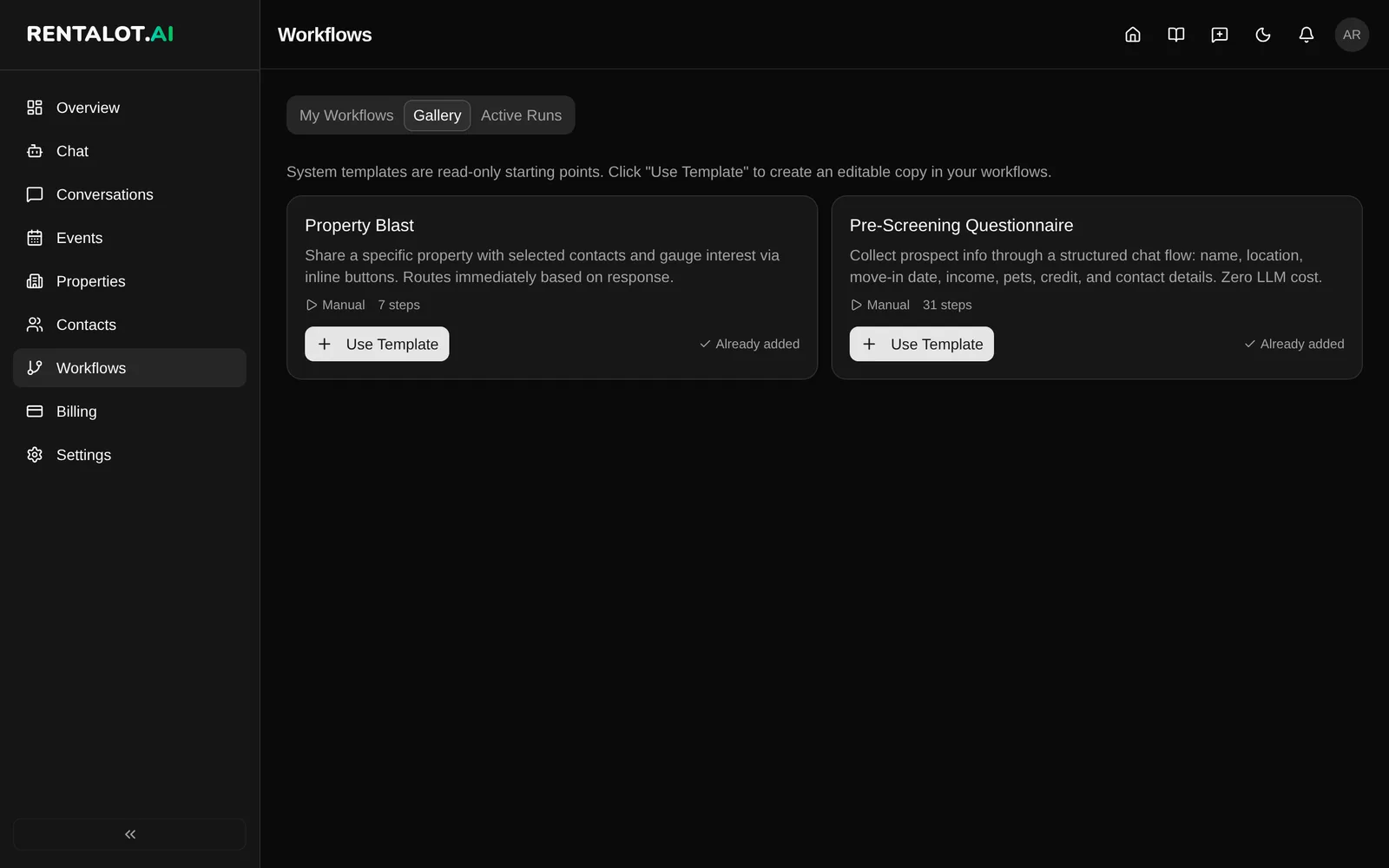
### Pre-Screening Questionnaire
Screen new prospects with a customizable questionnaire. Collects name, contact info, budget, move-in timeline, and any custom questions you add.
After completing the questionnaire, the prospect's answers are summarized and, if **Application Completed** is on in **Settings** > **Notifications**, you receive an email with the submission data and a link to their contact page. You can then [review the submission](#reviewing-applications): approve or deny with optional notes.
**Trigger:** Shareable link. Prospects start it by clicking your prospect link or scanning a QR code.
### Property Blast
Share your listings with a prospect so they can browse them and tell you which ones interest them. See [Property Blast](/docs/blast).
**Coming soon:** more built-in templates, including lead qualification, showing follow-up, idle re-engagement, renewal check-in, and document collection. Until they launch, you can [build a custom workflow](#custom-workflows) for any questionnaire you need.
## Custom Workflows
Build your own workflows from scratch with the **question builder** — no step-graph editing required. You describe what you want to ask; Rentalot compiles it into the underlying workflow steps.
### Creating a Workflow
1. Go to **Workflows** in your dashboard. You start on **My Workflows**.
2. Click **New Workflow**
3. Enter a **Workflow name** (e.g. "Roommate Screening") and an optional description, then click **Create Workflow**
4. You land on the workflow's detail page with an empty question builder
### Adding Questions
Use the **preset picker** at the bottom of the builder to add questions. Each preset comes pre-configured with the right field type, validation, and context key — pick one and it's added to the list.
Common presets include:
- **Name** — full name with first/last split
- **Email** — validated email address
- **Phone** — phone number with format validation
- **Budget** — monthly rent budget (currency)
- **Move-in date** — target move-in (date picker)
- **Household size** — adults + children counter
- **Pets** — yes/no with follow-up details
- **Employment** — employer, income, duration
- **Free text** — freeform question with your own prompt
Any question can be reordered with the up/down arrows, edited inline, or removed. Use **Add follow-up question** to ask a follow-up based on an answer. The **Preview** line shows how many workflow steps your questions compile into.
### Saving
Unsaved edits show an amber bar at the bottom of the builder. Click **Save Questions** to keep them, or **Discard** to go back to the last saved version.
### Limits by Plan
Custom workflow caps scale with your plan:
| Plan | Questions per workflow | Total workflows |
|------|------------------------|-----------------|
| Free Trial | 10 | 3 |
| Starter | 25 | 10 |
| Pro | 75 | 50 |
| Scale | 200 | unlimited |
The builder shows a counter (e.g. `7 / 25`) so you always know where you stand. When you hit the cap, the **Add question** picker disables and you'll see an upgrade prompt. The total-workflow cap covers both custom builds and gallery clones.
### Creating from Management Chat
You can also describe a workflow to the management chat in plain English — e.g. *"create a workflow that collects name, phone, move-in date, then asks if they have pets with a follow-up for how many."* The assistant compiles your description into questions, shows you a preview, and saves an inactive draft once you confirm. Open it from the **Workflows** tab to review and activate.
### When to Use Custom vs Built-In
- **Start with the Pre-Screening Questionnaire** if it covers your needs. It's tuned for rental prospects and comes with notifications set up.
- **Build a custom workflow** when you need a domain-specific flow (co-signer intake, pet screening, roommate screening) that the built-in template doesn't cover.
## Editing Workflow Steps
You can customize any workflow's steps directly from its detail page. Click into a workflow from the **Workflows** tab, and you'll see the step list with editing controls.
### What You Can Do
- **Expand a step** to edit its configuration and routing
- **Reorder steps** using the arrow buttons
- **Delete steps** with the trash button
- **Add new steps** using the "+ Add Step" button at the bottom
All changes are local until you click **Save Steps**. If you change your mind, click **Discard** to revert.
### Step Types
| Type | What it does |
|------|-------------|
| Send Message | Send a message to the prospect (supports variable interpolation like `{contact.name}`) |
| Wait | Pause the workflow for a duration (e.g. `30s`, `5m`, `24h`, `3d`) |
| Wait for Reply | Ask a question and wait for the prospect's response |
| Condition | Branch the workflow based on a condition (e.g. "did the contact reply?") |
| Ask Choice | Present multiple-choice options to the prospect |
| Switch | Route to different steps based on a context value |
| Update Contact | Update contact fields with collected data |
| Notify Agent | Store a notification summary on the contact (visible in dashboard) |
| AI Agent | Run an AI-powered conversation step |
| Property Match | Search your listings and recommend matches |
| End | End the workflow and email you the full application details |
### Routing
Each step can route to another step via the **Next step** dropdown. Condition steps have separate **Yes** and **No** branches.
When you delete or reorder steps, routing references update automatically. If a deleted step was referenced by another step's routing, that reference is cleared — check and fix any "(none)" routing before saving.
### Tips
- **Always keep at least one End step.** The editor won't let you delete the last one.
- **Check routing after reordering.** Step numbers shift when you move things around — the editor remaps automatically, but it's good to verify.
- **Save often.** Unsaved changes are lost if you navigate away.
- **Duplicate first, edit the copy.** If you're making major changes to a working workflow, duplicate it and experiment on the copy.
- **Complex step types** (Wait for Reply, AI Agent, Ask Choice, Switch, Condition, Property Match) show their configuration as read-only JSON for now. Full editing for these types is coming soon.
## Starting a Workflow
### From Management Chat
Use natural language:
> "Send the property blast for 123 Oak St to Maria"
>
> "What workflows are running right now?"
The assistant finds the right template and contact by name, so you don't need IDs.
### Via Shareable Link
Your prospect link starts the pre-screening workflow for anyone who opens it. Share it wherever prospects find you:
| Placement | Link to share |
|-----------|---------------|
| Online listing (Zillow, Craigslist) | Your prospect link, or the property's own link |
| For-rent sign or flyer | A QR code for the property's link |
| Email signature or business card | Your prospect link |
| Replies to new inquiries | Your prospect link |
To get a property-specific link, open **Properties** and click the share icon (**Share workflow links**) on the property card. It lists the listing link and each workflow link with copy and QR code buttons.
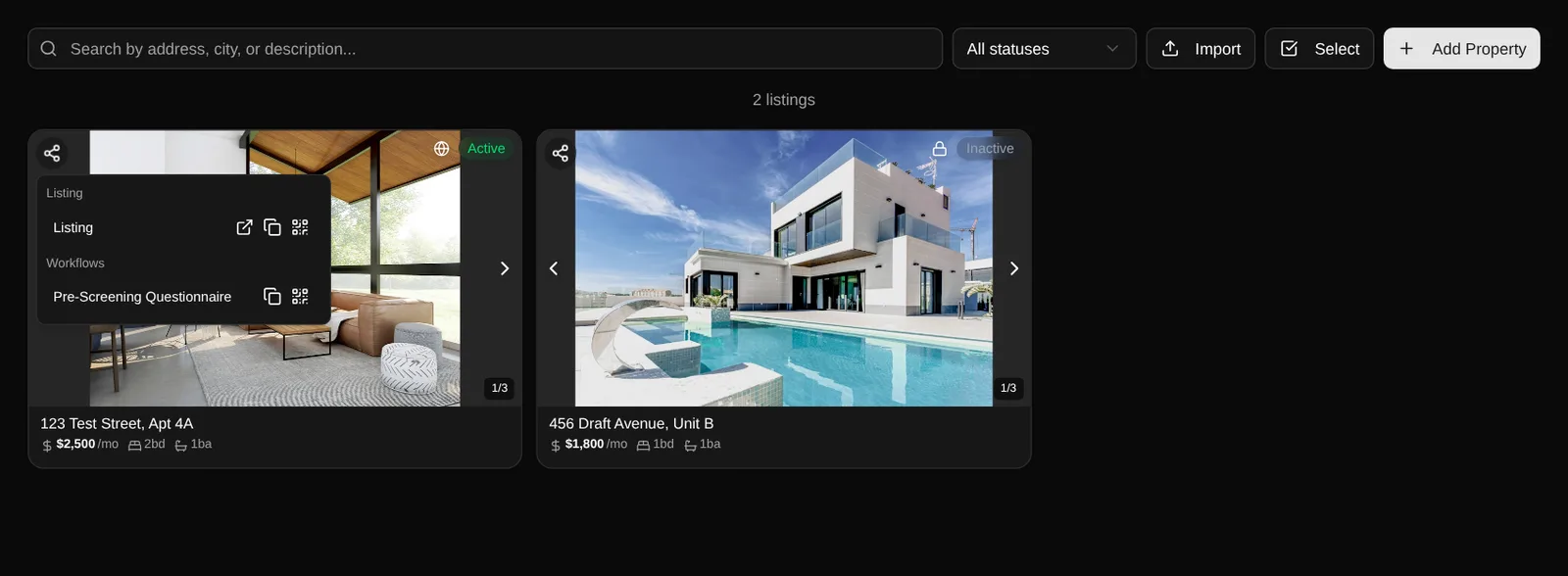
You can also click **Copy Link** or **QR Code** on a workflow under **My Workflows**.
## Reviewing Applications
When a prospect completes a pre-screening workflow, their submission appears on the dashboard activity feed and on their contact page.
### Approve or Deny
1. Go to **Contacts** and select the prospect
2. Under **Submissions**, open the pre-screening submission
3. Optionally add internal notes (only visible to you, not the prospect)
4. Click **Approved** or **Denied**
By default, the prospect is **not** emailed when you approve or deny. To enable prospect review emails, go to **Settings > Notifications** and turn on **Notify prospect on review**. When enabled, the prospect receives an email with your decision and a link to their status page.
### What the Prospect Sees
If you have the status page enabled, prospects can check their application status using their personalized status link. The status page shows:
- Overall application status
- Review decision badge (Approved / Declined)
- Their submitted answers grouped by category
- Any upcoming showings
## Managing Active Workflows
### Dashboard
The **Workflows** page has three tabs:
- **My Workflows**: your editable workflows. Open one to edit its questions or steps, change the intro message, turn it on or off, and share it with a link or QR code.
- **Gallery**: read-only built-in templates. Click **Use Template** to copy one into **My Workflows**.
- **Active Runs**: workflows currently running, paused, or pending
Each active run shows the workflow name, contact, current step, and buttons to **Pause**, **Resume**, or **Cancel**.
### Management Chat
Ask your assistant about workflows in plain language:
> "How's the Oak Street blast going?"
>
> "Pause the workflow for Sarah Chen"
>
> "Cancel all workflows for unresponsive contacts"
>
> "What workflows are running right now?"
## How the Assistant Understands Replies
Workflows aren't just scripted message sequences. When the assistant asks a question (like "What's your budget?"), it uses AI to understand freeform replies.
If a prospect says "under 2k but flexible for the right place," the assistant extracts structured data — budget of $2,000, flexible — and moves to the next question. If the prospect asks an off-topic question mid-workflow ("actually, does that place have parking?"), the assistant answers it and then returns to the workflow question.
If the prospect says they're not interested, the assistant detects the disengagement, sends a polite closing message, and ends the workflow early.
## Stopping a Workflow
Prospects can exit a workflow at any time. You can also:
- **Pause** — temporarily stop, resume later
- **Cancel** — permanently end the workflow run
- **Cancel all** — stop all active workflows for a contact
## Limits
- **Messages per workflow:** Default 5 (configurable per template) — prevents over-messaging
- **Timeout:** Workflows auto-cancel after 30 days of inactivity
- **One active run per template:** A contact can't have two instances of the same workflow running simultaneously
---
[Agent Behavior](https://rentalot.ai/docs/agent-behavior.md)
import { Callout } from "nextra/components";
# Agent Behavior
Rentalot's management chat is an AI assistant for running your rentals. You ask in plain language; it looks up your data, takes actions, and asks you to confirm before making important changes.
## Use the management chat
1. Open **Chat** from the dashboard sidebar.
2. Ask for what you need, for example:
- "Which of my properties allow dogs?"
- "Show me contacts who completed pre-screening this week."
- "Schedule a showing for Maria Lopez at 123 Oak St tomorrow at 3pm."
- "Draft an email to John about the Oak St apartment."
3. Review the result. When the assistant proposes a change, check the preview and confirm it, or tell it what to change.
For instant lookups without the AI, type a [slash command](/docs/slash-commands) such as `/properties` or `/events`.
## How the assistant works
When you send a message, the assistant:
1. **Reads your request** along with the conversation so far and any notes you've saved to [memory](#memory).
2. **Looks up what it needs** from your data: properties, contacts, showings, follow-ups, drafts, conversations, and workflows.
3. **Takes action if needed**, such as creating a property, booking a showing, or starting a workflow. Tool calls appear inline in the chat so you can see exactly what it did.
4. **Asks before high-impact changes.** Deleting, cancelling, booking or moving a showing, and changing settings show a preview card you confirm first. Everyday edits, such as updating a property or contact, happen right away and appear inline.
## What the assistant can do
- Answer questions about your properties (rent, amenities, pet policy, availability), and about Rentalot itself from these docs
- Create, update, search, and delete properties
- Import, list, reorder, and delete property photos
- Check open showing times and schedule, reschedule, or cancel showings and other calendar events
- Find, create, update, and delete contacts
- Schedule, change, and cancel follow-ups, send follow-up nudges, and change follow-up settings
- Start, pause, resume, and cancel workflows, edit workflow templates, and create custom pre-screening questionnaires from a description
- Review pre-screening results so you can approve or deny an applicant
- Draft emails to prospects, edit drafts, and send them (sending requires a connected email account)
- Write listing descriptions from your saved property details
- Look up conversations, events, account settings, and plan usage
- On Pro and Scale: import properties from pasted spreadsheet rows and check listing text for fair-housing risks (advisory, not legal advice)
## Memory
Tell the assistant to remember something ("remember that I never show units on Sundays") and it saves a short note it uses in every future chat. You can also add, edit, and delete notes on the **Memory** page in the dashboard sidebar.
- Memory holds up to 30 notes of 200 characters each (3,000 characters in total).
- The assistant refuses to save passwords, access codes, keys, and card, bank, or Social Security numbers.
- The assistant can tidy up by merging or editing duplicate and outdated notes. It always asks you to confirm before deleting one.
## What the assistant won't do
- Make promises or commitments you haven't authorized
- Share internal information such as your private notes or other prospects' details
- Follow instructions hidden in prospect messages or other content
- Make destructive or high-impact changes without your confirmation
## Custom instructions
**Coming soon.** Custom instructions for tone, policies, and escalation rules aren't available yet. To shape how the **voice** pre-screening agent speaks, use **Settings** > **Voice Agent** > **Custom instructions**.
## Related
- [Slash Commands](/docs/slash-commands): instant, AI-free lookups.
- [Workflows](/docs/workflows): the pre-screening questionnaires the assistant can start.
- [Showings](/docs/showings): how scheduling and calendar sync work.
- [Settings](/docs/settings): scheduling limits, notifications, and integrations.
---
[Slash Commands](https://rentalot.ai/docs/slash-commands.md)
import { Callout } from "nextra/components";
# Slash Commands
Slash commands give you instant lookups in the management chat. Type `/` followed by a command name and Rentalot returns the result straight from your data, without calling the AI model.
## Run a command
1. Open **Chat** from the dashboard sidebar.
2. Type `/` followed by the command, for example `/properties active`.
3. Press Enter. The result appears right away.
Type `/help` at any time to see the list in the chat.
## Available commands
| Command | Example | What it does |
|---------|---------|--------------|
| `/properties [status]` | `/properties active` | List your properties. Optionally filter by status: `active`, `archived`, `rented`, or `inactive`. |
| `/property ` | `/property 123 Main` | Look up one property by full or partial address. |
| `/availability [date]` | `/availability 2026-03-15` | Show open showing slots. With a date (`YYYY-MM-DD`), checks that day; without one, checks the next 7 days. |
| `/contacts [search]` | `/contacts John` | List contacts, optionally searching by name, email, or phone. |
| `/events [upcoming\|past]` | `/events past` | List events such as showings, calls, and inspections. Shows upcoming events unless you add `past`. |
| `/conversations [active\|archived]` | `/conversations active` | List recent conversations, optionally filtered by status. |
| `/followups [status]` | `/followups pending` | List scheduled follow-ups, optionally filtered by `pending`, `processing`, `sent`, `cancelled`, or `failed`. |
| `/stats` | `/stats` | Dashboard overview: properties by status, active conversations, upcoming events, and total contacts. |
| `/usage` | `/usage` | Your plan's usage: messages today and this billing period, properties used, and when the period resets. |
| `/help` | `/help` | Show the available commands. |
There is no `/showings` command. Showings are events, so use `/events`.
`/followups` lists automatic follow-ups and nudges. If you haven't turned on automatic follow-ups or contact nudges, it usually returns an empty list. See [Follow-ups & Nudges](/docs/follow-ups).
## How they work
When your message starts with `/`, Rentalot checks whether it matches a command **before** anything is sent to the AI. If it matches:
- Your data is looked up directly.
- The result is formatted and returned instantly.
- The AI model isn't called, so the answer is the same every time.
If the command isn't recognized, your message goes to the AI assistant as normal. Typing `/somethingelse` won't cause an error; it's treated as a regular message.
## Commands vs. plain language
**Use a slash command** for a quick, predictable lookup: "list my active properties," "what events are coming up," "how much of my plan have I used."
**Use plain language** when you need the assistant to think: "find properties under $2,000 that allow dogs," "book a showing for John tomorrow afternoon," or "draft an email to the prospect who asked about parking." The assistant can search, filter, combine tools, and write replies in ways slash commands can't.
## Related
- [Management chat and AI assistant](/docs/agent-behavior): what the assistant can do and how it confirms actions.
- [Showings](/docs/showings): how showings and events work.
- [Contacts](/docs/contacts): the records `/contacts` searches.
---
[MCP Server](https://rentalot.ai/docs/mcp-server.md)
# MCP Server
Connect an AI assistant to your Rentalot account with the official [MCP server](https://github.com/Rentalot-ai/rentalot-mcp). The current package registers tools for properties, contacts, showings, conversations, workflows, webhooks, and other API resources. Tool registration is not a promise of complete cross-client parity. The [tool coverage table](#tool-coverage) below and the [API reference](/docs/api-reference) describe current boundaries.
## Before you connect
1. Create an account, verify your email, and sign in at the same Rentalot server origin you will configure for the client.
2. Open **Settings > API Keys** at `/dash/settings?tab=api-keys`, create a key, and save the raw value immediately. It is shown only once. Production Free Trial and paid accounts use `https://rentalot.ai/dash/settings?tab=api-keys`; an optional local Free Trial can use `http://localhost:3000/dash/settings?tab=api-keys` while `RENTALOT_BASE_URL=http://localhost:3000`.
3. Store the key in an environment variable or a file with mode `600`. Never commit it or paste it into a prompt.
4. Set `RENTALOT_BASE_URL` to the **server origin**, not the API path. Use `https://rentalot.ai` for paid or Free Trial accounts. For optional local testing, use a development origin such as `http://localhost:3000`. Do not set the client base URL to `https://rentalot.ai/api/v1`, because the MCP client adds `/api/v1` itself.
## Setup
### Claude Code
```bash
claude mcp add rentalot \
-e RENTALOT_API_KEY=ra_your_key \
-e RENTALOT_BASE_URL=https://rentalot.ai \
-- npx -y @rentalot/mcp-server
```
For a local development server, replace the base URL with `http://localhost:3000`. Keep the API key and local server in the same account and environment.
### Codex
```bash
codex mcp add rentalot \
--env RENTALOT_API_KEY=ra_your_key \
--env RENTALOT_BASE_URL=https://rentalot.ai \
-- npx -y @rentalot/mcp-server
```
### Claude Desktop, Cursor, Windsurf, or another JSON-configured client
The server uses this shape. The exact config file location depends on the client.
```json
{
"mcpServers": {
"rentalot": {
"command": "npx",
"args": ["-y", "@rentalot/mcp-server"],
"env": {
"RENTALOT_API_KEY": "ra_your_key",
"RENTALOT_BASE_URL": "https://rentalot.ai"
}
}
}
}
```
Common locations:
| Client | Config file |
|--------|-------------|
| Claude Desktop | `~/Library/Application Support/Claude/claude_desktop_config.json` on macOS |
| Cursor | `.cursor/mcp.json` in a project or `~/.cursor/mcp.json` globally |
| Windsurf | `~/.codeium/windsurf/mcp_config.json` |
### OpenCode
Add the server to `~/.config/opencode/opencode.json`:
```json
{
"$schema": "https://opencode.ai/config.json",
"mcp": {
"rentalot": {
"type": "local",
"command": ["npx", "-y", "@rentalot/mcp-server"],
"environment": {
"RENTALOT_API_KEY": "ra_your_key",
"RENTALOT_BASE_URL": "https://rentalot.ai"
},
"enabled": true
}
}
}
```
## Authentication and config resolution
The MCP server accepts either environment variables or `~/.config/rentalot/config.yaml`:
```yaml
api_key: ra_your_key
base_url: https://rentalot.ai
```
Environment variables take priority over the file:
1. `RENTALOT_API_KEY`, then `api_key`
2. `RENTALOT_BASE_URL`, then `base_url`, then `https://rentalot.ai`
The client sends `Authorization: Bearer ` to the v1 API. A missing, malformed, expired, or revoked key returns `401 Unauthorized`. Revoke keys from **Settings > API Keys** at `/dash/settings?tab=api-keys`, using the same configured origin as the MCP client.
## Current tier and surface boundaries
| Account tier | MCP access |
|---|---|
| **Free Trial** | Private, image-free property and contact CRUD while the account trial is active. Account-wide request and write limits apply in production or on an optional local server. |
| **Starter** | Read-only API authority. List/get tools can read owned records, but writes are not included. |
| **Pro** | Paid full API authority, subject to endpoint limits and ownership checks. |
| **Scale** | Paid full API authority with higher and priority API limits. |
The MCP process is a stdio client of the REST API. It does not create Rentalot accounts or API keys, and its tools do not inherit the management chat confirmation UI. API-key write calls are authorized directly by the v1 API. Destructive operations such as property or contact deletion are soft-delete operations in the API, even where a client description is stale.
## Verified first CRM job
This is the smallest useful cross-surface check. It creates private records, reads them back, updates safe fields, verifies the same IDs in the web CRM, and then revokes the key. It does not publish a listing, upload images, send messages, or run a workflow.
Use the MCP tools below with a Pro/Scale key, or with a Free Trial key against production while the trial deadline is valid. An optional local server is also supported when the same origin is used for sign-in, key issuance, and API requests. Starter can perform the reads but not the writes.
### 1. Create a private property
Use the canonical required fields. The example intentionally omits `title`, `status`, and the development-only `propertyType` field so it stays on the safe first-job contract:
```text
create_property({
address: "123 Example Street",
city: "Austin",
state: "TX",
zip: "78701",
monthlyRent: 1800,
bedrooms: 0,
bathrooms: 1,
features: ["hardwood floors"],
isPublic: false
})
```
Save the returned `data.id` as `PROPERTY_ID`.
### 2. Create a contact
A single API contact create requires a name and at least one of `email` or `phone`. Include one even though the MCP input schema currently treats both fields as optional:
```text
create_contact({
name: "Ada Lovelace",
email: "ada@example.com",
role: "prospect",
source: "mcp"
})
```
Save the returned `data.id` as `CONTACT_ID`.
### 3. Read and update without drifted fields
```text
get_property({ propertyId: PROPERTY_ID })
get_contact({ contactId: CONTACT_ID })
update_property({ propertyId: PROPERTY_ID, monthlyRent: 1900 })
update_contact({ contactId: CONTACT_ID, channelPreference: "email" })
```
The update examples use canonical safe fields. Do not substitute the current drifted MCP title or status variants in this walkthrough. Retain both IDs and confirm the updated values in the responses.
### 4. Verify the same records in the web CRM
While signed in to the same Rentalot account at the same configured origin, open:
- `/dash/properties/PROPERTY_ID`
- `/dash/contacts/CONTACT_ID`
For a local Free Trial, these resolve to `http://localhost:3000/dash/properties/PROPERTY_ID` and `http://localhost:3000/dash/contacts/CONTACT_ID` when `RENTALOT_BASE_URL=http://localhost:3000`. For paid accounts, use the configured paid origin, normally `https://rentalot.ai`. The private property remains account-owned and does not need a public listing URL. Confirm that the dashboard shows the same IDs, address, rent, contact name, and contact method.
### 5. Revoke the key
Return to **Settings > API Keys** at `/dash/settings?tab=api-keys`, using the same configured origin, and revoke the key. A subsequent request through the MCP client should fail with `401 Unauthorized`. If the key is expired or revoked, do not keep retrying it. Issue a replacement key only while the existing account trial and its deadline remain eligible. A replacement key does not reset or extend the account's request/write budgets or trial deadline. If trial eligibility has ended, upgrade to a paid tier before issuing a new paid key.
## Tool coverage
The package currently registers 65 tools across the following groups. Read access and write access still follow the tier table and the API's account-ownership checks.
| Resource | Registered operations | Current note |
|----------|-----------------------|--------------|
| Properties | list, get, create, update, delete | Canonical create requires address, monthlyRent, bedrooms, and bathrooms. Delete is soft-delete in the API. |
| Contacts | list, get, create, update, delete | Include email or phone for create. API uses `role`, not the CLI's legacy `type`. |
| Showings | list, get, create, update, delete, check availability | Paid surface; current delete wording needs to be read as cancel/soft behavior where the API says so. |
| Events | list | Read-only v1 event access. |
| Conversations | list, get, search, list messages | Conversation reads are separate from paid outbound messaging. |
| Messages | send | Paid outbound write with provider and integration prerequisites. |
| Drafts and follow-ups | list, get, create, update, send/delete as registered | Tier, integration, and confirmation boundaries apply. |
| Workflows | list, get, create, update, delete, trigger run, list/get run | Run pause/resume/cancel parity is not claimed. |
| Webhooks and settings | registered CRUD/read operations | Pro/Scale or paid settings boundaries apply. |
| Property images, sessions, and bulk import | registered operations | Not part of the Free Trial first job; image and bulk operations require their paid surface. |
Before automating writes, test each operation against a private record and check the response. For endpoint schemas, required fields, and response details, see the [API reference](/docs/api-reference).
## Agent Skill
Install the bundled [Agent Skill](https://agentskills.io) so your coding agent knows the current tool names and common workflows:
```bash
npx skills add ariel-frischer/rentalot-mcp
```
See the [GitHub README](https://github.com/Rentalot-ai/rentalot-mcp) for manual installation instructions and the package's detailed API skill.
The application acceptance harness validates route and service behavior with a free mocked database and provider transports. It does not claim installed MCP stdio transport execution or live provider validation.
---
[CLI](https://rentalot.ai/docs/cli.md)
# CLI
Manage Rentalot records from the terminal with the [Rentalot CLI](https://github.com/Rentalot-ai/rentalot-cli), a Go client that wraps the [Rentalot v1 API](/docs/api-reference). The CLI is useful for authenticated reads today. Its registered write commands are not yet a canonical write path for the current property and contact schemas.
## Install
**Go install** (recommended):
```bash
go install github.com/Rentalot-ai/rentalot-cli/cmd/rentalot@latest
```
**From source**:
```bash
git clone https://github.com/Rentalot-ai/rentalot-cli.git
cd rentalot-cli
make build # Binary at bin/rentalot
```
## Setup
Choose the server origin before creating the API key or configuring the CLI. Use the same origin for account sign-in, Settings/key issuance, CLI requests, and web CRM readback:
- Paid: `https://rentalot.ai`
- Free Trial: `https://rentalot.ai` by default while the account trial is active. An optional local development server can use `http://localhost:3000` with the same gate and account deadline.
Create and verify a Rentalot account in the web app at the chosen origin. Then create an API key in **Settings > API Keys** at `/dash/settings?tab=api-keys` and save the raw key immediately. It is shown only once. For a local Free Trial, use `http://localhost:3000/dash/settings?tab=api-keys` while `RENTALOT_BASE_URL=http://localhost:3000`.
The CLI stores `api_key` and `base_url` in `~/.config/rentalot/config.yaml`:
```bash
# Choose one server origin and use it everywhere below.
export RENTALOT_BASE_URL=https://rentalot.ai
# For a Free Trial, use instead:
# export RENTALOT_BASE_URL=http://localhost:3000
rentalot config set api_key ra_your_key
rentalot config set base_url "$RENTALOT_BASE_URL"
```
The client base URL is the **server origin**, not `/api/v1`. The CLI appends the API route itself. Keep `base_url` and `RENTALOT_BASE_URL` set to the same origin.
Environment variables override the config file:
```bash
export RENTALOT_API_KEY=ra_your_key
export RENTALOT_BASE_URL=https://rentalot.ai
# For a Free Trial, use instead:
# export RENTALOT_BASE_URL=http://localhost:3000
```
Do not mix a trial key with a different server origin. Use the production origin by default, or use the optional local origin consistently for sign-in, key issuance, CLI requests, and CRM readback.
Check the resolved, redacted configuration with:
```bash
rentalot config show
```
## Current support boundary
| CLI operation | Current status |
|---|---|
| `properties list`, `properties get` | Supported authenticated reads. Account ownership and API tier rules still apply. |
| `contacts list`, `contacts get` | Supported authenticated reads. |
| `properties create`, `properties update` | **Contract drift.** Current commands send legacy `name`, `type`, and `rent` fields and omit required canonical fields such as `monthlyRent`, `bedrooms`, and `bathrooms`. Do not use these commands for the first write job. |
| `contacts create`, `contacts update` | **Contract drift.** Current commands send `type`, while the canonical API field is `role`. A contact create also needs a name and an email or phone. Do not use these commands for the first write job. |
| Delete commands | Registered and routed to the API. The API semantics are soft-delete, not permanent erasure. Confirm the response and tier before using them. |
| Showings, conversations, and workflows | Commands exist, but current request and response parity is partial. Check the matching endpoint in the [API reference](/docs/api-reference) and test against a private record before automating writes. |
The CLI follows the API key's authority: Free Trial is bounded private, image-free property/contact CRUD while the account trial is active; Starter is read-only; Pro and Scale are paid full-authority tiers subject to endpoint limits. The CLI does not create accounts or API keys.
## Optional first CRM job
For a reliable first job, use **MCP or direct canonical API requests for writes**, then use the CLI to read the same records. This keeps the CLI useful without hiding its current property/contact payload drift.
1. Sign up, verify the email, and sign in through the web app at the same origin configured in `base_url` or `RENTALOT_BASE_URL`.
2. Open **Settings > API Keys** at `/dash/settings?tab=api-keys` and create an API key. For a local Free Trial, this is `http://localhost:3000/dash/settings?tab=api-keys`.
3. Configure the CLI with the correct origin and the matching account key.
4. Create a private property with the canonical API fields `address`, `monthlyRent`, `bedrooms`, `bathrooms`, and `isPublic: false` through MCP or the direct API. Create a contact with an email or phone. Use the production origin by default, or an optional local development origin for an active Free Trial.
5. Save the returned IDs, then read them with the CLI:
```bash
rentalot properties get "$PROPERTY_ID"
rentalot contacts get "$CONTACT_ID"
```
6. Update only canonical safe fields through MCP or direct API, and use the CLI again to confirm the same IDs. For example, the direct API can update a property title or monthly rent and a contact's channel preference; do not translate those updates into the CLI's legacy `name`, `rent`, or `type` flags.
8. Open `/dash/properties/$PROPERTY_ID` and `/dash/contacts/$CONTACT_ID` while signed in to the same account at the same configured origin. For a local Free Trial, these are `http://localhost:3000/dash/properties/$PROPERTY_ID` and `http://localhost:3000/dash/contacts/$CONTACT_ID`. Confirm the dashboard shows the same records.
9. Revoke the key at `/dash/settings?tab=api-keys`. Requests made afterward must return `401 Unauthorized`.
This job does not publish a property, upload images, send messages, or run workflows. A `DELETE` check is separate and means soft-delete in the API.
## Usage
```bash
rentalot --help
rentalot properties --help
rentalot contacts --help
```
Safe read examples:
```bash
rentalot properties list --page 1 --limit 20
rentalot properties get "$PROPERTY_ID"
rentalot contacts list --page 1 --limit 20
rentalot contacts get "$CONTACT_ID"
```
Every request uses the configured Bearer key and remains scoped to that key's Rentalot account. A missing, invalid, expired, or revoked key returns `401`. Starter write attempts are rejected by the API, and trial requests outside the released trial gate or trial resource surface are rejected. A `422` usually means the request shape is not canonical, while `429` means a tier or trial quota was consumed or exceeded.
## Go Library
The CLI can also be used as a Go library for building custom integrations:
```go
import "github.com/Rentalot-ai/rentalot-cli/pkg/rentalotcli"
```
The library uses the same `api_key`/`base_url` config fields and `RENTALOT_API_KEY`/`RENTALOT_BASE_URL` environment overrides.
## Shell Completion
```bash
# Bash
source <(rentalot completion bash)
# Zsh
source <(rentalot completion zsh)
# Fish
rentalot completion fish > ~/.config/fish/completions/rentalot.fish
```
## Agent Skill
Install the bundled [Agent Skill](https://agentskills.io) so your coding agent knows the current commands and options:
```bash
npx skills add Rentalot-ai/rentalot-cli
```
See the [GitHub README](https://github.com/Rentalot-ai/rentalot-cli) for manual installation details. The application acceptance checks for this setup use canonical route-shaped API requests with free mocks; they do not execute an installed CLI binary or claim transport parity before the sibling CLI sync work lands.
---
[Settings](https://rentalot.ai/docs/settings.md)
import { Callout } from "nextra/components";
# Settings
Open **Settings** from the dashboard sidebar to configure your Rentalot account. Settings has 8 tabs: **General**, **Notifications**, **Scheduling**, **Public Pages**, **Integrations**, **API Keys**, **Voice Agent**, and **Account**.
Most tabs have a save button at the bottom. Changes aren't applied until you save.
## General
Your profile and how you appear to prospects.
- **Photo**: upload or remove your profile photo (under 5 MB)
- **Name**: shown to prospects and in emails
- **Email**: your sign-in email. To change it, contact support.
- **Agent Name**: how your AI agent introduces itself. Defaults to your name if empty.
- **Email Sign-Off**: closing line for outgoing emails
- **Language**: the display language for your dashboard
### Follow-ups
- **Enable auto follow-ups**: follow up automatically when a prospect stops replying
- **Idle threshold**: how long to wait after your last message (24, 48, or 72 hours)
- **Max follow-up messages**: 1 to 3 per sequence
### Contact Nudges
- **Enable contact nudges**: send email nudges at set moments, such as before a booked showing
- For each nudge type, a switch and a delay in hours. Starter includes **Check-in (idle prospect)** and **Showing reminder**; Pro and Scale include every type.
With **AI replies to renters** set to **Draft for my review** in the **Scheduling** tab, follow-ups and nudges wait in **Approvals** until you send them. See [Follow-ups & Nudges](/docs/follow-ups).
## Notifications
### Email Notifications
Choose which emails you get from Rentalot:
- **Product updates & newsletter**: new features, tips, and announcements
- **Application completed**: a prospect completed pre-screening
- **Unreviewed application reminder**: a reminder if a completed application hasn't been reviewed, sent after the delay you set in **Remind after**
- **New inquiry**: a new inquiry came in from a prospect
- **Showing booked**: a showing was scheduled for one of your properties
- **Follow-up due**: saves your preference only; Rentalot doesn't send this email yet
- **Notify prospect on review**: email the prospect when you approve or deny their application
- **Email prospect matching properties**: after pre-screening, email the prospect listings that match their preferences. Requires a connected email account.
- **Send booking link emails**: show a **Send booking link** button on contact pages. Requires a Scheduling URL or Cal.com.
- **Account notifications**: always on (billing and security alerts)
### In-App Notifications
Choose what appears in your notification bell: **New inquiry**, **New message**, **Showing booked**, **Showing cancelled**, **Pre-screening completed**, **Bulk import completed**, and **Contact updated** (this one can be noisy).
## Scheduling
Showing length, your scheduling link, and availability limits. See [Showings](/docs/showings).
- **Showing Duration**: default length of a showing (30, 45, or 60 minutes)
- **Scheduling URL**: if you don't use Cal.com, paste any scheduling link (a Google Calendar appointment schedule, Calendly, and so on). Prospects see it on your public pages after they complete pre-screening.
### Availability
- **Timezone**: used for showing times
- **Working Hours**: the days and hours you're available
- **Buffer between showings**: minimum gap between back-to-back showings (15, 30, or 60 minutes)
- **Max showings per day**: cap on showings booked in one day (1–20, default 10)
## Public Pages
Your public profile and prospect link.
### Visibility
- **Profile page visible**: turns your public profile at `/p/your-slug` on or off
- **Public prescreening enabled**: lets prospects complete pre-screening at your prospect link. This is the same switch as **Publish your prospect link** on the dashboard checklist.
### Business Name
An optional public business name, such as your brokerage or company (up to 100 characters). It shows under your name on your public profile. Leave it blank to show only your name. It's hidden while your profile page is turned off.
### Phone Number
Show a **Call** button on your profile, pre-screening, and completion pages so prospects can reach you directly.
- **Phone number**: the number the button calls
- **Show call button on public pages**: stays disabled until you enter a phone number
Your number isn't in the page source. When a prospect clicks the button, a background human-verification check runs before the number is revealed as a tap-to-call link.
### URL Slug
Your unique slug for public URLs, such as `rentalot.ai/p/your-slug`. Use 3–40 characters: lowercase letters, numbers, and hyphens. Click **Update slug** to save it; it saves separately from the rest of the tab. Your prospect link is `/p/your-slug/prescreening` and your listings page is `/p/your-slug/listings`.
### External Link
Add a link to another page, such as your Zillow listings or personal website. Enter a **URL** and a **Label**, then choose where it appears:
- **Show on profile page**
- **Show after prescreening completion**
Both switches stay disabled until you enter a URL. Clearing the URL turns them both off.
**Coming soon:** the **Chat Agent** section (welcome message and starter suggestions) customizes a free-form prospect chat page that hasn't launched yet.
## Integrations
Calendar and email connections. Both require the **Starter** plan or higher.
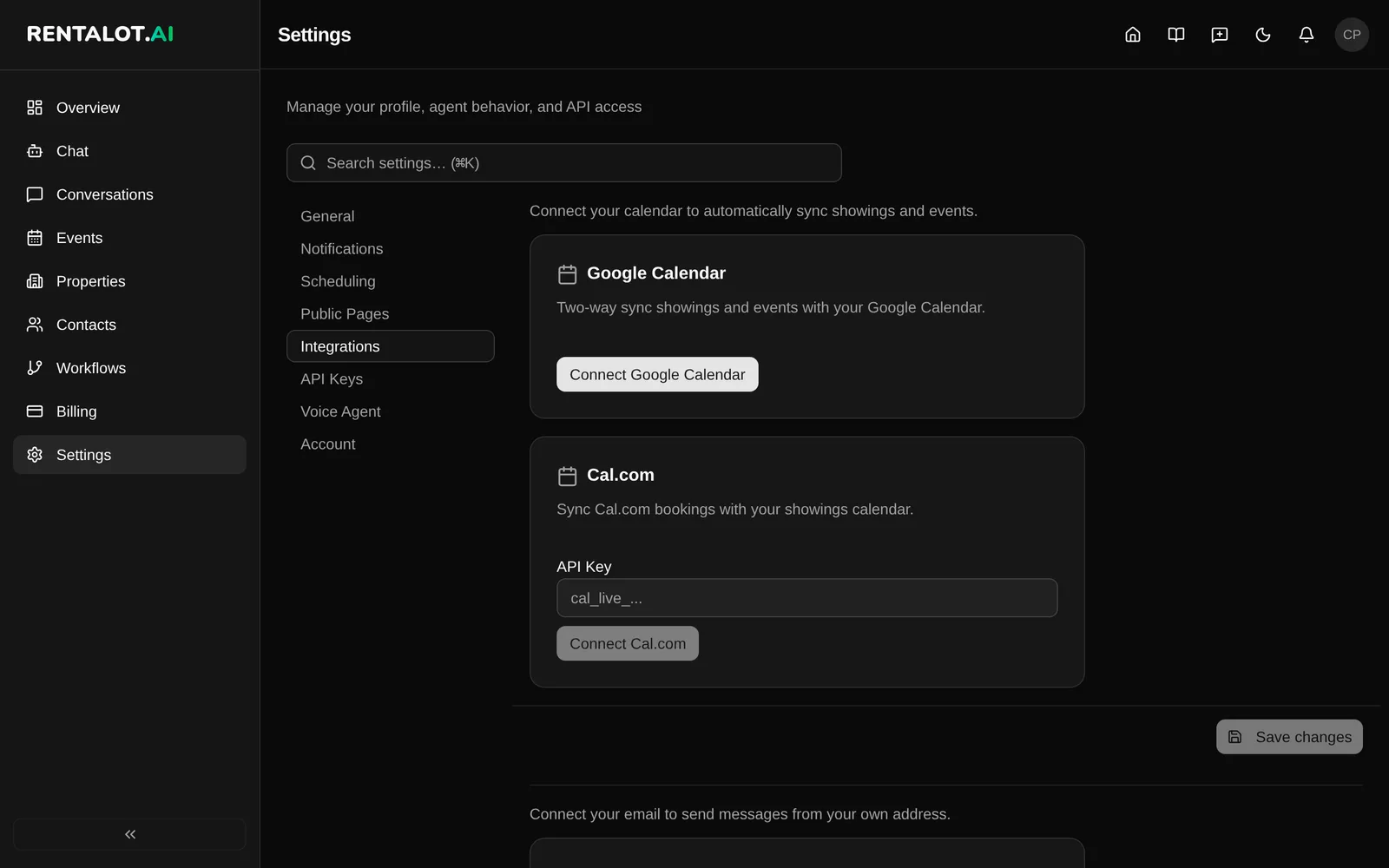
### Calendar
- **Google Calendar**: two-way sync of showings and events
- **Calendar for showings**: once Google Calendar is connected, choose which calendar new showings go to. The default is your primary calendar.
- **Cal.com**: sync Cal.com bookings with your showings calendar
### Email
- **Gmail**, **Microsoft 365**, or **Custom SMTP**: send email to prospects from your own address. See [Email](/docs/email).
- **Leads email address**: your private address for lead email, available on every plan. See [Your leads email address](/docs/email#your-leads-email-address).
- **Listing expiry reminders**: turn on **Email me about my listing expiry dates** to get reminders 7 days before, 1 day before, and when a listing expires.
**Coming soon:** **Auto-Send**, which lets the AI send emails without your review. Emails still wait for your review today.
## API Keys
Click **Generate Key**, give it a **Key Name**, and copy the key right away. It won't be shown again. Revoke a key at any time; integrations using it stop working immediately.
Starter includes read-only API access. Pro and Scale include read and write access. See the [API Reference](/docs/api-reference) and [Authentication](/docs/api-reference/authentication).
## Voice Agent
Voice pre-screening lets prospects on your public pages talk to an AI voice agent instead of typing.
- **Enable voice pre-screening**: show the voice option on your public pages
- **Allow international phone numbers**: accept non-US phone numbers during voice conversations
- **Voice pre-screening URL**: the page where prospects see **Start Voice Conversation** first, with the text form as a fallback
- **Custom instructions**: context about your company, rules, or tone, added to the voice agent's instructions
- **Custom greeting**: replaces the voice agent's opening line. Leave it empty to use the default.
## Account
- **Export My Data**: download a JSON file with all your properties, contacts, conversations, events, and workflows
- **Delete account**: permanently deletes your account and all its data. You'll need to type `DELETE` to confirm. This can't be undone.
---
[FAQ](https://rentalot.ai/docs/faq.md)
# FAQ
Common questions about Rentalot.
## General
### How much does Rentalot cost?
See our [pricing page](https://rentalot.ai/pricing) for current plans and pricing.
### Can I use Rentalot for commercial properties?
Rentalot is optimized for residential rentals (apartments, houses, condos). It can work for commercial properties but some features (like showing scheduling) are designed around residential workflows.
### Is my data secure?
Yes. All data is encrypted in transit and at rest. Your property data and conversations are isolated to your account and never shared with other users or used to train AI models.
## AI Assistant
### Can the assistant handle multiple languages?
Yes. The underlying AI model supports many languages. You can switch your own dashboard language in **Settings** > **General** > **Language**. Custom instructions for tone and language rules are coming soon.
### What if the assistant can't answer a question?
If the assistant doesn't have enough information or the question is outside its scope, it will let you know and suggest next steps.
### Can I see what the assistant is doing?
All conversations are visible in the management chat in real time. Tool calls (property lookups, showing bookings, etc.) are shown inline so you can see exactly what actions the assistant is taking.
## Workflows
### How do prospects access my workflows?
Share your prospect link (`rentalot.ai/p/your-slug/prescreening`), which you can copy from the setup checklist on your dashboard. For property-specific links, open **Properties**, expand a property, and use **Share workflow links**. Prospects complete the workflow in their browser; no app installation is needed.
### Can I customize the workflow questions?
Yes. Open a workflow under **Workflows** > **My Workflows** to add, remove, or reorder questions and edit the intro message. You can also build your own questionnaire from scratch. See [Custom Workflows](/docs/workflows#custom-workflows).
### What happens if a prospect abandons a workflow?
The workflow pauses and waits. It auto-cancels 30 days after the prospect started it. To follow up with a prospect who stopped partway, use **Send Nudge** on their contact page. On Pro and Scale, you can also turn on the **Prescreening incomplete** nudge in **Settings** > **General** > **Contact Nudges** to email prospects who start pre-screening but don't finish.
## Properties
### How many properties can I manage?
Depends on your plan. See the [pricing page](https://rentalot.ai/pricing) for limits per tier.
### Can I import properties from my existing PMS?
Yes. Rentalot supports bulk import from CSV, Excel, and JSON files. It auto-detects exports from AppFolio, Buildium, Zillow, Rent Manager, and Propertyware. See [Properties](/docs/properties#bulk-import) for details.
## API
### Do I need the API to use Rentalot?
No. Everything can be managed through the dashboard and management chat. The API is for teams that want to build custom integrations or sync data with other tools.
### Which plans include API access?
Starter plans get read-only API access. Pro and Scale plans get full read/write access. See the [API Reference](/docs/api-reference) for details.
---
[Changelog](https://rentalot.ai/docs/changelog.md)
# Changelog
All notable changes to Rentalot are documented here.
## [Unreleased]
### Fixed
- The public chat, pre-screening, and Rentabot visitor cookies now use the browser's strictest cookie protection (the __Host- prefix), so another subdomain or a network attacker can't overwrite them. Visitors already mid-chat keep their session.
- The daily cleanup of never-verified sign-ups no longer deletes banned accounts, so the abuse evidence tied to them is kept.
- Voice call length and cost are now saved for every voice session. Before, a fractional call duration made the save fail, so the cost record was missing. The reported duration is now rounded up to whole seconds and checked.
- Email delivery notifications from Amazon SES (bounces, complaints, and incoming leads-address mail) now connect automatically when first set up. Before, AWS rejected the automatic confirmation and the connection stayed pending.
- When conversations, events, workflows, contacts, properties, or email and calendar connections can't load, the dashboard now says so and offers Retry, keeping anything already shown, instead of looking empty or loading forever.
- Deleting several contacts or properties now tells you how many were deleted and how many failed, and keeps the failed ones selected. Deleting a single contact or property only leaves its page once the delete has actually succeeded.
- Saving an event, editing or sending a draft, and pausing, resuming, or cancelling a workflow run now show a plain-language error if it fails, and keep what you typed.
- Connecting Google Calendar, Gmail, or Microsoft 365 now shows a clear message if the connection can't start or is declined, explaining how to fix it. The message stays until you dismiss it, even after a refresh.
- Deleting a draft, stopping a contact's follow-ups, and cancelling a workflow run now ask you to confirm first.
- The week calendar now shows every event, adding earlier or later hours when needed and an "All day" row for all-day events, instead of hiding events outside 8am–8pm.
- On phones, tapping a day in the month calendar now lists that day's events with times, property, and contact. The calendar toolbar no longer overflows narrow screens.
- Contact, property, and workflow names are now real links, so you can reach them with the keyboard and open them in a new tab.
- Long message previews in the conversations list now end with "…" instead of being cut off.
- Properties without photos show a small "No photos" strip with an "Add photos" link instead of a large empty box.
- Icon-only buttons and the collapsed sidebar now have names for screen readers, and dashboard controls are easier to tap on phones.
- If a dashboard page hits an error, you now stay in the dashboard with Retry and Back to overview, instead of landing on a site-wide error page.
- In assistant chat, notes about actions you confirmed or kept now show as a small "updates for AI" label next to the model picker, with details on hover, instead of a large box that covered the conversation.
- Your properties list now shows the newest properties first, so a property you just added appears at the top instead of at the end.
- When a property is created with photo links through the API, or the assistant starts a photo import, and the photo import can't be started, you now get the property as created with a note that the photos weren't imported, instead of an "Action failed" error for a property that was actually saved.
- When several WhatsApp messages arrive together, the assistant now reads and answers all of them instead of only the first.
- If sending an AI reply fails because of a temporary channel error, Rentalot now retries it without ever sending the same reply twice.
- Imported property photos are checked by their actual file contents, so a web page or other file disguised as an image is rejected instead of stored.
- Photo imports from a link now check every redirect before following it and connect only to the address that was verified, so an import can never reach an internal network address.
- Every voice pre-screening question is asked in Spanish, Chinese, or Hebrew when you choose that language. Before, questions after the first few, such as whether you have pets or where you want to live, were asked in English.
- The email field in Hebrew and Spanish pre-screening shows a real example address (email@example.com) instead of a translated one, and in Hebrew you now type the address left to right.
- Voice pre-screening now waits while you say your phone number digit by digit, even if you pause between groups of digits, instead of cutting you off and asking the question again. If the number stays incomplete, it asks for all 10 digits in your language.
- While you say your phone number in voice pre-screening, the digits you already said stay on screen instead of being replaced by the newest ones. If you say too many digits, it tells you right away in your language and asks for the number again.
- The typed phone field in pre-screening stops at a 10-digit US number (11 with a leading 1), including when you paste or autofill a longer number.
- Email addresses spoken in Hebrew, Spanish, or Chinese voice pre-screening are written in English letters (for example, "שטרודל" or "arroba" becomes @). If the address still isn't in English letters, you're asked to spell it in English.
- In Hebrew voice pre-screening, the phone number you're saying now shows left to right in the order you said it, instead of reversed.
- Voice pre-screening no longer cuts you off or loses digits while you're still saying your phone number slowly. It waits until you've been silent for 5 seconds, and words from before a retry no longer leak into the next attempt.
- In Spanish, Chinese, and Hebrew voice pre-screening, the email question listens in English and shows a hint asking you to say your email in English. The other questions still use your language.
- Spoken answers in voice pre-screening are checked again instead of failing with "Could not validate answer" after a long wait, and each answer is checked faster.
- Voice pre-screening accepts a monthly income of zero, for example from students.
- When a spoken choice doesn't match any option, voice pre-screening in Spanish, Chinese, and Hebrew now shows the message in the caller's language instead of English.
- Changing the language from the footer on an agent's public profile page now switches the page to that language instead of leaving it unchanged or showing "page not found".
- Voice pre-screening in Spanish, Chinese, and Hebrew now understands callers in their own language instead of transcribing them as English, and speaks its questions with voices built for that language. Voice pre-screening no longer depends on ElevenLabs.
- Links to the removed RentalAI comparison now go to the comparisons page, and use-case or audience pages for features that aren't available yet (email management, follow-up automation, WhatsApp and Telegram bots, vacation rentals) go to the matching overview page instead of showing "page not found". Those pages come back automatically when the feature ships.
- The AI-readable site summaries at /llms.txt and /llms-full.txt load again instead of returning "page not found", and every other file at the site root is served too.
- Spanish, Chinese, and Hebrew pages now declare their own language to browsers and screen readers, and Hebrew pages render right-to-left.
- The translated homepage headline no longer mixes in English, and its rotating words now refer to tenant screening rather than film screenings.
- Search results and link previews for translated homepage, pricing, about, and contact pages now show titles and descriptions in that language.
- Spanish, Chinese, and Hebrew URLs for the English-only privacy policy and terms of service are no longer offered to search engines as translations; they point to the English pages instead.
- Checking "Send me product updates and tips" at signup now actually saves your choice; before, it was silently dropped.
- The rotating homepage headline no longer runs off the screen on phones in Chinese and Hebrew, and the feature labels below it are translated.
- The homepage, pricing, comparison, use-case, and audience pages no longer advertise WhatsApp/Telegram replies, automatic follow-ups, email auto-send, phone calls, or lead scoring before those features are available; the copy returns automatically when each feature ships.
- Comparison pages now use sourced, dated competitor facts (including current Buildium pricing and EliseAI's voice agent), and the unverifiable RentalAI comparison was removed.
- The dashboard setup checklist now shows a clear error with a Retry button when it can't load, instead of an empty card.
- Free trial accounts now see a Starter+ badge and an upgrade link for email and calendar setup instead of a connect action that fails.
- The Events empty state now asks you to connect a calendar, matching where its button leads, and the Conversations empty state no longer promises messaging channels that are not available yet.
- The dashboard tour now skips steps whose targets are hidden on small screens and no longer promises automatic AI replies where they are not available.
- Fixed the sitemap failing to load, so search engines can discover all public pages and guides again
- Connecting Gmail, Microsoft 365, or Google Calendar in Settings now shows a toast confirming success or explaining the failure, so the result is visible without scrolling.
- Simplified the listings header by removing the visible page title, aligning location search to the desktop edge, and giving roomy homepage navigation clearer outlined links.
- Aligned homepage navigation, rental listings, and account controls on one row at laptop widths.
- Rental price and home-size filters now use large minus and plus controls for easier adjustment.
- Fixed public directory failures caused by unencoded timestamp parameters.
- Kept the interactive tour accessible by direct URL without homepage, footer, or sitemap links.
- Phone screen no longer dims or locks during a voice pre-screening — the page now holds a screen wake lock for the full session and re-acquires it when you return from the home screen
- Voice pre-screening now recovers cleanly when your phone hands audio off mid-session — connect to a car bluetooth, unplug headphones, or pick up a call, and a prominent "Reconnect mic" prompt appears with a voice announcement and lets you switch inputs without losing progress
- Fixed voice screening not hearing responses during confirmation step
- Fixed incorrect follow-up messages sent after prospects completed pre-screening
- You now get a dashboard notification when a prospect completes pre-screening
- Fixed duplicate entries in dashboard activity feed
- Dashboard activity feed now shows correct timestamps for showings and submissions
- Fix mobile chat input visibility — use dvh instead of vh for dashboard layout
- Notification bell badge not clearing after marking all as read — batch read API was silently failing due to incorrect SQL array binding
- Notification popover text overflowing outside the dropdown on desktop
- Notification badge count not updating in real-time when items marked as read via viewport scroll — SWR mutations were writing to wrong cache (global vs provider-scoped)
- Landing page header layout shift on first load — auth buttons now render instantly using server-side session cookie hint, no loading flash
- Dashboard header layout shift — notification bell and user avatar no longer pop in after hydration
- Login no longer hangs after entering credentials — redirect now handled server-side
- Voice pre-screening now works on more browsers — Firefox mobile no longer crashes on audio constraints, and incompatible browsers show a clear message suggesting Chrome, Safari, or Edge instead of silently failing
- Management chat timezone detection — browser timezone auto-detected and saved when user hasn't configured one, preventing wrong-day event scheduling
- Management chat now shows an error message with retry button when AI response fails or times out — previously showed an empty response with no way to recover
- Cancel event cards in management chat now show Confirm/Keep buttons instead of a static preview
- Fix public prescreening pages failing for new accounts — pages now default to enabled
- Cleaned up optional onboarding setup actions so email and calendar each use one clear setup button.
- Removed broken and stale links from the llms.txt docs index.
- Fixed text-only public prescreening stale-session errors so problem-detail 422 responses reset the form instead of showing generic server validation failure.
- Preserve shared-link internal notes when pre-screening reuses or merges an existing contact.
- Release prescreening voice microphone and suppress benign Scribe disconnect errors after submission.
- Suppress benign Scribe 1006 console errors during prescreening voice completion.
- Sitemap no longer emits trailing-slash locale homepages (/es/, /zh/, /he/) that caused Google Search Console 'Pages with redirect' warnings
- Localized variants of /for/*, /compare/*, and /use-cases/* (whose content is English-only) now correctly noindex with an English canonical, preventing Google Search Console 'Alternate page with proper canonical tag' false positives
- Offset the process-followups cron from minute 0 to avoid cold Neon connection timeouts.
- Deepgram Simple Voice startup now reports provider credential failures without a generic 500, authenticates browser WebSocket sessions with the temporary Deepgram token, and exposes a dev-only STT provider switch in the prescreening UI.
- Voice credit score answers like 'two hundred' now route through range validation instead of being mistaken for ordinal option choices.
- Deepgram Flux prescreening voice now shows live transcript text while the prospect is speaking instead of only after the turn commits
- Reduced voice validation LLM calls by reusing deterministic yes/no parsing before fallback validation and preserving numeric range answers like 11-50.
- Custom workflow submissions now appear on workflow detail recent runs, contact submissions, and the workflows dashboard instead of being hidden when saved as public chat sessions.
- Fixed voice agent speaking the goodbye message twice
- Fixed voice agent audio cutting off before the completion screen
- Fixed voice agent adding unnecessary phrases after goodbye
- Fixed voice completion screen not showing confirmation code
- Fixed voice agent getting interrupted by background noise
- Fixed voice agent repeating already-answered questions
- Fixed voice screening sessions not saving on some devices
- Voice screening completion now sends email notifications to agents
- Robots.txt no longer blocks public auth-related paths from crawler review while keeping private dashboard, API, dev, and dotenv probe paths disallowed.
- Reduced Sentry noise from bot probes and expected voice browser/Scribe states: unknown single-segment probes now 404 before localized SSR, metadata defaults safely when route params are absent, and public voice flows filter recoverable permission/disconnect errors.
- Fixed dashboard property creation when optional fields are left blank or photos are added before saving.
- Fixed workflow saves failing when multiple edits are submitted at nearly the same time.
- Improved save errors so actionable issues are explained while internal failures stay private.
- Voice sessions now fall back cleanly when the speech provider is temporarily unavailable.
- Add Property now uses separate street, city, state, and ZIP fields in production.
- Management chat now continues from entity lookup to the requested write-tool confirmation card instead of asking for a second text confirmation
- Property forms now show a clear non-green status when browser draft autosave is turned off.
- Fixed excessive scrolling on the new property page so dashboard navigation stays stable and the form stops at its actual bottom.
- Kept property forms responsive while browser-local draft autosave runs in the background.
- Made Utilities Included easy to enter as separate removable values with common suggestions and custom Enter-to-add support.
- Made private property drafts title-only and improved failed saves with inline field highlighting, focus, scrolling, and toast feedback.
- AI property autofill now captures listing titles, public descriptions, and all explicitly stated safe property details from pasted text or HTML.
- Public property interest forms now prefill the signed-in visitor without mixing personalized-link identities, keep selections while filtering, and accept shortlists larger than twenty properties.
- Phone fields now format US numbers as you type without truncating international numbers, and public call buttons show readable phone numbers.
- Settings public profile URLs can open in a new tab, and compact numeric stepper buttons align with their inputs.
- Improved rental discovery with homepage listings links, visible approximate location autofill, concise pet filters, and inline price range errors.
- Restored desktop header navigation and account actions while keeping rental listings accessible with a motion-safe house icon.
- Restored the listing inquiry button label across all supported languages.
- Fixed malformed localized property and contact counts and the Hebrew show-more label.
- Map drawing and Remove outline buttons stay readable over map tiles in dark mode.
- Adding a region now recenters the map on the newest city when the first selected city has no pins, even if the new city is also empty.
- Public listing filters and result controls use less mobile space while keeping room and layout choices in More filters.
- Public property cards no longer expose customer account or assistant persona names as advertiser attribution.
- Property listing pages now have a prominent Back to listings button above the photos.
- Public rental pages now include search, Listings navigation and a nonblocking sign-in or dashboard action.
- Listing contact panels now follow desktop scrolling below the gallery, while rent, beds, baths and size share one compact summary row.
- Public property maps now retry a transiently aborted lazy chunk so Show map works without a page refresh.
- Compact listing inquiry forms keep the send button visible when viewing the desktop contact rail, and summary facts restore icons with inline monthly pricing.
- Listing summary icons sit beside their values, with mirrored Hebrew alignment and inline monthly rent.
- Public rental filter controls now stay on one compact row on narrow screens.
- Price filter dialogs now show a clear loading message while the rent chart is being fetched.
- Property maps use smaller pins with compact price/title hover labels, keep pins visible during faster zoom refreshes, and omit decorative outlines and the extra privacy paragraph.
- Property interest pages use compact selection instructions, and blast links share the public property search and layout controls.
- Keep property visibility controls stationary and show public rented listings as unavailable instead of a missing page.
- Improved public listing sharing with a readable icon-only trigger and cleaner title, description, and link copy for social and email shares.
- Improved public listing share icon contrast so the gallery overlay remains readable in light and dark themes.
- Property maps recover failed or stalled initial tile loads, show a static loading indicator, and keep passive status text off the map.
- Public property maps now recover from partial tile failures without losing map state.
- Load map tiles when navigating to listings from the homepage without requiring a browser refresh.
- Fixed trial API rate limiting when PostgreSQL timestamp expressions were bound through Drizzle.
- Telegram messages from different prospects are no longer silently dropped as duplicates when they share a message number
- WhatsApp button and list replies now reach workflows, and workflow choice questions show native WhatsApp buttons
- Messages sent to Telegram contacts from the API, drafts and management chat are now delivered (the contact's chat ID was never found before)
- WhatsApp messages from people who use a WhatsApp username instead of sharing their phone number are no longer dropped — Rentalot now recognizes, replies to, and follows up with them, and keeps them matched to the same contact when their WhatsApp ID or number changes
- After signing out and signing in as a different account in the same browser, the dashboard no longer briefly shows the previous account's cached data. Each account now has its own saved dashboard data, which is cleared when you sign in or out.
- Corrupted or cut-off photos are now rejected with the message "Image could not be decoded" and removed, instead of causing an error. Photo imports from links no longer get stuck in "processing" when something goes wrong.
- Importing photos from a link now times out when the site's address can't be looked up, instead of hanging.
- Telegram messages that Telegram refuses, for example because the person blocked the bot, are no longer retried again and again.
- When a photo is rejected on a property you're editing, the uploader now shows why.
- The AI assistant no longer describes tools that aren't available on your plan.
- Confirming a screening decision or a bulk property import twice no longer runs it twice.
- Listing packets now show the correct rent and security deposit amounts.
- Fixed the Settings page crashing on the Integrations tab after opening a property's share links.
- Property descriptions no longer accept phone numbers, email addresses, or website links; imports remove them so prospects use the listing contact form.
- Setup checklist now counts a property as ready only when it's public, available, and has the details prospects see. A private draft shows a 'Publish your property' step, and the collapsed checklist shows your next step with a button to do it.
- After you add a property, you now see what to do next (publish it, publish your screening link, or preview it) and your setup progress, instead of landing on the property page with no guidance.
- The add-property form starts with just the essentials. Description, photos, amenities, lease terms, and notes are under 'Add more details', and on phones the autosave status is visible.
- Email verification now tells you when resending the link fails, lets you resend again after a 60-second countdown, and links back to sign up if you used the wrong email. Sign in now offers a resend link when your email isn't verified yet.
- The overview's response rate now counts conversations where a prospect wrote and got a reply, and shows '—' instead of 0% when no prospect has written in the last 30 days.
- Usage costs on the overview show as normal currency (for example $0.00, or "under $0.01" for tiny amounts) instead of $0.000000. Voice minute cards sit in a grid with the other stats, and phones show two stat cards per row.
- If an overview section fails to load, it now shows an error with a Retry button instead of zeros or 'No recent activity'. A new account sees a short guide with a button to get started instead of an empty activity list.
- On phones, the dashboard header no longer cuts off your account menu. Documentation, feedback, listings, and theme moved into a 'More actions' menu, and header buttons are easier to tap.
- Copying your prospect link now says 'Copied' only after the link was actually copied.
- Rental listings search now accepts street addresses and keywords: press Enter or the new Search button to search what you typed (for example a full address with unit), shown as a removable chip next to your locations, with a loading indicator while results update.
- Listings search: Escape now closes the search menu, you can type straight into the search bar after adding a filter, and new keywords add to your existing ones instead of replacing them.
- Listings search: pressing Enter now searches what you typed as a keyword instead of picking a matching city you didn't select. Pick a city by clicking it or highlighting it with the arrow keys and pressing Enter or Tab.
- Assistant chat no longer loses your question or a partial answer when you stop a reply or it fails; a small 'Saving…' / 'Not saved' label with Retry shows when a chat couldn't be saved.
- On assistant chat confirmation cards, Keep is locked while a confirmed action is applying, errors keep the preview with a plain-language explanation, and Try again really retries.
- Fixed a crash that could break the dashboard and AI assistant pages after switching accounts or when your session expired.
- Messaging channel cards are easier to read: the status badge sits next to the channel name and the description uses the full card width. The Sent card is now titled 'Sent.dm'.
- Follow-up, showing, and calendar event cards in the dashboard assistant now show times in your account time zone (with the zone label), matching the assistant's reply instead of your browser's zone.
- The assistant's answers about Rentalot now draw on every help page, including contacts, conversations, follow-ups, email, slash commands, property import, and the MCP server and CLI, and the assistant help page now covers memory, photos, pre-screening review, follow-ups, and which changes ask you to confirm.
- Property photos load much faster on phones: we now send resized, modern-format images instead of full-size originals.
- On phones, the photo at the top of a listing page now swipes smoothly with your finger and snaps to each photo, like the listings page, and shows which photo you're on.
- On desktop, clicking the left or right edge of a listing photo no longer makes the shaded area shrink away from the photo.
- Listings opened from Rentabot show one back button that returns to the chat, instead of two back arrows.
- Rentabot now understands named areas like the San Fernando Valley, Westside, OC, the Bay Area, and NYC, and searches nearby when a neighborhood has no exact listings.
- Rentabot now switches to its backup AI model when the main one fails, instead of showing an error.
- Choosing Smart AI Search from the homepage search bar now opens Rentabot and runs your search, instead of opening an empty chat.
- Rentabot now searches the neighborhood you name, like Sherman Oaks or Koreatown, instead of widening it to the whole Valley or Los Angeles.
- Test and sample listings no longer appear in public listings or Rentabot results.
- Searching for a street name (like "Brent St") now shows only listings on that street, not unrelated ones.
- Searches like "washer and dryer" or "parking included" now also find listings that only list these in their property details.
- Public listings in Los Angeles neighborhoods (for example Chatsworth or Van Nuys addresses listed as Los Angeles) and on streets like "South Virgil Avenue" now get a map pin and show up in map and neighborhood searches
- Blog post dates no longer show one day early
- Telegram and Sent SMS messages no longer get blocked by shared provider traffic, and delayed sends retry more reliably without duplicating SMS replies.
- (In development) Gmail inbox reply drafts now recover missed recent mail, keep backlogs moving, and retry temporary delivery limits safely.
- Map locations for listings are being found again; a background error had stopped new addresses from being located.
- Rentabot no longer shows an error when the assistant's reply comes back malformed; it retries once.
- Rentabot no longer fails with an error when its reply runs long.
- Rentabot answers questions about its own picks and calculations (averages, medians, "how did you work that out?") from the listings instead of a canned intro, no longer claims its earlier reply was cut off or wrong, and shows the "compared all N rentals" line once instead of on every reply.
- PadLeads daily sync now applies new listings automatically instead of asking for approval on every new property.
- AI requests stop safely when spend limits cannot be verified.
- Failed webhook deliveries now retry automatically.
- Concurrent requests using the same idempotency key no longer execute twice; requests still in progress return a retryable conflict.
- Marketing campaigns claim recipients before sending, preventing duplicate emails on concurrent runs or ambiguous retries.
- Release API idempotency claims after known pre-action errors so the same key can retry, while replaying ambiguous delivery failures to avoid duplicate actions.
- Deleting a workflow no longer removes it while screenings or runs are still in progress; you now see a message asking you to let them finish first.
- In review mode, the AI no longer books a showing before you approve its reply. The proposed showing appears on the draft and is booked when you approve it.
- Automatic follow-up messages now only check in: they no longer book showings or make other changes based on a prospect's earlier messages.
- Messages that arrive while the assistant is still writing a reply now get their own reply instead of being dropped.
- Property blast notification emails now link to the working public listing page.
- Workflows that aren't available yet (such as Application Nudge or Renewal Check-In) no longer appear in My Workflows or start new runs.
- Pre-screening sessions left unfinished for more than 24 hours now expire automatically.
- In review mode, follow-ups the assistant proposes are now held with the draft and scheduled only when you approve it, the same way showing bookings already work; the draft list shows them.
- Copies of workflows that are still in development no longer appear in your workflow list or start new runs, and their public links and QR codes no longer start new screenings. Screenings already in progress can still finish.
- A screening that a visitor is actively answering is no longer closed as idle partway through their answer.
- Approving an AI reply that schedules a follow-up can no longer schedule the same follow-up twice if the first attempt is interrupted.
- The AI assistant can book showings for prospects again, and a reply that is retried after an interruption no longer books the same showing or follow-up twice.
- Pausing, resuming, or cancelling a workflow run while it is advancing no longer leaves it in the wrong state, and follow-ups stop when the contact replies even if the reply arrives mid-send.
- Drafts sent through the API stay sendable if they could not be prepared, go out on the channel you last chose, and Gmail replies stay in their thread and are sent from Gmail. Editing a draft from chat no longer overwrites a newer edit, and subject changes are saved.
- Connecting the same Sent or WhatsApp account twice at once, or disconnecting during setup, no longer leaves a broken or duplicate connection. Reconnecting Gmail can no longer be undone by a background renewal or token refresh.
- Rentabot follow-up questions now refer to the listings you were actually shown, neighborhood counts match the listed results, and long conversations that quote earlier messages no longer drop into safe mode.
- Trial reminder emails now arrive before your trial ends instead of after.
- Ordinary mentions of a landlord or lawyer no longer hand the conversation to a human; real legal threats and emergencies still do.
- Email replies that hand a conversation to you now include a greeting and your agent's sign-off.
- Voice pre-screening accepts a complete phone number reliably (including Hebrew), and keeps the digits already given instead of restarting when the number is incomplete.
- Imported listing photos are now checked to be real, safe images before they're stored.
- After verifying their email, new accounts now land on their dashboard instead of the homepage.
- When the assistant books a showing, the calendar sync, confirmation reminder, webhook and booking notification are no longer lost if the request is interrupted, and simultaneous requests for the same time slot create a single showing.
- Fullscreen listing photos no longer stall when you step to the next one: a preview shows instantly while the full photo loads, and the next photos load ahead of time.
- Management chat now shows property cards whenever the assistant presents, ranks, or re-lists your properties, not only on the first lookup.
- Docs pages no longer occasionally fail to load with a server error.
- Scrolling the rental listings page with the map open now scrolls the whole page, so keyboard and scroll shortcuts move the results while the map stays in place.
- Help docs pages and other pages now tell search engines their own address instead of pointing to the homepage, so they can appear in search results.
- Rentabot now recognizes your browser across messages, so the signed-out daily message limit applies as intended.
- Improved search and social previews, translated article links, and documentation discovery.
- Safer automatic messages: every AI reply and follow-up is now checked so it never shares another person's contact details, accounts in review mode no longer auto-send the "we'll follow up" notice when a limit is reached, turning off showing reminders now stops them, nudges sent from the assistant chat wait for your confirmation, and the reminder for prospects who start but don't finish pre-screening now goes out.
- Follow-ups page no longer crashes when the stats request fails; it now shows a retryable load error instead of reading counts from an error response
- Dashboard pages (contacts, sessions, properties, workflows, notifications, email settings) no longer crash or show misleading empty states when a background request fails; they show a retry option instead
- Repeated rejected API keys from one IP address are now flagged as a probe for review, even when the attempts are spread over several servers. A single mistyped key is not flagged.
- Dashboard data saved in your browser is now refreshed after each Rentalot update, so new features can't break a dashboard that still holds older saved data.
- (In development) The document preview on the signing page now loads in Firefox and Chrome instead of showing a blocked-page message.
- Public property searches reject invalid filters without failing to load.
### Changed
- The dashboard sidebar is grouped into Leasing, Automation, and Account sections.
- Conversations now has a search box, shows how many conversations you have, and keeps the open conversation, channel, and search in the page address so refresh and Back work.
- Workflow runs now have Active and History views. (In development) Follow-ups show a total count, pages, and a status filter.
- In the contact menu, Email and Call come first; JSON copy and download moved into an Export submenu.
- The Terms of Service now say who is responsible for property photos: you confirm you own or have permission to use every photo you upload or import, Rentalot may show your listings and photos on public listing pages and the channels you turn on, and a new section explains that importing a listing from another website happens at your direction and only for listings you own, manage, or may advertise.
- The optional Claude Sonnet model in management chat is now Claude Sonnet 5.5, at the same price as Sonnet 5.
- The homepage sections below the headline are sharper and match what Rentalot does today. "How it works" now reads paste your listing, renters pre-screen and book, you decide. The chat section shows a real exchange with a confirmation before anything changes. The developer section is now "Bring your own AI" (Claude and ChatGPT via MCP, the CLI, and the REST API), with plan access pulled from the current plans. The trial length on pricing and the closing call to action always matches the current plan, and the duplicate workflow grid was removed. Available in all four languages.
- The homepage and pricing page now introduce Rentalot as the AI agent for leasing agents. A new lifecycle section shows what works today (listing, voice or text pre-screening, showings, plain-English management, and your own AI tools) and marks replies and follow-ups, phone calls, and listing-site posting as coming soon. The homepage preview shows pre-screen results instead of an email auto-reply, and plan descriptions now match how many vacancies you handle. Available in all four languages.
- The homepage headline now reads "Pre-screen rental prospects and schedule showings from one link", sign-up buttons say "Start free trial", and the dashboard preview is labelled as sample data.
- Sign-up now states the trial terms up front and makes product-update emails an optional, unchecked opt-in.
- Pricing adds a "Will I be charged after the trial?" answer, marks Pro as Recommended instead of Most Popular, and shows a swipe hint on mobile comparison tables.
- The setup checklist's Add property button now opens the new-property form directly, and a published prospect link can be opened in a new tab to test it, with a guide link on how it works.
- Dashboard tour text is now translated, and checklist icon buttons have larger touch targets on mobile.
- Refreshed the help docs so they match what's available today, with a step-by-step Getting Started guide, task shortcuts on the docs home page, dashboard screenshots, corrected slash commands and Settings tabs, and clear coming-soon notes for features still in development.
- Open signup — anyone can now create an account without an invite
- Notification items use minimal dot indicator instead of icon circles for cleaner, more compact layout
- 'Mark all read' button always reserves space in notification header to prevent layout shift
- Update privacy policy: add AI sub-processor disclosure (ElevenLabs, OpenAI, Cloudflare R2, Neon), 55-day Google data retention notice, 30-day sub-processor change notification, and DPIA reference
- Update privacy policy: clarify that communication content MAY be processed by AI (not always)
- Update terms and privacy page dates to March 15, 2026
- Properties created via API or bulk import remain public by default unless visibility is specified; the dashboard New Property page now starts private
- Image carousel arrows use full-height edge hit zones (15% of image width) for easier tapping on mobile, with hover highlight and nudge animation on desktop
- Rename 'Public Chat Enabled' setting to 'Public Prescreening' for clarity
- Redesign onboarding checklist — inline actions (prescreening toggle, OAuth connect buttons), drop auto-completed steps, mark email/calendar as optional
- Voice screening now handles multi-select questions correctly — selecting multiple options (e.g. communication channels) no longer silently collapses to a single choice
- Voice screening name/company extraction is now driven by preset metadata instead of question-text heuristics, so custom questions with the word 'name' in them (e.g. 'What is your pet's name?') no longer misfire into person-name normalization
- Simplified dashboard onboarding around the core prospect-link setup path, with email and calendar moved to optional next steps.
- Video quality checks now distinguish sparse narrative copy from dense chat/UI scene text, treating declared UI text density as review guidance instead of a render-blocking error
- Increased Simple Voice playback volume range so quieter TTS voices can be boosted above 100%.
- Settings page simplified from 9 tabs to 7 — Profile, Follow-ups, and Notifications merged into General
- Phone number field now auto-formats and shows numeric keyboard on mobile
- Save button stays visible at the bottom of the screen on long settings pages
- Email filter shows a setup prompt when email isn't connected yet
- Contact names in conversation headers now link to their detail page
- Free-trial properties can now include up to 20 photos.
- Made number fields easier to adjust with large minus and plus buttons, and moved property draft autosave into a compact header control.
- Management chat now defaults to Gemini 3.8 Flash with the validated low-thinking configuration
- Property creation now uses a dedicated page with browser-local draft restoration and visible saving and saved status.
- Added clear help tooltips for Listing URL and Private Notes in the property form.
- Improved the new-property form with persistent draft status, a confirmed clear action, and explicit Public or Private listing visibility beside Save.
- Dashboard New Property pages now start private, with a compact visibility control and slimmer bottom action bar.
- Simplified rental browsing with compact filter dialogs and two-column property cards.
- Rental browsing now shows only listings with public photos, offers Recommended, price, beds, baths, size and date sorts, and groups supported amenities into icon filters with home-size bounds.
- Public profiles share the listings directory’s filter dialogs and location search, including beds and baths, amenities, and selected-region chips.
- Map drawing controls now sit on the map, apply completed outlines automatically, and show Remove outline only when an area is selected.
- Use a refresh icon with an accessible tooltip for public directory filter resets
- Public rental listings now put photos first, with wider layouts, clearer property facts and a responsive contact sidebar.
- Rental listing pages now show a wider, shorter gallery above key facts, categorized amenity icons and policies, and compact nearby rental cards.
- Clarified the rental listings filter toolbar with a concise Type control beside Filters
- Listings now opens a widely resizable split view with a stationary map beside independently scrolling properties.
- Listing photo galleries now use a taller five-photo mosaic, larger lightbox navigation zones, and summary facts above the title.
- Questionnaire property context now uses a compact listing link
- Public rental directories now include eligible photo-less customer listings with placeholders and show exact page-over-total counts with accessible top and bottom paging.
- Released the bounded Free Trial API for production use while preserving account-wide quotas, private image-free property/contact scope, and Starter read-only behavior.
- The API docs no longer list HEIC as an accepted photo type. Upload JPEG, PNG, or WebP.
- Approvals is now a split inbox: pick an item on the left to see its details on the right, triage screenings with keyboard shortcuts (j/k to move, a to approve, d to deny, o to open, u to undo). The undo option appears for a few seconds beside the action buttons instead of in a corner pop-up.
- The homepage demo video is a new, shorter 57-second tour: voice pre-screening, the application email you receive, AI scheduling and public listings.
- Fullscreen listing photos now show a strip of thumbnails along the bottom so renters can jump straight to any photo, on desktop and mobile.
- In the fullscreen photo viewer, scrolling the mouse wheel over the photo moves to the next or previous photo, and scrolling over the thumbnail strip scrolls through the thumbnails.
- Listings imported from your PadLeads feed now get readable descriptions, split into short paragraphs with labeled sections instead of one long block of text.
- AI features (listing copy, fair-housing review, message screening, web extraction) now use Gemini 3.8 Flash instead of the older Gemini 3 Flash preview.
- Assistant chat history is grouped by Today, Yesterday, Previous 7 days and Older; deleting a chat asks first, and a chat that can't load shows Retry instead of opening a blank chat.
- Approvals open the exact confirmation card in its chat with a Back to approvals link, and Approve/Deny wait until the screening details have loaded.
- Assistant chat keeps what you were typing per chat, keeps the message box on screen on phones, and describes tool steps in plain words (for example 'Checking comparable rents…') with raw details behind a toggle.
- New rentalot.ai logo: a cleaner lowercase wordmark with an emerald .ai, plus a matching "r." app icon, across the site, dashboard, emails, and social share images.
- The product demo video on the homepage now shows the new rentalot.ai logo.
- Light mode now uses a softer, warm paper-white background instead of pure white.
- AI replies now fail over to backup hosting and to models from other AI vendors when the primary model is down or rate limited.
- The free trial includes $1 of AI usage in total across chat, voice and tools; paid plans have a monthly AI usage budget equal to the plan price, shown on the billing page.
- Property photo carousels swipe smoothly and follow your finger, photos fill the card frame, and tapping a photo in the listings directory opens that listing.
- On phones, listing search results now open as a list first; tap Show map to see the map above the results.
- Listing photos and their previous/next arrows now give instant visual feedback when tapped, and a tapped listing photo shows a loading spinner until the listing opens.
- On phones, the map button now sits right of the listing search box (in place of the search button) instead of floating over results.
- Listing search filters (Price, Type, More) now stay pinned at the top while you scroll, on phones and desktop.
- Photo arrows on listing cards are now plain arrows with a shadow, and on phones tapping anywhere along a photo's left or right edge changes the photo.
- On phones, listing filters are compact pill buttons in one row you can swipe sideways, with every filter reachable.
- On phones, listing search pages fit the logo, search box, and menu into one row, leaving more room for results.
- Rental search on phones: the logo now matches the search bar height, a listing page shows a back button that returns to your results at the same scroll spot, and the results count sits on one compact row with page numbers only at the bottom.
- Rental search on desktop: the result count and sort now share the filter row, so listings start higher on the page.
- Listing photo galleries on phones now use plain arrows like the search cards, a small corner photo counter, and no fullscreen label; tap a photo to open it fullscreen.
- Property card photos no longer show a fullscreen button. On rental search, tapping a photo opens the listing; on your dashboard, tapping a photo opens it fullscreen.
- On phones, the listings search header combines the Rentalot logo and menu into one button, giving the search box more room.
- (In development) Rentabot now always replies in the page's language, answers questions about itself and Rentalot with reviewed copy, understands minimum budgets like "over $2,000", and shows icons on its starter and refinement chips and the map link.
- (In development) Rentabot's backup AI model is now GLM-5.3 Flash, which answered help questions reliably in testing when the previous backup often failed.
- (In development) Rentabot now runs on Claude Haiku 4.5 for more accurate answers, with a higher daily usage budget.
- (In development) Rentabot listing results can be dragged with the mouse and have a larger scroll handle on desktop, and its starter suggestions no longer name a city, so they always find rentals.
- The listings search box and Rentabot's help text use Los Angeles as the example city.
- (In development) Rentabot describes Rentalot.ai as a website for leasing agents and landlords.
- (In development) You can keep typing to Rentabot while it replies: extra messages queue up and send in order.
- The phone menu on listings pages opens over the page with clear, full-width options for Home, Listings, theme, and sign in.
- (In development) On phones the Rentabot button is a single "AI" label with a sparkle.
- On the listings page the header shows a Home button instead of a link to the page you're already on.
- The listings search button now sits inside the search box.
- Asking Rentabot how Rentalot.ai works now gets a clearer answer, with bullet points on what renters and landlords can do.
- (In development) Typing in the listings search and pressing Ask Rentabot now starts a new Rentabot chat with your search already sent.
- Telegram and SMS from your own Sent.dm account are now available to every account: renter messages become AI reply drafts you approve in Approvals, and Conversations shows all your channels
- Rentabot, the AI rental search, now runs on a newer model and understands more requests correctly, such as "over $2,000" as a minimum rent, a new city after an earlier search, "cat friendly", and searches for a specific city or neighborhood.
- Rentabot can now recommend, rank, and compare the listings it shows you (for example "which one is the best deal?" or "compare the last 3"), and show one again, instead of saying it can't see the results.
- Rentabot now explains why it can't rate a neighborhood's safety and points you to the local police crime map instead of just declining.
- Rentabot now remembers the last 50 exchanges of a conversation instead of the last 4.
- Rentabot now compares every rental in your search (up to 60) when you ask for recommendations, tells you how many it compared, does exact number comparisons, and labels studios as Studio instead of 0 bedrooms.
- Rentabot only searches the web when the listings and help docs can't answer, so questions about your current results are answered from those listings.
- Management chat now uses Claude Haiku 5.5 by default, which handled common tasks as accurately as the previous model in our tests and responds a little faster
- Management chat property cards now open by default under a short summary, link to the property in your dashboard, and link to the public listing when it is public. Asking for your latest N properties shows exactly N cards.
- Rentabot chats now record your approximate location (country and city) to help us understand where visitors search from; your IP address is still never stored. The privacy policy is updated to say so.
- Refreshed the tenant screening, AI property management tools, rent collection, short-term rentals, and landlord tax guides for 2026, and clarified what Rentalot supports today in several guides
- Rewrote the leasing agents, small landlords, property managers, pre-screening, and showing scheduling pages with product screenshots, setup steps, plan fit, and plain notes on what Rentalot does not do
- In review mode, automatic follow-ups and nudges now wait in Approvals as drafts instead of sending on their own. Approving one sends it on the right channel and saves it to the conversation, and a prospect reply withdraws it. Nudge emails now have their own subject line, manually sent nudges are saved to the conversation, and the nudge dialog shows the nudge types your plan includes.
- API: creating a property with POST /api/v1/properties always creates a private listing, whatever isPublic you send, because publishing needs a photo. The response now says so in a warnings list; add a photo and PATCH isPublic to publish (trusted accounts go live immediately, new accounts go to review). The property response and API reference now show isPublic and publishStatus.
- (In development) Unsigned document PDFs now have fillable fields for every blank, and the legal-advice note no longer appears on each page.
- (In development) Document templates were rechecked against California statutes and official government forms and slimmed to a smaller core set: mold, flood, smoking, smoke/CO alarm and rent-cap notices are now sections of the lease instead of separate documents.
### Added
- On the free trial, the management chat model picker now shows Claude Sonnet 5.5 with a crown. Choosing it opens your plan options on the billing page instead of switching models.
- (In development) When the assistant builds a property from a listing link, the confirmation card shows the listing's photos as small previews with a checkbox on each, so you import only the photos you pick. Previews load through Rentalot and are safety-checked first, so your browser never contacts the listing's image site. An Edit button opens the full property form with everything filled in, and after creating, the card links straight to the new property and shows any photo-import problem.
- (In development) Importing a property from a listing link now reads the site's own listing data directly instead of relying only on AI, so rent, bedrooms, bathrooms, size and address come through exactly as the site states them. AI fills only what the site leaves out, and the confirmation card says which was used. Sale listings, price ranges, non-monthly prices and other currencies are never turned into rent.
- (In development) The assistant refuses to read link shorteners, paste sites, tunnels, request-capture services, bare IP addresses and lookalikes of known listing sites (such as zi11ow.com), including when a page redirects to one. Imports from sites that aren't a known listing platform show a reminder to check every detail.
- (In development) The AI assistant can research the web for you on Pro and Scale. It can search, read pages you share, turn a listing link into a new property (with its photos, after you confirm), and pull rent comparables from your own portfolio, stored market data, and cited web results. Web content is treated as untrusted: the assistant only sees a checked summary, can only open links you or its own search provided, and cannot make changes without your confirmation once web content is in the conversation.
- The AI assistant can import, list, reorder, and delete property photos, review pre-screening results (you approve or deny), import properties from pasted spreadsheet rows, write listing descriptions from your saved property details, and check listing text for fair-housing risks (advisory, not legal advice).
- (In development) Quick bursts of messages from a renter get one combined reply after a short pause instead of one reply per message, and the renter-facing assistant answers with one AI call per message instead of two.
- The homepage headline now has a short product demo video you can click to play, with English captions. The animated dashboard preview moved down into "How it works".
- The homepage now has a short FAQ answering common agent questions (who decides on renters, which channels it replies on, whether renters need an account, using it from ChatGPT or Claude, and cost), also published as structured data so search engines can show the answers.
- (In development) Free trials earn a one-time 7-day extension when you publish your first public listing or a prospect completes your first public pre-screening. After a trial ends, public listings stay visible for 30 more days while pre-screening and AI replies stay paused. Trial emails now come from Ariel, reply to founders@rentalot.ai, and follow your current trial end date.
- Added Rentalot vs Zillow Rental Manager and Rentalot vs Hemlane comparisons, and every comparison page now has a summary, honest best-fit sections, FAQs, and source dates.
- In development: Free Trial AI agents using the API, MCP server, or CLI can publish properties and edit or remove public ones, within the same trial property limit, write quotas, and no-image rules. Listings go live through the same publishing checks and listing cycle as the dashboard.
- Added 4 leasing guides on setting rent, choosing where to list a rental, rental showing safety, and running rental open houses
- Added 10 practical leasing guides covering AI assistant pricing and evaluation, pre-screening boundaries and questionnaires, after-hours inquiries, application recovery, CRM stages, inquiry forms, listing data quality, and API integrations
- Management chat can now author custom workflows — describe the flow in plain English ("collect name, phone, move-in date, ask about pets with a follow-up for how many") and a preview card appears with Save and Discard buttons. Common questions (name, email, phone, etc.) are matched against the preset library so they get smart voice-extraction handling automatically. Workflow name is editable on the card before AND after save, public/private toggle defaults to public, and once saved the card shows the shareable URL with copy/language pills plus a link to the dashboard for further edits.
- Property blast page (/p/[slug]/blast) — public page where prospects browse all available properties, select what interests them, fill in their contact info, and submit. Agent receives an email notification with selected properties. Toggle enabled in Settings → Public Pages.
- Knowledge base search — management chat and public chat agent can now answer product questions (pricing, features, how-tos) by searching documentation
- Public Chat Agent customization — custom welcome message and starter suggestions configurable in Settings → Public Pages → Chat Agent
- "Chat with [agentName]" CTA button on agent profile page (/p/[slug]) linking to AI chat when public chat is enabled
- SEO landing pages for audiences, competitors, and use-cases with structured data
- "Call Human" button on public pages — phone number revealed after bot verification, configurable via Settings
- Onboarding step for enabling phone calls — asks during setup, links to Settings, skippable
- Collapsible onboarding checklist — always visible after completion, collapses to a compact bar, shows inline success banner when core steps are done; removed redundant "explore workflows" step and moved email before calendar in ordering
- Workflow management API — create, update, and delete workflow templates via the REST API
- Settings API — read and update agent preferences, email settings, and follow-up templates via the REST API
- Follow-up message templates — define your own per-step templates with placeholder interpolation for faster, consistent follow-ups
- Returning visitor recognition — auto pre-fill known fields when email or phone matches an existing contact
- Email notification toggles — new inquiry, showing booked, follow-up due (Settings → General → Notifications)
- Showing availability rules — buffer between showings (15/30/60 min) and max showings per day (1-20) in Settings → Scheduling
- Calendar selection for showings — pick which Google Calendar to create showings in (Settings → Integrations)
- Draft card inline editing — subject and body are now editable before sending
- Draft card shows recipient ("To: ...") above subject
- Email channel filter in Conversations view
- Full email client UI in Conversations — subject header, formatted body, contact card, and direct link to Gmail/Outlook
- Reply to emails directly from the Conversations dashboard
- Automated follow-up nudges — remind idle prospects, send showing reminders, follow up after showings, and re-engage cold leads
- Send Nudge dialog on contact detail page — pick a nudge type, preview the message, and send via email
- Nudge settings — per-type enable/disable toggles and delay configuration
- Send follow-up nudges directly from the management chat
- Settings search bar — fuzzy search across all 7 tabs (⌘K to focus), click result to jump directly to the setting with highlight animation
- Multi-select and bulk delete for properties and contacts on the dashboard. Select mode lets you tap cards to select them, then delete with a single confirmation. Property detail page also gains a Delete button.
- Onboarding reminder emails — up to 3 personalized setup reminders for new users
- Expanded SEO content pages — 10 competitor comparisons (added Showdigs, Leasey.AI, RentalAI, Conduit, Super), 10 use cases (added follow-up automation, lead qualification, WhatsApp bot, Telegram bot), 6 audience pages (added real estate investors, student housing, vacation rentals), and new hub page at /for. Compare link added to header navigation.
- Contacts now have a language preference field — auto-detected from pre-screening locale, editable in the dashboard, shown as flag badge on contact cards
- Property Import Guide — dedicated Nextra docs page with step-by-step export instructions for Zillow, AppFolio, Buildium, Rent Manager, Propertyware, plus generic CSV template and image import guide
- In-app notification preferences — control which notifications appear in the bell from Settings → Notifications
- Unreviewed application reminder — opt-in notification that emails the agent when a completed pre-screening hasn't been reviewed (configurable delay, off by default)
- Tooltips on all dashboard header buttons (docs, feedback, theme toggle, notifications)
- Notifications auto-mark as read when scrolled into viewport — batch API with debounced flush
- Internal DPIA document for AI communication processing (docs/legal/dpia-ai-processing.md)
- Server-side pagination for properties and contacts — users with 1K+ records can now page through all results
- Settings page fully translated — all tabs, labels, help text, and search now update when switching languages (English, Spanish, Chinese, Hebrew)
- Generic event creation in management chat — schedule calls, inspections, and meetings in addition to showings, with optional property and contact linking
- Event cancellation tool in management chat — cancel any Rentalot-created event with confirmation preview; Google Calendar and Cal.com synced events are protected
- Cancel or delete events from management chat — cancelEvent tool now supports both soft cancel and permanent deletion with confirmation buttons
- Property listing cards now have image carousel with left/right navigation arrows, fullscreen lightbox, and image counter
- Custom workflow builder — create workflows from scratch with the question builder UI (now available on all tiers)
- Tier-based custom workflow limits — Free 10 questions/3 workflows, Starter 25/10, Pro 75/50, Scale 200/unlimited; counter and upsell shown in the builder
- Management chat can now edit and delete workflows (getWorkflow, updateWorkflow, deleteWorkflow tools) — fixes the bug where asking the AI to edit a workflow created a duplicate instead
- Management chat: full CRUD with tiered confirmation — added deleteProperty, deleteContact, deleteDraft, deleteFollowup, createShowing, rescheduleShowing, listDrafts, updateDraft, updateSettings, updateFollowupSettings (10 new tools). Every write tool is now classified into one of four trust tiers (T1 auto / T2 undoable / T3 confirm / T4 diff).
- Management chat: success cards with dashboard deep links — every mutation now renders a green-bordered success card with a 'View in dashboard' button (createProperty/createContact/updateProperty/updateContact link to the entity page; deletes/cancels/settings link to the relevant list page or settings).
- Management chat: audit notes — UI button presses (Confirm/Keep) on confirmation cards now emit machine-readable [audit] entries into chat history so the LLM knows what was clicked. Distinguishes success / declined / already-done / failed (categorized — never raw error bodies). Notes render compactly as italic dim rows in the UI.
- Management chat: one-shot confirmation-card clicks (Confirm, Keep, Apply Edit, Confirm Booking, Save Workflow, Archive, etc.) are now persisted per-thread in DB. After refresh or on a second device, the card renders its terminal state (confirmed / kept / already gone) instead of the pending buttons — can't be accidentally re-executed.
- Typed runtime Remotion video quality definitions and checker with render preflight for fatal structural/readability issues
- Multilingual voice nav: Spanish, Chinese (Mandarin), and Hebrew navigation keywords and ordinals now work in the prescreening voice input (e.g. "siguiente", "下一个", "הבא") without LLM fallback
- Added generated AI-readable docs indexes with Markdown links for public docs pages.
- Prescreening shared URLs can save a note query parameter to the created contact's internal notes.
- Dashboard share links can include an internal note query parameter with a public-URL sensitivity warning.
- Shared channel provider registry for messaging lifecycle metadata, QR/share-link hooks, disconnect cleanup, and adapter creation
- WhatsApp Cloud API send path now uses the real Meta Graph API client with canonical phone normalization, opaque outbound callback IDs, webhook deduplication, and message status persistence foundations.
- Homepage now ends with a 'Latest reads' section featuring the three most recent blog posts as a card grid — surfaces fresh content and improves internal linking to individual posts
- Dev-gated Deepgram STT provider for Simple Voice, with provider-neutral session credentials, provider-aware STT cost tracking, and a dev-only prescreening UI provider badge.
- Dev-gated Deepgram Aura TTS provider for Simple Voice, with English-only selection, ElevenLabs multilingual fallback, and provider/model namespaced R2 cache warming
- Added lead-to-lease loop state, ingestion hooks, and lightweight dashboard reporting.
- Listing syndication dashboard APIs and property-page packet previews now support manual channel readiness, posting status, audit events, and Zillow readiness preview.
- Landlord daily leasing briefs now persist concise daily summaries with ranked next actions and dashboard/email delivery hooks.
- Claude Sonnet 5 is now available as an optional management chat model on Starter, Pro, and Scale plans.
- Add Property now has a development-gated Fill with AI flow that extracts details from up to 50,000 characters of pasted listing text or HTML, fills only blank fields while preserving existing work, and enforces generous per-plan billing-period request limits.
- Properties can now be saved as private drafts with only a title, completed later, and published once required listing details are ready.
- Fill property forms with AI from pasted listing text
- Property photos can now be reordered with native drag-and-drop, with the first photo used as the cover.
- Public property browsing now includes compact grid/list layouts, quick filters, multi-region city search, and optional property maps with drawn-area filtering.
- Public property locations update automatically after publishing or address changes, with approximate-address fallback and nonblocking posting.
- Canonical rental property types now flow through listing forms, imports, APIs, tools, and search, with explicit Studio controls for exact zero-bedroom listings.
- Public property browsing now shares 48-property pages, numbered navigation, and progressive cover loading across listings, profiles, and blast pages.
- Public property listings now include a compact gallery share menu with copy link and common sharing destinations.
- Mobile listing photo galleries now support safe horizontal swiping on directory cards and detail pages
- Added a bounded Free Trial API preview for account-owned private property and contact CRUD with durable account-wide quotas and trial-safe limits.
- Long management chat conversations keep working instead of stopping with "this conversation has gotten quite long". Older tool results are shortened and earlier turns are condensed into a short summary, so the assistant keeps the IDs and decisions it needs while each reply stays fast and cheap.
- A new Approvals page in the dashboard lists everything waiting on your decision in one place: pre-screening results to approve or deny, unsent message drafts, and assistant actions still waiting for your confirmation in chat, with a count in the sidebar.
- Agent memory: save preferences, rules and facts for your management chat from a new Memory page or by telling the chat "remember…"; passwords, access codes, keys and card, bank or SSN numbers are refused. Memory holds up to 30 short notes (200 characters each, 3,000 in total), and the assistant can tidy up by merging, editing or deleting stale and duplicate notes, always asking you to confirm before it deletes.
- AI replies: answers to renter messages now use the listing they asked about, matching listings, and their prescreening answers. Pick a ready-made reply style in Settings and edit it to fit how you talk to renters.
- AI replies wait in Approvals for you to review and send by default. Switch Reply mode to Auto in Settings to send them right away.
- (In development) Zillow listing feed: opt a ready property into Rentalot's Zillow feed from the listing packets panel, and receive Zillow renter inquiries as leads. Stays inactive until Zillow approves Rentalot as a feed provider.
- Apartments and condos now have an optional Unit number field in the property form. Rentalot fills it from the address when it ends in Unit, Apt, Suite or #, and shows when the unit belongs to a building you already have other units in.
- (In development) The Zillow Rental Network feed now accepts apartments: units at the same address are grouped into one building listing with floor plans and per-unit prices, and Zillow leads are routed to the exact unit the renter asked about.
- Signed-in visitors have their name and email filled in automatically when contacting a rental listing.
- Local env files are backed up as sops+age ciphertext (*.enc, committed); make env-status/env-encrypt/env-decrypt manage them
- Listings search links to a new help page when "Use my location" fails, with browser and device steps to turn location on.
- The setup checklist now includes an 'Ask your AI assistant' step that opens the assistant with a suggested question ready to send and checks off after your first message.
- Public listing pages now show nearby similar rentals, an approximate location map, and quick message templates with a preferred move-in date in the inquiry form.
- (In development) Rentabot: describe the rental you want in plain language and get matching listings as swipeable cards, with a back button from any listing to the same chat.
- (In development) Rentabot has its own icon, shown on the AI button, in the chat, and on the Back to Rentabot link.
- Rentabot, the AI rental search assistant, is now available on the listings page.
- The homepage now has a rental search bar: search a city or keyword, pick a suggested location, or ask Rentabot in plain language.
- You can rate Rentabot replies with a thumbs up or down and add a comment. Rentabot conversations are kept for 90 days to improve answers, as described in the privacy policy.
- Rentabot searches real neighborhood and city outlines (LA Times neighborhoods, Census places): "Winnetka" means Winnetka only, "southeast corner of the Valley" picks the matching neighborhoods with per-neighborhood counts, street names search addresses, "10 newest" and "how many rentals" are answered directly.
- Add an optional public business name in Settings > Public Pages, shown on your public profile.
- Rentabot can find listings by who posted them, such as "listings from Angels Realty", matching only public business names and public profile names of advertisers with current public listings.
- Find rental listings by meaning as well as keywords, with relevance-ranked results.
- Added a California rental application rules guide covering 2026 screening fee limits, the two application processes, voucher and credit rules, and deposit caps
- Blog posts are now available in Spanish, Chinese, and Hebrew, including the 15 most recent guides
- (In development) Connect your own WhatsApp Business number through Meta's sign-up popup, and reconnect it if the connection breaks.
- (In development) Connect your Gmail and Rentalot reads new inquiries in your inbox and drafts a reply in the same email thread, answered from your listings and your free calendar times, for you to approve before it sends. Newsletters, auto-replies and your own sent mail are skipped.
- Rentabot can answer general renting and neighborhood questions, such as typical rents, security deposit rules, utilities, or transit, with a quick web lookup and links to its sources. It does not rate neighborhoods for safety, schools, or who lives there.
- Rentabot shows what it is doing while it works, such as searching listings, reviewing rentals, or running the numbers.
- Rentalot stops emailing addresses that hard-bounce or mark our emails as spam, protecting your deliverability.
- (In development) Lead emails from Zillow, StreetEasy and Craigslist in your connected inbox get an AI reply sent to the renter, linked to the matching listing.
- Link a completed pre-screening to a contact from the contact page: search recent pre-screenings by name, email, or phone and attach the right one.
- The contact page's "Copy pre-screening link" button now copies a link unique to that contact, so their answers attach to the right contact automatically.
- On a listing page on desktop, listings with six or more photos show every photo in the gallery. Arrows on both sides slide it to the next or previous set, wrapping around at the ends; clicking anywhere along either edge works, and hovering an edge shades it. Hovering a photo outlines its edge to show it opens fullscreen.
- Added blog guides on showing an occupied rental in California, Colorado's SB26-189 AI law for leasing agents, and how AI leasing assistants differ from AI leasing agents
- Blog guides now link to related Rentalot pages, such as pre-screening, showing scheduling, pricing, and comparisons, in English, Spanish, Chinese, and Hebrew
- Every account now has a private leads email address in Settings → Integrations. Forward lead email to it from Gmail, Google Workspace, Microsoft 365, or any other mailbox, or use it as the contact email on your listings. Each inquiry gets an AI reply draft in Approvals that you review before it sends, in the same email thread, from your connected email or else from the leads address.
- The Getting Started guide now opens with a one-minute video showing the five setup steps, from adding a property and sending a lead their pre-screening link to the AI asking your questions by voice and approving the lead.
- Follow-ups are now available to all customers: turn on automatic follow-ups for quiet conversations and contact nudges such as showing reminders in Settings, then track and stop sequences on the new Follow-ups page. Pricing and help pages now describe follow-ups as they work today.
- Added comparison pages for ShowingHero, Tenant Turner, Rently, ShowMojo, and Zuma, plus five new guides: choosing a leasing office chatbot, standardizing leasing replies across a team, tracking rental listing views and inquiries, AI leasing agents vs. leasing call centers, and leasing follow-up automation software
- (In development) Secure documents: ask applicants and tenants for documents (ID, pay stubs, bank statements, insurance) through a private, expiring upload link sent from your own mailbox; files are encrypted and every view and download is logged.
- (In development) California and Los Angeles lease templates: a CA residential lease plus the disclosures and addenda a property needs (lead paint, bed bugs, mold, flood, smoking, smoke/CO alarms, AB 1482, LA renter protections), picked and prefilled from the property.
- (In development) E-signature: send a lease packet for signature, the tenant signs on their phone, you countersign, and everyone gets a signed PDF with a certificate of completion.
- (In development) Ask the dashboard chat to request documents or send a lease packet for signature; nothing is sent until you confirm.
- (In development) Documents now has a Templates tab: browse the built-in rental documents, download any of them as a blank PDF, or send one to any contact to fill in and sign.
### Security
- The prompt-injection check now works again. Its AI call had been timing out every time since October 30, so suspicious messages were never confirmed, repeat attackers were not blocked, and accounts were not paused. It now uses a faster model with a 5-second limit, and while that check is down, messages matching the clearest attack phrases are blocked and counted instead of passing through. If every check fails for a day (10 or more calls), our team is alerted once an hour.
- When injection attempts hit one public surface (Rentabot, voice validation, public chat) from three or more different addresses within 15 minutes, that surface now tightens for an hour. Visitors must pass a fresh human check, per-address limits are halved, and the operator gets one alert.
- The public sitemap no longer lists landlords' pre-screening or other form pages, and robots.txt now disallows `/p/*/prescreening`. Landlord profile and listings pages appear in the sitemap only for verified, paid, not-banned accounts with at least one live public listing, so free-trial accounts can no longer be found by polling the sitemap.
- Starting a voice session with a malformed contact ID now returns a clear 422 error instead of a server error.
- The contact form and "Report listing" button now require the Turnstile check, reject Cloudflare Workers and proxy traffic, cap submissions per address per day, escape what you type in the notification email, and strip line breaks from the subject and reply address. A listing is only auto-hidden after reports from three separate networks.
- Public listing lookups now ignore page addresses containing control characters instead of sending them to the database.
- Harden workflow dotted path resolution against prototype pollution paths.
- Gmail, Microsoft 365, and Google Calendar connections now only complete for the signed-in account that started them, so nobody can attach their own mailbox or calendar to someone else's account.
- Property photos are now checked for sexual content on our servers before they are saved, whether you upload them, add them through the API, or import them from a listing link. Rejected photos are deleted and you see why. Before, only the dashboard upload checked, in your browser.
- Property photo uploads must be JPEG, PNG, or WebP. HEIC photos are no longer accepted through the API or link imports because they can't be checked; the dashboard still converts them for you.
- Google Drive env backup uploads only encrypted *.enc files, never plaintext
- Conversations containing web content can no longer directly edit properties without approval.
- Conversations containing web content can no longer directly edit contacts without approval.
- Conversations containing web content can no longer send existing drafts without approval.
- Conversations containing web content can no longer directly edit workflows without approval.
- (In development) AI replies to prospects and automated follow-ups are checked for private phone numbers, email addresses, and access codes before sending; risky replies are rewritten or held for your review.
- Voice answer validation now requires a live voice session, and the ElevenLabs voice token endpoint is disabled unless the ElevenLabs voice feature is enabled
- Error reports no longer store the deployment-protection bypass secret sent with background job and test requests.
- Added a security.txt file so researchers know how to report vulnerabilities.
- (In development) Rentabot's free message limits now hold across devices and servers: 30 messages per visitor and 150 per network every 24 hours (100 when signed in), and the chat tells visitors when their messages reset.
- Every AI reply now checks renter, public visitor, email and imported listing text for prompt-injection attempts before the AI reads it. Suspicious messages can't trigger bookings or other actions, and replies to them wait for your review instead of sending automatically.
- AI spending limits now hold when many requests arrive at once, including voice sessions and nested Rentabot calls, and voice minutes are settled accurately.
- Deleting your account now also deletes your signed-in Rentabot conversations.
- Blocked sign-ups and sign-ins from abusive email domains and from accounts involved in abuse.
- Webhook URLs pointing at private or internal network addresses are now rejected, and webhook deliveries no longer follow redirects.
- Internal test-account credentials were rotated and are no longer stored in source or docs: the shared test password now comes from an encrypted environment variable, and test API keys are random instead of derivable from a name.
- Sign-in and dashboard traffic is now rate limited per visitor across all servers, and repeat abusers are blocked automatically.
- Blocked account sign-ups and sign-ins from an abusive email domain.
- Emails that fail both SPF and DMARC sender checks are now held as suspicious and never get an automatic reply.
- Rentabot and the lead screening now catch more prompt-injection attempts that try to extract configuration or credentials.
- Hardened sign-in-sensitive actions: deleting your account, creating API keys, and changing or cancelling your plan now ask you to sign in again if your session is more than 10 minutes old. Billing actions also require a verified email.
- Public application forms and voice screening now rate limit abusive traffic and cap new submissions per owner per day, with a friendly message to visitors and a single alert email to you.
- Sign-ups are now checked more strictly: a bot challenge on the sign-up form, and throwaway, disposable and look-alike email addresses are rejected. New accounts do nothing until the email is verified, and unverified sign-ups are deleted after 24 hours.
- Accounts can now be suspended for abuse: a suspended account is signed out, cannot sign in or use API keys, and its listings, profile and webhooks stop being served.
- New listings from new or unreviewed accounts are now held for a quick review before they appear in the public directory. Every listing also needs a photo, a real address, and realistic rent and bedroom/bathroom counts to go public.
- Webhooks now have tighter abuse limits: fewer active subscriptions per plan (Pro 5, Scale 25), a cap on webhook management calls and on deliveries per minute, and failing endpoints are paused after 5 consecutive failures.
- Added a security audit trail: prompt-injection detections, blocked sign-ups, scanner-style probing, and unusual sign-up bursts are now recorded and reported to our team
- Management chat conversations are now saved on our servers for every message, including tool actions and interrupted replies, so your chat history is complete
- Accounts that show strong signs of abuse, such as repeated attempts to hijack the AI or to reach private network addresses, are now paused automatically for seven days while we review them. Paying accounts are never paused automatically; we look at them by hand.
- Visitors who try to extract the AI's instructions or override its rules on Rentabot or voice pre-screening are now blocked at the first attempt instead of the third, so rotating proxies can no longer slip through one request at a time. Signed-in accounts and ambiguous phrases keep the existing three-strikes rule. Security alerts are also delivered reliably and without delay.
- Removed the unused waitlist sign-up endpoint
- Public inquiry and listing-interest forms now cap how many notification emails one landlord can receive in an hour or a day, and send a single summary instead of an email per lead during a burst. Every submission is still saved in your dashboard.
- Application-status and matching-property emails to prospects are no longer sent to made-up addresses, and each address can only receive a couple per day, so the forms can't be used to mail strangers under a landlord's name.
- Public forms now enforce their per-visitor limits across all servers, and repeated abuse from one network range is blocked together, so rotating addresses no longer gets around the limits. Blocked and rate-limited requests no longer raise alerts.
- Uploaded files can now only be the image or PDF type they claim to be, pre-screening forms accept uploads only when they actually ask for a file, and uploaded documents download instead of opening in the browser.
- Public forms (listing inquiries, interest requests, feedback, phone reveal, pre-screening and voice starts) now run an invisible human check. Automated bots can no longer use them to send email or create sessions.
- Public forms and chat links now reject made-up contact details (example.com, test and reserved addresses, 555-01xx numbers), malformed requests return a clear error instead of failing, and a prescreening chat session can only be read or continued by the browser that started it.
- (In development) Public forms, pre-screening, voice and Rentabot can turn away visitors coming from known public proxies, VPN relays and Tor, using public proxy lists that refresh daily.
- Anonymous voice spend is now hard-capped: Turnstile and proxy/cf-worker guards on the Deepgram token route, per-IP voice limits (3/hour, 6/day), per-landlord daily voice minutes by plan (15 trial, 60 starter, 90 pro, 120 scale) with a once-a-day owner email, and a global hourly circuit breaker (120 min/hour) with a Sentry alert
- VPN, proxy and Tor addresses from public proxy lists are now blocked from submitting public forms and starting chats.
## [0.9.0] - 2026-02-24
### Added
- SEO foundations — favicon, apple touch icon, OpenGraph images, custom fonts
- Page metadata and canonical links for homepage, pricing, privacy, and terms pages
- Breadcrumb structured data on listing pages
### Fixed
- Privacy policy and terms of service titles and canonical links
## [0.8.0] - 2026-02-23
### Added
- Stripe subscription management — cancel, change plan, and reactivate
- Tier gating for follow-up automation and calendar sync features
- Property cap enforcement based on plan tier
- Billing alerts for subscription status (past due, cancellation pending)
- Global voice budget cap with email notifications
### Fixed
- Stripe setup script validates product/price associations
## [0.7.0] - 2026-02-21
### Added
- Workflow-based voice agent variant using ElevenLabs workflow graphs
- Per-user voice agent creation for workflow-based voice
- Keyboard height detection for mobile sticky submit button
## [0.6.0] - 2026-02-19
### Added
- Email verification on signup with auto-sign-in after verification
- Bulk property import with image URL support and async processing
- Image import by URL for properties
- Contact role field and filter for enhanced contact management
- Email delivery status tracking
- New signup notification email
- Responsive dropdown menus for mobile dashboard
## [0.5.0] - 2026-02-16
### Added
- Voice agent for pre-screening with real-time speech interaction
- Spelling confirmation UI for voice sessions
- Answer display and auto-end session after screening completion
- Dynamic per-call max duration based on workflow question count
- Voice session persistence with conversation transcript storage
- Auto-finalization when all required fields collected
- Volume control for AI voice output
- International phone number support in voice
- Lead qualification template with structured form
- Workflow sharing via tokenized URLs with identity pre-fill
- Property context interpolation for workflow questions
### Fixed
- Voice agent microphone permission handling
## [0.4.0] - 2026-02-13
### Added
- Conditional step skipping and per-step timeout overrides in workflows
- Multichannel workflow execution — works across WhatsApp, Telegram, email
- Deep link triggers for WhatsApp and Telegram
- Trial management with expiration checks and notifications
- Microsoft 365 email integration with OAuth support
- Multi-provider email support (Gmail, M365, Custom SMTP)
- Submission review process for pre-screening workflows (approve/reject)
- Property limit banner showing usage against plan limits
- Application status page with email notifications
### Changed
- Free trial duration reduced from 14 days to 7 days
## [0.3.0] - 2026-02-12
### Added
- Workflow editor with full step editing — add, delete, reorder (drag-and-drop)
- Template cloning and customization
- Statement screens for text-only questions in forms
- Contact creation, import, soft-delete, and JSON export
- Property search and status filters on dashboard
- Cal.com embed integration for scheduling on dashboard and public profile
- Follow-up settings management
- Application-completed email notification on workflow end
- Gmail integration for sending messages within workflows
- Property image management (upload, delete, reorder)
- Voice input with speech-to-text for question screens
- Voice action matching for date and number parsing
## [0.2.0] - 2026-02-10
### Added
- Public pre-screening chatbot with one-question-at-a-time form UI
- Chat phase screen for interactive agent steps
- Fullscreen property form with dynamic question flow
- Public agent profile and listings pages
- Property editing and image upload UI
- Pricing page with detailed feature comparison
- Image upload with per-tier limits
- Email integration for transactional emails
- US cities autocomplete
- Currency field type support
- Bulk property import with validation
### Changed
- Project renamed from RentAgent to Rentalot
## [0.1.0] - 2026-02-07
### Added
- AI-powered customer chat with automatic intent detection and response
- Management chat with streaming responses and persistent threads
- Telegram, WhatsApp, and Gmail channel support
- Workflow engine with configurable multi-step sequences
- Follow-up automation with sequence tracking and idle detection
- REST API for properties with CRUD, filtering, and OpenAPI spec
- Onboarding quickstart with checklist and progress tracking
- Login, signup, and session management
- Draft message system with batch creation
- Calendar integration for Google Calendar and Cal.com
- Public property listings with inquiry form
- Dashboard with overview stats, conversations inbox, showings calendar, and properties grid
- Documentation site
- Channel email notification templates
### Changed
- Enriched property schema with 14 new fields
- Pricing page with plan definitions and feature comparison
## [0.0.1] - 2026-02-06
### Added
- Landing page with hero, features, how-it-works, pricing teaser, and waitlist form
- Dark mode support with theme toggle
- Dashboard layout shell with sidebar navigation
---
[API Reference](https://rentalot.ai/docs/api-reference.md)
# API Reference
Rentalot provides a REST API for programmatic access to your account. Use it to sync properties from your PMS, build custom integrations, connect CRM tools, or let AI bots manage your rental operations.
## Base URL
The API base URL is the configured server origin with `/api/v1` appended:
```
https://rentalot.ai/api/v1
```
Free Trial access is available on the production origin while the account trial is active. Use `https://rentalot.ai/api/v1` by default; an optional local development server can use `http://localhost:3000/api/v1`. Keep the same origin for web sign-in, Settings/key issuance, dashboard readback, and API requests.
## Authentication
All API requests require an API key passed in the `Authorization` header:
```
Authorization: Bearer your_api_key_here
```
Generate and manage API keys from **Settings** > **API Keys** in your dashboard. See [Authentication](/docs/api-reference/authentication) for details.
## Optional first CRM job
This is the smallest useful account-scoped integration check: create a private property and contact, read and update them, verify the same IDs in the web CRM, then revoke the key. It does not publish a listing, upload images, send messages, or run a workflow.
1. Choose the server origin before deriving the API base URL. Use `https://rentalot.ai` for paid or Free Trial accounts. For optional local Free Trial testing, use a development server origin such as `http://localhost:3000`.
```bash
export RENTALOT_API_ORIGIN=https://rentalot.ai
# For a Free Trial, use instead:
# export RENTALOT_API_ORIGIN=http://localhost:3000
```
Keep this origin for web sign-in, Settings/key issuance, dashboard readback, and every API request.
2. Create an account, verify the email, and sign in at `$RENTALOT_API_ORIGIN`.
3. Open **Settings > API Keys** at `$RENTALOT_API_ORIGIN/dash/settings?tab=api-keys`, create a key, and save the raw value immediately. It is shown only once. For a local Free Trial, this is `http://localhost:3000/dash/settings?tab=api-keys`.
4. Derive the API base URL only after selecting the origin:
```bash
export RENTALOT_API_KEY=ra_your_key
export RENTALOT_API_BASE_URL="$RENTALOT_API_ORIGIN/api/v1"
```
If you change `RENTALOT_API_ORIGIN`, derive `RENTALOT_API_BASE_URL` again before making requests. Do not mix a local trial key with the production origin, or vice versa.
5. Create a private property with the canonical required fields. Do not include images or the development-only `propertyType` field in the trial path:
```bash
property_json=$(curl -sS "$RENTALOT_API_BASE_URL/properties" \
-H "Authorization: Bearer $RENTALOT_API_KEY" \
-H "Content-Type: application/json" \
-d '{
"title": "Example Private Studio",
"address": "123 Example Street",
"city": "Austin",
"state": "TX",
"zip": "78701",
"monthlyRent": 1800,
"bedrooms": 0,
"bathrooms": 1,
"features": ["hardwood floors"],
"isPublic": false
}')
PROPERTY_ID=$(printf '%s' "$property_json" | jq -r '.data.id')
```
6. Create a contact with an email or phone, then save its ID:
```bash
contact_json=$(curl -sS "$RENTALOT_API_BASE_URL/contacts" \
-H "Authorization: Bearer $RENTALOT_API_KEY" \
-H "Content-Type: application/json" \
-d '{
"name": "Ada Lovelace",
"email": "ada@example.com",
"role": "prospect",
"source": "api"
}')
CONTACT_ID=$(printf '%s' "$contact_json" | jq -r '.data.id')
```
7. Read both records and update only canonical safe fields:
```bash
curl -sS "$RENTALOT_API_BASE_URL/properties/$PROPERTY_ID" \
-H "Authorization: Bearer $RENTALOT_API_KEY"
curl -sS "$RENTALOT_API_BASE_URL/contacts/$CONTACT_ID" \
-H "Authorization: Bearer $RENTALOT_API_KEY"
curl -sS -X PATCH "$RENTALOT_API_BASE_URL/properties/$PROPERTY_ID" \
-H "Authorization: Bearer $RENTALOT_API_KEY" \
-H "Content-Type: application/json" \
-d '{"title":"Example Private Studio Updated","monthlyRent":1900}'
curl -sS -X PATCH "$RENTALOT_API_BASE_URL/contacts/$CONTACT_ID" \
-H "Authorization: Bearer $RENTALOT_API_KEY" \
-H "Content-Type: application/json" \
-d '{"channelPreference":"email"}'
```
8. While signed in to the same account at `$RENTALOT_API_ORIGIN`, open `$RENTALOT_API_ORIGIN/dash/properties/$PROPERTY_ID` and `$RENTALOT_API_ORIGIN/dash/contacts/$CONTACT_ID` and confirm the dashboard shows the same IDs and updated values. For a local Free Trial, these resolve to `http://localhost:3000/dash/properties/$PROPERTY_ID` and `http://localhost:3000/dash/contacts/$CONTACT_ID`.
9. Revoke the key at `$RENTALOT_API_ORIGIN/dash/settings?tab=api-keys`. A subsequent request with that key must return `401 Unauthorized`.
For an MCP-shaped version of this job, use the [MCP setup guide](/docs/mcp-server). The current CLI can read the same IDs, but its property and contact write flags are drifted from the canonical API fields, so do not use CLI writes for this first job. See the [CLI guide](/docs/cli).
## Endpoints
### Properties
| Method | Endpoint | Description |
|--------|----------|-------------|
| `GET` | `/properties` | List all properties |
| `POST` | `/properties` | Create a property |
| `POST` | `/properties/bulk` | Bulk create properties (async, returns jobId) |
| `GET` | `/properties/bulk/:jobId` | Poll a bulk-create job |
| `GET` | `/properties/:id` | Get a property |
| `PATCH` | `/properties/:id` | Update a property |
| `DELETE` | `/properties/:id` | Delete a property (soft-delete) |
### Property Images
| Method | Endpoint | Description |
|--------|----------|-------------|
| `GET` | `/properties/:id/images` | List images for a property |
| `POST` | `/properties/:id/images/presign` | Get a presigned upload URL |
| `POST` | `/properties/:id/images/confirm` | Confirm an uploaded image |
| `POST` | `/properties/:id/images/presign-batch` | Get multiple presigned URLs |
| `POST` | `/properties/:id/images/confirm-batch` | Confirm multiple uploads |
| `POST` | `/properties/:id/images/import` | Import images from URLs (async) |
| `GET` | `/properties/:id/images/import/:jobId` | Poll an import job |
| `DELETE` | `/properties/:id/images` | Delete images by ID (batch body) |
| `PATCH` | `/properties/:id/images/reorder` | Reorder images |
### Contacts
| Method | Endpoint | Description |
|--------|----------|-------------|
| `GET` | `/contacts` | List all contacts |
| `POST` | `/contacts` | Create a contact |
| `GET` | `/contacts/:id` | Get a contact |
| `PATCH` | `/contacts/:id` | Update a contact |
| `DELETE` | `/contacts/:id` | Delete a contact (soft-delete) |
Contacts are also created automatically when prospects interact with your workflows.
### Showings
| Method | Endpoint | Description |
|--------|----------|-------------|
| `GET` | `/showings` | List all showings |
| `POST` | `/showings` | Schedule a showing |
| `GET` | `/showings/:id` | Get a showing |
| `PATCH` | `/showings/:id` | Update a showing |
| `DELETE` | `/showings/:id` | Cancel a showing |
| `GET` | `/showings/availability` | Check available time slots |
### Conversations
| Method | Endpoint | Description |
|--------|----------|-------------|
| `GET` | `/conversations` | List all conversations |
| `GET` | `/conversations/:id/messages` | Get messages in a conversation |
| `GET` | `/conversations/search` | Search across message content |
Read-only access for CRM sync and reporting.
### Events
| Method | Endpoint | Description |
|--------|----------|-------------|
| `GET` | `/events` | List all calendar events |
Read-only view of your full calendar (showings, synced Google Calendar events, Cal.com events).
### Workflows
| Method | Endpoint | Description |
|--------|----------|-------------|
| `GET` | `/workflows` | List workflow templates |
| `GET` | `/workflows/:id` | Get a template |
| `GET` | `/workflows/runs` | List workflow runs |
| `POST` | `/workflows/runs` | Trigger a workflow run |
| `GET` | `/workflows/runs/:id` | Get a run |
### Messages
| Method | Endpoint | Description |
|--------|----------|-------------|
| `POST` | `/messages` | Send a message to a contact |
### Drafts
| Method | Endpoint | Description |
|--------|----------|-------------|
| `GET` | `/drafts` | List draft messages |
| `POST` | `/drafts` | Create a draft |
| `GET` | `/drafts/:id` | Get a draft |
| `PATCH` | `/drafts/:id` | Update a draft |
| `DELETE` | `/drafts/:id` | Delete a draft |
| `POST` | `/drafts/:id/send` | Send a draft |
### Follow-ups
| Method | Endpoint | Description |
|--------|----------|-------------|
| `GET` | `/followups` | List scheduled follow-ups |
| `POST` | `/followups` | Schedule a follow-up |
| `GET` | `/followups/:id` | Get a follow-up |
| `DELETE` | `/followups/:id` | Cancel a follow-up |
### Sessions (Pre-Screening)
| Method | Endpoint | Description |
|--------|----------|-------------|
| `GET` | `/sessions` | List pre-screening sessions |
| `GET` | `/sessions/:id` | Get a session |
| `PATCH` | `/sessions/:id/review` | Approve or deny a session |
View and manage prospect submissions from public chat workflows.
### Webhooks
| Method | Endpoint | Description |
|--------|----------|-------------|
| `GET` | `/webhooks` | List webhook subscriptions |
| `POST` | `/webhooks` | Create a webhook |
| `GET` | `/webhooks/:id` | Get a webhook |
| `PATCH` | `/webhooks/:id` | Update a webhook |
| `DELETE` | `/webhooks/:id` | Delete a webhook |
| `POST` | `/webhooks/:id/test` | Send a test ping |
| `POST` | `/webhooks/:id/rotate-secret` | Rotate the signing secret |
### Settings
| Method | Endpoint | Description |
|--------|----------|-------------|
| `GET` | `/settings` | Get all agent settings |
| `PATCH` | `/settings` | Update agent settings |
| `GET` | `/settings/followups` | Get follow-up settings |
| `PATCH` | `/settings/followups` | Update follow-up settings |
## Idempotency
POST endpoints that support idempotency accept an optional `Idempotency-Key` header. The key is claimed atomically before execution, so concurrent first attempts using the same key cannot both execute. A completed response for the same key and request body is replayed within 24 hours with an `X-Idempotent-Replayed: true` header. A different request body returns `422`.
While a request has no completed response, repeats return `409` with `Retry-After: 1`. Retry the same key later, not a new key for the same action. A crash or failure to save the response can leave a pending claim until cleanup; reconcile the outcome before authorizing another action. The 24-hour claim is not an unlimited exactly-once guarantee.
Validation, ownership, plan-limit, and other known failures before the requested action release the pending claim, so the same key can be retried after the problem is resolved. Provider-send and queue-acceptance failures can be ambiguous: their returned error responses are retained and replayed instead of permitting a duplicate action. Unknown thrown outcomes remain pending.
Rate-limit accounting is charge-on-attempt. A failed request can consume quota, and replaying a cached response does not refund quota.
```
Idempotency-Key: your-unique-key-here
```
## Access by Plan
| Plan | API Access | Details |
|------|-----------|---------|
| **Free Trial** | Core CRUD | Private, image-free properties and contacts only while the account trial is active. |
| **Starter** | Read-only | `GET` on the supported API resources. Write operations are not included in Starter API authority. |
| **Pro** | Paid full authority | Read and write access to the paid API surface, including property/contact writes and webhooks, subject to endpoint limits. |
| **Scale** | Paid full authority plus priority limits | Pro write authority with higher limits and the Scale priority API feature. |
The API key determines the account and tier. Do not infer API write authority from a web CRM or management-chat control.
## Surface and tier boundaries
| Surface | Reads | Writes and current boundary |
|---------|-------|-----------------------------|
| **Web CRM** | Account-owned property/contact, conversation, calendar, workflow, and other dashboard reads | Account-owned dashboard mutations; this is the source of truth for same-record readback in the first job. |
| **Management chat** | Property/contact/conversation/calendar/workflow tools | Account-scoped writes with management limits. Destructive or externally consequential operations may return a confirmation preview. This interactive confirmation is not inherited by API-key clients. |
| **v1 API** | Account-owned resources through Bearer API keys | Starter is read-only. Pro/Scale have paid write authority. Free Trial writes are limited to private image-free properties and contacts while the account trial is active. |
| **Rentalot CLI** | `properties list/get` and `contacts list/get` are usable reads | Current property/contact write payloads drift from the API (`name`/`type`/`rent` versus canonical fields). Use MCP or direct API for the first write job until the sibling client sync lands. |
| **Rentalot MCP** | Registered list/get tools follow the v1 API | Canonical property/contact tool inputs are usable with an eligible key, but omit drifted title/status variants from the first job and include email or phone for contact creation. Other registered tools remain tier and endpoint restricted. |
Each endpoint page in this reference documents its request fields and responses. For client-specific coverage, see [MCP Server](/docs/mcp-server#tool-coverage) and [CLI](/docs/cli).
## Rate Limits
Paid-tier rate limits are per API key and vary by plan. Trial limits are durable and account-wide across all active keys:
| Plan | Global RPM | Daily Requests |
|------|-----------|----------------|
| Free Trial | 20/min per account | 200/day, 700/trial |
| Starter | 30/min | 5,000/day |
| Pro | 120/min | 50,000/day |
| Scale | 600/min | 500,000/day |
For the trial, properties and contacts each allow 10 reads/minute, 5 writes/minute, 20 writes/day, and 50 writes over the trial lifetime. Trial list pages are capped at 20 items. Trial property mutations are private and image-free, and do not trigger geocoding or outbound webhook/notification side effects. Image endpoints, image URL imports, bulk operations, messages, workflows, showings, webhooks, provider integrations, and AI/outbound actions are not part of the trial surface.
Write operations on paid tiers have additional per-resource daily and monthly caps. See your plan details for specifics.
Rate limit headers are included in every response:
```
X-RateLimit-Limit: 120
X-RateLimit-Remaining: 87
X-RateLimit-Reset: 1707667200
X-RateLimit-Resource: properties
Retry-After: 3 (429 responses only)
```
Daily trial total and resource-write exhaustion returns `Retry-After` seconds until the next UTC midnight. Trial lifetime exhaustion has no timed retry: upgrade to continue, and rotating keys does not reset it. A transient trial usage-store failure fails closed with a finite five-second retry interval.
## Pagination
All list endpoints return paginated results:
```json
{
"data": [...],
"pagination": {
"page": 1,
"limit": 20,
"total": 142,
"totalPages": 8
}
}
```
Page size is capped by your plan tier (Free Trial: 20, Starter: 50, Pro: 100, Scale: 200).
## Trial signup and account controls
Free Trial API access is a released, bounded entitlement, not a production signup-abuse control. Signup requires email verification. Production Better Auth configuration applies a 5/minute sign-up rule and a 100/minute general rule; development disables Better Auth's built-in limiter. The current account schema/control plane has no account-suspension authority and no cross-account identity/Sybil prevention guarantee.
## Errors
Errors follow [RFC 9457 Problem Details](https://www.rfc-editor.org/rfc/rfc9457). Responses use `Content-Type: application/problem+json`:
```json
{
"type": "https://rentalot.ai/problems/not-found",
"title": "Not Found",
"status": 404,
"detail": "Property not found"
}
```
Validation errors include a per-field `errors` array:
```json
{
"type": "https://rentalot.ai/problems/validation-error",
"title": "Validation Error",
"status": 422,
"detail": "Request validation failed",
"errors": [
{ "field": "monthlyRent", "message": "Expected number, received string" }
]
}
```
| Status | `type` (suffix of `https://rentalot.ai/problems/`) | Meaning |
|--------|----------------------------------------------------|---------|
| 401 | `unauthorized` | Missing or invalid API key |
| 403 | `forbidden` | Plan doesn't allow this operation |
| 404 | `not-found` | Resource not found |
| 409 | `conflict` | Resource already exists |
| 410 | `gone` | Resource has expired |
| 422 | `validation-error` / `unprocessable-entity` | Invalid request body, parameters, or business-rule violation |
| 429 | `rate-limited` | Rate limit exceeded — check `Retry-After` header |
| 500 | `internal-error` | Server error — safe to retry with backoff |
## Developer Tools
### MCP Server
Connect an AI assistant with the [Rentalot MCP server](https://github.com/Rentalot-ai/rentalot-mcp). The package registers 65 tools, but current API tier restrictions and client contract drift still apply. The [MCP setup guide](/docs/mcp-server) includes the correct `RENTALOT_API_KEY` and `RENTALOT_BASE_URL` configuration, the private first CRM job, and current limitations.
The MCP client's `RENTALOT_BASE_URL` is the server origin, such as `https://rentalot.ai` or a local development origin. Do not append `/api/v1` to that variable.
```bash
claude mcp add rentalot \
-e RENTALOT_API_KEY=ra_your_key \
-e RENTALOT_BASE_URL=https://rentalot.ai \
-- npx -y @rentalot/mcp-server
```
### CLI
Install the [Rentalot CLI](https://github.com/Rentalot-ai/rentalot-cli) for terminal reads and the current partial resource surface:
```bash
go install github.com/Rentalot-ai/rentalot-cli/cmd/rentalot@latest
rentalot config set api_key ra_your_key
rentalot config set base_url https://rentalot.ai
rentalot --help
```
`base_url` and `RENTALOT_BASE_URL` also use the server origin, not `/api/v1`. The [CLI guide](/docs/cli) documents why its current property/contact write flags are not a canonical write path.
## OpenAPI Spec
A machine-readable OpenAPI 3.0 spec is available at:
```
GET /api/v1/openapi.json
```
Use it to auto-generate client libraries in any language.
---
[Authentication](https://rentalot.ai/docs/api-reference/authentication.md)
# Authentication
All API requests must include a valid API key.
## Creating an API Key
1. Go to **Settings** > **API Keys** in your dashboard
2. Click **Generate New Key**
3. Copy the key immediately — it's only shown once
4. Store it securely (environment variable, secrets manager)
Free Trial API keys can be issued while the released trial API is available and the account has a future trial end date. The key expires at that trial deadline. Upgrading an account does not resurrect an already expired trial key; issue a new paid-tier key after upgrading.
## Using Your Key
Include the key in the `Authorization` header of every request:
```bash
curl https://rentalot.ai/api/v1/properties \
-H "Authorization: Bearer ra_abc123..."
```
## Key Format
Keys are prefixed with `ra_` followed by 32 random bytes (base64url-encoded). They are hashed with SHA-256 before storage — Rentalot cannot recover a lost key, so save it when it's generated.
## Failed Authentication
A missing, malformed, expired, or revoked key returns `401 Unauthorized` in [RFC 9457](https://www.rfc-editor.org/rfc/rfc9457) Problem Details format:
```json
{
"type": "https://rentalot.ai/problems/unauthorized",
"title": "Unauthorized",
"status": 401,
"detail": "Missing or invalid API key"
}
```
## Revoking Keys
Revoke any key from **Settings** > **API Keys**. Revocation is immediate — any requests using that key will return `401 Unauthorized`.
## API Access by Plan
Your API key inherits the rate limits and permissions of your plan:
| Plan | Access | API Keys | Global RPM | Daily Requests |
|------|--------|----------|-----------|----------------|
| Free Trial | Core property/contact CRUD | 2 | 20/min per account | 200/day, 700/trial |
| Starter | Read-only | 2 | 30/min | 5,000/day |
| Pro | Full CRUD | 5 | 120/min | 50,000/day |
| Scale | Full + priority | 20 | 600/min | 500,000/day |
Write operations have additional per-resource daily and monthly limits. Upgrade your plan to increase limits.
The paid-tier API key values in this table are the advertised plan values. For backward compatibility, the current paid issuance path still permits up to 10 active keys for every paid tier. This trial release does not change that behavior or the Starter plan's write policy.
### Free Trial API preview
The Free Trial API is released for production use while the server-side `trialApiAccess` gate is enabled and the account has a future trial end date. It is limited to account-owned, private, image-free CRUD for **properties** and **contacts**. Trial requests cannot use property image endpoints, image URL imports, bulk operations, messages, workflows, showings, webhooks, provider integrations, or AI/outbound actions.
Trial quotas are account-wide across all active keys and key rotation:
- 20 requests per minute total
- 10 reads/minute and 5 writes/minute per resource
- 200 requests per UTC day
- 700 requests for the trial lifetime
- 20 writes/resource/day and 50 writes/resource/trial
- 20 items per list page
The dashboard keeps key listing and revocation available for authenticated owners after API access expires. Only new key issuance is entitlement-gated.
Signup requires email verification. In production, Better Auth applies a 5/minute sign-up rule and a 100/minute general rule, while the development auth limiter is disabled. These controls do not provide cross-account identity or Sybil prevention, and the current account schema/control plane has no account-suspension authority. Do not treat trial API access as a substitute for signup abuse controls.
## Security
- Never commit API keys to version control
- Use environment variables to store keys
- Rotate keys periodically
- Each key is scoped to your account — it can only access your properties and data
---
[Properties API](https://rentalot.ai/docs/api-reference/properties.md)
# Properties API
CRUD endpoints for managing your property listings programmatically.
For image uploads, see [Property Images](/docs/api-reference/property-images).
## Free Trial scope
The Free Trial API supports private, image-free property CRUD. Trial creates are always private. Trial updates and deletes reject records that are already public or have images, so the safe trial path cannot publish listings or orphan stored media. Property image endpoints, `imageUrls` imports, bulk operations, and other provider, AI, or outbound actions are not available during the trial. Trial property mutations do not trigger geocoding or outbound webhook/notification side effects.
## List Properties
```
GET /api/v1/properties
```
Returns a paginated list of your non-deleted properties.
**Query parameters:**
| Parameter | Type | Description |
|-----------|------|-------------|
| `page` | integer | Page number (default `1`). |
| `limit` | integer | Items per page (default `20`, max `100`; Free Trial max `20`). |
| `minRent` | number | Minimum monthly rent (USD). |
| `maxRent` | number | Maximum monthly rent (USD). |
| `minBedrooms` | integer | Minimum bedrooms. `0` is a lower bound, not an exact Studio filter. |
| `bedroomType` | `studio` | Match exactly zero bedrooms. This is separate from property type. |
| `propertyType` | repeated string | Development preview: `house`, `apartment`, `condo`, `townhouse`, or `room`. Repeat to match any selected type. |
| `minBathrooms` | number | Minimum bathrooms (allows `1.5` etc). |
| `availableBefore` | string | ISO date `YYYY-MM-DD` — only properties available on or before this date. |
| `petFriendly` | `true`\|`false` | Filter pet-friendly properties. |
| `hasParking` | `true`\|`false` | Filter properties with parking. |
| `city` | string | Substring match on city. |
**Response (`200 OK`):**
```json
{
"data": [
{
"id": "550e8400-e29b-41d4-a716-446655440000",
"title": "Sunny 2BR in Chelsea",
"address": "123 Main St, Apt 4B, New York, NY 10001",
"monthlyRent": 2500,
"bedrooms": 2,
"bathrooms": 1,
"available": true,
"createdAt": "2026-01-15T10:30:00.000Z"
}
],
"pagination": {
"page": 1,
"limit": 20,
"total": 42,
"totalPages": 3
}
}
```
## Create Property
```
POST /api/v1/properties
```
**Request body:**
```json
{
"title": "Sunny 2BR in Chelsea",
"address": "123 Main St, Apt 4B, New York, NY 10001",
"monthlyRent": 2500,
"bedrooms": 2,
"bathrooms": 1,
"description": "Sunny 2BR with updated kitchen and hardwood floors.",
"available": true,
"imageUrls": ["https://example.com/photo1.jpg"]
}
```
`title` is optional for backward compatibility. When omitted, Rentalot derives it from the normalized address. An explicit non-blank title takes precedence.
`bedrooms: 0` means **Studio**. In the property-type development preview, create and update accept optional `propertyType` with one of `house`, `apartment`, `condo`, `townhouse`, or `room`. Existing API clients may omit it, and responses retain `null` for an unknown type. Supplying a type or type filter while the preview is disabled is rejected rather than silently ignored.
For example, `GET /api/v1/properties?bedroomType=studio&propertyType=apartment&propertyType=condo` finds Studio apartments or condos when the type preview is enabled. Other supplied filters still apply. Do not combine Studio with a positive `minBedrooms` unless you intend an empty intersection.
`imageUrls` is optional for paid plans — if provided, the server queues an async image import and the response includes an `imageImport` block with a `jobId` you can poll via `GET /properties/:id/images/import/:jobId`. Trial requests that provide `imageUrls` are rejected.
**New properties are always created private.** Publishing needs at least one photo, so `POST` returns `isPublic: false` even if you send `isPublic: true`, and the response includes a `warnings` entry saying so. Add a photo, then publish with `PATCH` and `isPublic: true` (see [Update Property](#update-property)).
**Response (`201 Created`):** Includes a `Location: /api/v1/properties/:id` header.
```json
{
"data": {
"id": "550e8400-e29b-41d4-a716-446655440000",
"title": "Sunny 2BR in Chelsea",
"address": "123 Main St, Apt 4B, New York, NY 10001",
"monthlyRent": 2500,
"bedrooms": 2,
"bathrooms": 1,
"available": true,
"createdAt": "2026-01-15T10:30:00.000Z"
}
}
```
## Get Property
```
GET /api/v1/properties/:id
```
**Response (`200 OK`):** `{ "data": }`.
## Update Property
```
PATCH /api/v1/properties/:id
```
Send only the fields you want to update. `title` may be updated independently. A property cannot be left public unless it has a non-blank title and address, positive monthly rent, and positive bathrooms. Incomplete publication attempts return `422` with actionable readiness details. During the Free Trial, updates are private-only and reject an already-public property or a request that attempts to set `isPublic: true`.
**Publishing gate.** Setting `isPublic: true` also requires at least one photo and a full street address that can be located on a map; otherwise the request returns `422` with the reasons. Trusted accounts (paid plan with an active subscription, or manually approved) go live immediately. Other accounts are held for review: the response is `200` with `isPublic: false` and `publishStatus: "pending_review"`. Setting `isPublic: false` withdraws a pending request.
**Response (`200 OK`):** `{ "data": }`.
## Delete Property
```
DELETE /api/v1/properties/:id
```
**Soft-delete.** Sets `deletedAt` on the property — the row is hidden from list/get responses but kept in the database for audit and recovery. Returns `204 No Content`. During the Free Trial, deletion is limited to private properties without images; paid deletion keeps its existing image-cleanup behavior.
## Bulk Create Properties
```
POST /api/v1/properties/bulk
```
Submit up to 500 properties in a single request. Processing happens asynchronously — you get a job ID back immediately.
**Field names are flexible.** You can use camelCase (`monthlyRent`, `bedrooms`) or common alternatives from property management tools (`rent`, `beds`, `street_address`, `monthly_rent`, etc.). Values like `"$1,500"`, `"3 BR"`, and `"yes"` are coerced automatically. Unknown fields are surfaced in the job result as `unmappedFields`.
**Requires:** Pro or Scale plan.
**Request body:**
```json
{
"properties": [
{ "street": "123 Main St", "rent": 1500, "beds": 2, "baths": 1, "city": "Austin" },
{ "address": "456 Oak Ave", "monthlyRent": 2000, "bedrooms": 3, "bathrooms": 2 }
]
}
```
Supports `Idempotency-Key` header.
**Response (`202 Accepted`):**
```json
{
"data": {
"jobId": "550e8400-e29b-41d4-a716-446655440000",
"status": "pending",
"total": 2
}
}
```
## Get Bulk Import Job Status
```
GET /api/v1/properties/bulk/:jobId
```
Poll this endpoint to check progress. You can also subscribe to the `bulk_import.completed` webhook event.
**Response (`200 OK`):**
```json
{
"data": {
"jobId": "550e8400-e29b-41d4-a716-446655440000",
"status": "completed",
"total": 100,
"created": 95,
"failed": 5,
"createdPropertyIds": ["id1", "id2", "..."],
"unmappedFields": ["custom_field_x", "internal_id"],
"errors": [
{ "row": 3, "field": "monthlyRent", "message": "Required", "code": "validation" },
{ "row": 98, "message": "Property limit exceeded (100 max for pro plan)", "code": "capacity" }
],
"createdAt": "2026-02-19T10:00:00.000Z",
"completedAt": "2026-02-19T10:00:05.000Z"
}
}
```
`status` is one of `pending`, `processing`, `completed`, `failed`.
---
[Property Images API](https://rentalot.ai/docs/api-reference/property-images.md)
# Property Images API
Upload, manage, and reorder property listing images. Images are stored on Cloudflare R2 and served via Cloudflare Image Transformations.
All endpoints support the standard `Idempotency-Key` header on writes — see [Authentication](/docs/api-reference/authentication).
## Upload Flow
Direct-to-R2 upload is a **three-step process**. **The confirm step is required** — without it the file lives orphaned in R2, never appears in `GET /images`, and does not count toward your image quota.
1. **Presign** — `POST .../images/presign` returns a presigned URL and an `r2Key`.
2. **Upload** — `PUT` the file bytes directly to that URL. The presigned URL pins the `Content-Type` and exact byte length you presigned, so send exactly those; any other value is rejected. Wait for a `2xx` response.
3. **Confirm** — `POST .../images/confirm` with the `r2Key` to create the DB row and make the image visible.
For uploading multiple files at once, use the [batch endpoints](#batch-upload).
```bash
# 1. Presign
curl -X POST https://rentalot.ai/api/v1/properties/$PROP/images/presign \
-H "Authorization: Bearer $API_KEY" \
-H "Content-Type: application/json" \
-d '{"fileName":"living-room.jpg","contentType":"image/jpeg","sizeBytes":2048576}'
# 2. Upload to R2 (use uploadUrl from step 1)
curl -X PUT "$UPLOAD_URL" \
-H "Content-Type: image/jpeg" \
--data-binary @living-room.jpg
# 3. Confirm
curl -X POST https://rentalot.ai/api/v1/properties/$PROP/images/confirm \
-H "Authorization: Bearer $API_KEY" \
-H "Content-Type: application/json" \
-d '{"r2Key":"images/...","contentType":"image/jpeg","sizeBytes":2048576,"altText":"Living room"}'
```
## List Images
```
GET /api/v1/properties/:id/images
```
Returns all images for a property, ordered by display order.
**Response (`200 OK`):**
```json
{
"data": [
{
"id": "550e8400-e29b-41d4-a716-446655440000",
"url": "https://images.rentalot.ai/images/user123/prop456/img789.jpg",
"altText": "Living room with hardwood floors",
"order": 0
}
]
}
```
## Get Presigned Upload URL
```
POST /api/v1/properties/:id/images/presign
```
Generates a single presigned PUT URL. Honors `Idempotency-Key` so a retry returns the same `r2Key` instead of burning through your image quota.
**Request body:**
```json
{
"fileName": "living-room.jpg",
"contentType": "image/jpeg",
"sizeBytes": 2048576
}
```
| Field | Type | Description |
|-------|------|-------------|
| `fileName` | string | Original filename, used to derive the file extension. Max 255 chars. |
| `contentType` | string | One of `image/jpeg`, `image/png`, `image/webp`. |
| `sizeBytes` | integer | Exact size in bytes of the file you will upload (signed into the URL). Max 10 MB (10 \* 1024 \* 1024). |
**Response (`200 OK`):**
```json
{
"data": {
"uploadUrl": "https://r2.example.com/presigned-put-url...",
"r2Key": "images/user123/prop456/abc-def.jpg",
"maxImages": 20
}
}
```
After this, `PUT` the file bytes to `uploadUrl` with the same `Content-Type` and exactly `sizeBytes` bytes you presigned (the key's extension is derived from `contentType`, not `fileName`), then call **Confirm Upload** below.
**Errors:**
- `422` — property not found, `contentType` not allowed, or your plan's `imagesPerProperty` limit is reached.
## Confirm Upload
```
POST /api/v1/properties/:id/images/confirm
```
Creates the database record after a successful `PUT` to R2.
**Request body:**
```json
{
"r2Key": "images/user123/prop456/abc-def.jpg",
"contentType": "image/jpeg",
"sizeBytes": 2048576,
"altText": "Living room with hardwood floors"
}
```
| Field | Type | Description |
|-------|------|-------------|
| `r2Key` | string | The `r2Key` returned from presign. Must start with `images/{userId}/{propertyId}/`. |
| `contentType` | string | Must match an allowed image type. |
| `sizeBytes` | integer | File size in bytes. |
| `altText` | string? | Optional alt text. Max 500 chars. |
**Response (`201 Created`):** Includes a `Location: /api/v1/properties/:id/images/:imageId` header.
```json
{
"data": {
"id": "550e8400-e29b-41d4-a716-446655440000",
"url": "https://images.rentalot.ai/images/user123/prop456/abc-def.jpg",
"altText": "Living room with hardwood floors",
"order": 1
}
}
```
Emits the `property.updated` webhook event.
## Batch Upload
For uploading 2–20 files at once, use the batch endpoints. The flow is the same three steps, but each call accepts an array.
### Presign Batch
```
POST /api/v1/properties/:id/images/presign-batch
```
**Request body:**
```json
{
"images": [
{ "fileName": "kitchen.jpg", "contentType": "image/jpeg", "sizeBytes": 1500000 },
{ "fileName": "bath.png", "contentType": "image/png", "sizeBytes": 800000 }
]
}
```
Up to 20 entries per call. Will reject with `422` if `current + requested > maxImages`.
**Response (`200 OK`):**
```json
{
"data": [
{ "fileName": "kitchen.jpg", "uploadUrl": "https://r2.example.com/...", "r2Key": "images/user123/prop456/k.jpg" },
{ "fileName": "bath.png", "uploadUrl": "https://r2.example.com/...", "r2Key": "images/user123/prop456/b.png" }
]
}
```
### Confirm Batch
```
POST /api/v1/properties/:id/images/confirm-batch
```
**Request body:**
```json
{
"images": [
{ "r2Key": "images/user123/prop456/k.jpg", "contentType": "image/jpeg", "sizeBytes": 1500000, "altText": "Kitchen" },
{ "r2Key": "images/user123/prop456/b.png", "contentType": "image/png", "sizeBytes": 800000 }
]
}
```
**Response (`201 Created`):**
```json
{
"data": [
{ "id": "...", "url": "https://images.rentalot.ai/...", "altText": "Kitchen", "order": 1 },
{ "id": "...", "url": "https://images.rentalot.ai/...", "altText": null, "order": 2 }
]
}
```
Quota is re-checked on confirm (not just on presign) to guard against races. Emits one `property.updated` webhook event.
## Import Images by URL
```
POST /api/v1/properties/:id/images/import
```
Imports images from public URLs. The server downloads, validates, and uploads each URL to R2, then creates DB records. Processing happens **asynchronously** — the endpoint returns immediately with a `jobId` for polling.
**Request body:**
```json
{
"urls": [
"https://example.com/listing-photo-1.jpg",
"https://example.com/listing-photo-2.jpg"
]
}
```
Up to 20 URLs per call, each up to 2048 chars.
**Response (`202 Accepted`):**
```json
{
"data": {
"jobId": "9f1e1f2a-...",
"status": "pending",
"totalUrls": 2
}
}
```
**Errors:**
- `422` — property not found, monthly import budget exhausted, or per-property image limit reached.
### Poll Import Job
```
GET /api/v1/properties/:id/images/import/:jobId
```
**Response (`200 OK`):**
```json
{
"data": {
"jobId": "9f1e1f2a-...",
"status": "completed",
"totalUrls": 2,
"imported": 2,
"failed": 0,
"totalBytes": 2300000,
"errors": [],
"createdAt": "2026-05-08T12:00:00.000Z",
"completedAt": "2026-05-08T12:00:04.123Z"
}
}
```
`status` is one of `pending`, `processing`, `completed`, `failed`.
## Delete Images
```
DELETE /api/v1/properties/:id/images
```
Delete one or more images by ID. Removes from both the database and R2 storage.
**Request body:**
```json
{
"imageIds": ["550e8400-e29b-41d4-a716-446655440000"]
}
```
Up to 20 IDs per call.
**Response (`200 OK`):**
```json
{
"data": { "deleted": 1 }
}
```
Emits the `property.updated` webhook event. IDs that don't belong to your account are silently skipped.
## Reorder Images
```
PATCH /api/v1/properties/:id/images/reorder
```
Sets the display order. The first ID in the array gets `order = 0`, the second `1`, etc.
**Request body:**
```json
{
"imageIds": [
"img-id-for-order-0",
"img-id-for-order-1",
"img-id-for-order-2"
]
}
```
Up to 20 IDs per call.
**Response (`200 OK`):**
```json
{ "ok": true }
```
Emits the `property.updated` webhook event.
## Notes
- **Tier-limited** — images per property is a plan limit. Check `maxImages` in the presign response or your tier in [Settings](/docs/api-reference/settings).
- **Allowed types:** `image/jpeg`, `image/png`, `image/webp`. Max 10 MB per image.
- **Content-Type matching:** the `Content-Type` you send on the R2 `PUT` must match the `contentType` you sent to presign — R2 will reject mismatches.
- **CDN delivery:** images are served via Cloudflare Image Transformations for automatic resizing and format optimization.
---
[Contacts API](https://rentalot.ai/docs/api-reference/contacts.md)
# Contacts API
Create, read, and update your contacts. Contacts are also created automatically when prospects message you through WhatsApp, Telegram, or email.
The Free Trial API supports account-owned contact CRUD. Trial requests are limited to 10 reads/minute, 5 writes/minute, 20 writes/day, and 50 writes over the trial lifetime for this resource, with a 20-item list-page cap. Trial contact mutations suppress outbound webhook and notification side effects. Messaging, workflows, showings, webhooks, provider integrations, and AI/outbound actions are not part of the trial surface.
## List Contacts
```
GET /api/v1/contacts
```
Returns a paginated list of your contacts.
**Query Parameters:**
| Parameter | Type | Description |
|-----------|------|-------------|
| `page` | number | Page number (default: 1) |
| `limit` | number | Items per page (default: 20, max varies by plan; Free Trial max: 20) |
| `status` | string | Filter by status: `prospect`, `scheduled`, `applicant`, `renter`, `archived` |
| `role` | string | Filter by role: `prospect`, `tenant`, `landlord`, `property_manager`, `vendor`, `other` |
| `channel` | string | Filter by channel preference |
| `search` | string | Search by name, email, or phone |
**Response:**
```json
{
"data": [
{
"id": "550e8400-e29b-41d4-a716-446655440000",
"name": "Jane Smith",
"email": "jane@example.com",
"phone": "+15551234567",
"status": "prospect",
"role": "prospect",
"channelPreference": "whatsapp",
"source": "telegram",
"referralSource": null,
"language": "en",
"appliedAt": null,
"createdAt": "2026-02-10T14:30:00Z",
"updatedAt": "2026-02-10T14:30:00Z"
}
],
"pagination": {
"page": 1,
"limit": 20,
"total": 87,
"totalPages": 5
}
}
```
## Get Contact
```
GET /api/v1/contacts/:id
```
Returns a single contact by ID.
## Update Contact
```
PATCH /api/v1/contacts/:id
```
Update contact fields. Send only the fields you want to change.
**Request Body:**
```json
{
"status": "scheduled",
"channelPreference": "email"
}
```
**Updatable Fields:**
| Field | Type | Description |
|-------|------|-------------|
| `name` | string | Contact name |
| `email` | string | Email address |
| `phone` | string | Phone number |
| `status` | string | `prospect`, `scheduled`, `applicant`, `renter`, or `archived` |
| `role` | string | `prospect`, `tenant`, `landlord`, `property_manager`, `vendor`, or `other` |
| `channelPreference` | string | Preferred communication channel |
| `source` | string | Original source |
| `referralSource` | string | How they found you |
| `language` | string | Preferred language (ISO 639-1 code, e.g. `en`, `es`) |
## Create Contact
```
POST /api/v1/contacts
```
Create a new contact manually (e.g., from a CRM import or external lead source).
**Request Body:**
```json
{
"name": "Jane Smith",
"email": "jane@example.com",
"phone": "+15551234567",
"status": "prospect",
"role": "prospect",
"channelPreference": "whatsapp",
"source": "crm_import"
}
```
**Required:** `name` + at least one of `email` or `phone`.
| Field | Type | Default | Description |
|-------|------|---------|-------------|
| `name` | string | — | Contact name (required) |
| `email` | string | — | Email address |
| `phone` | string | — | Phone number |
| `status` | string | `prospect` | `prospect`, `scheduled`, `applicant`, `renter`, or `archived` |
| `role` | string | `prospect` | `prospect`, `tenant`, `landlord`, `property_manager`, `vendor`, or `other` |
| `channelPreference` | string | — | Preferred communication channel |
| `source` | string | `api` | How the contact was acquired |
| `referralSource` | string | — | External referral source |
| `language` | string | `en` | Preferred language (ISO 639-1 code) |
Returns `201 Created` with `{ "data": }` and a `Location: /api/v1/contacts/:id` header. Supports `Idempotency-Key`.
## Delete Contact
```
DELETE /api/v1/contacts/:id
```
Soft-deletes a contact by setting its `deletedAt` timestamp. The contact will no longer appear in list queries but is retained in the database for compliance.
Returns `204 No Content` on success. Returns `404` if the contact does not exist or was already deleted.
## Notes
- **Soft delete** — contacts are never hard-deleted. The `DELETE` endpoint sets `deletedAt` rather than removing the record, preserving conversation history and audit trails.
- **Tenant-isolated** — you can only access contacts that belong to your account.
- Contacts created via API default to `source: "api"` — contacts from inbound messages get the channel name as source.
- **`appliedAt`** — read-only timestamp, auto-set when status changes to `applicant` and cleared when status moves away. Not settable via the API.
- **`role`** — categorizes the contact type: `prospect` (default), `tenant`, `landlord`, `property_manager`, `vendor`, or `other`. Independent of `status` — a landlord can also be a prospect in the pipeline. Contacts from pre-screening workflows default to `prospect`.
- **`notes`** — internal notes are not exposed via the public API. Use the dashboard to manage notes.
---
[Showings API](https://rentalot.ai/docs/api-reference/showings.md)
# Showings API
Schedule, manage, and track property showings programmatically. Useful for PMS integrations and scheduling bots.
## List Showings
```
GET /api/v1/showings
```
Returns a paginated list of showings, ordered by start time.
**Query Parameters:**
| Parameter | Type | Description |
|-----------|------|-------------|
| `page` | number | Page number (default: 1) |
| `limit` | number | Items per page (default: 20) |
| `propertyId` | uuid | Filter by property |
| `contactId` | uuid | Filter by contact |
| `status` | string | `pending`, `confirmed`, `completed`, or `cancelled` |
| `startAfter` | datetime | Only showings starting after this time (ISO 8601) |
| `startBefore` | datetime | Only showings starting before this time (ISO 8601) |
**Response:**
```json
{
"data": [
{
"id": "550e8400-e29b-41d4-a716-446655440000",
"type": "showing",
"propertyId": "660e8400-e29b-41d4-a716-446655440000",
"contactId": "770e8400-e29b-41d4-a716-446655440000",
"title": "Showing: 123 Main St",
"description": "First showing for Jane Smith",
"startTime": "2026-02-15T14:00:00Z",
"endTime": "2026-02-15T14:30:00Z",
"timeZone": "America/New_York",
"location": "123 Main St, Apt 4B",
"status": "confirmed",
"notes": null,
"source": "internal",
"reminderSentAt": null,
"createdAt": "2026-02-10T10:00:00Z",
"updatedAt": "2026-02-10T10:00:00Z"
}
],
"pagination": {
"page": 1,
"limit": 20,
"total": 12,
"totalPages": 1
}
}
```
## Schedule a Showing
```
POST /api/v1/showings
```
**Request Body:**
```json
{
"propertyId": "660e8400-e29b-41d4-a716-446655440000",
"contactId": "770e8400-e29b-41d4-a716-446655440000",
"title": "Showing: 123 Main St",
"startTime": "2026-02-15T14:00:00Z",
"endTime": "2026-02-15T14:30:00Z",
"timeZone": "America/New_York",
"location": "123 Main St, Apt 4B",
"notes": "Prospect requested ground-floor unit"
}
```
**Required:** `propertyId`, `contactId`, `title`, `startTime`, `endTime`
Returns `201 Created` with `{ "data": }` and a `Location: /api/v1/showings/:id` header. Supports `Idempotency-Key`.
## Get Showing
```
GET /api/v1/showings/:id
```
## Update Showing
```
PATCH /api/v1/showings/:id
```
Reschedule, update status, or add notes. Send only the fields you want to change.
```json
{
"startTime": "2026-02-16T10:00:00Z",
"endTime": "2026-02-16T10:30:00Z",
"status": "confirmed"
}
```
## Cancel Showing
```
DELETE /api/v1/showings/:id
```
Sets the showing status to `cancelled`. Returns `204 No Content`.
## Check Availability
```
GET /api/v1/showings/availability
```
Returns available 1-hour time slots (9am–5pm) minus existing calendar bookings. Useful for building scheduling UIs or letting AI agents find open slots.
**Query Parameters:**
| Parameter | Type | Description |
|-----------|------|-------------|
| `propertyId` | uuid | Filter by property (optional) |
| `preferredDate` | date | Single date to check (YYYY-MM-DD) |
| `dateFrom` | date | Start of range (YYYY-MM-DD) |
| `dateTo` | date | End of range (YYYY-MM-DD, defaults to dateFrom + 7 days) |
If no date params are provided, returns slots for the next 7 days.
**Response:**
```json
{
"data": {
"dateRange": {
"from": "2026-03-15T00:00:00.000Z",
"to": "2026-03-22T00:00:00.000Z"
},
"availableSlots": [
{
"date": "2026-03-15",
"start": "2026-03-15T14:00:00.000Z",
"end": "2026-03-15T15:00:00.000Z"
}
],
"existingEventCount": 3
}
}
```
---
[Conversations API](https://rentalot.ai/docs/api-reference/conversations.md)
# Conversations API
Read-only access to conversations and messages. Useful for CRM sync, reporting, and analytics integrations.
## List Conversations
```
GET /api/v1/conversations
```
Returns conversations ordered by most recent message.
**Query Parameters:**
| Parameter | Type | Description |
|-----------|------|-------------|
| `page` | number | Page number (default: 1) |
| `limit` | number | Items per page (default: 20) |
| `contactId` | uuid | Filter by contact |
| `status` | string | `active` or `archived` |
**Response:**
```json
{
"data": [
{
"id": "550e8400-e29b-41d4-a716-446655440000",
"contactId": "770e8400-e29b-41d4-a716-446655440000",
"propertyId": "660e8400-e29b-41d4-a716-446655440000",
"status": "active",
"startedAt": "2026-02-10T14:30:00Z",
"lastMessageAt": "2026-02-11T09:15:00Z",
"createdAt": "2026-02-10T14:30:00Z",
"updatedAt": "2026-02-11T09:15:00Z"
}
],
"pagination": {
"page": 1,
"limit": 20,
"total": 34,
"totalPages": 2
}
}
```
## Get Conversation
```
GET /api/v1/conversations/:id
```
Returns a single conversation by ID.
**Response (`200 OK`):** `{ "data": }` (same shape as a list entry).
## Get Messages
```
GET /api/v1/conversations/:id/messages
```
Returns messages in a conversation, newest first.
**Query Parameters:**
| Parameter | Type | Description |
|-----------|------|-------------|
| `page` | number | Page number (default: 1) |
| `limit` | number | Messages per page (default: 20, capped per plan) |
**Response (`200 OK`):**
```json
{
"data": [
{
"id": "880e8400-e29b-41d4-a716-446655440000",
"conversationId": "550e8400-e29b-41d4-a716-446655440000",
"direction": "inbound",
"content": "Hi, I'm interested in the 2BR on Main St. Is it still available?",
"channel": "whatsapp",
"metadata": null,
"sentAt": "2026-02-11T09:15:00Z",
"createdAt": "2026-02-11T09:15:00Z"
},
{
"id": "990e8400-e29b-41d4-a716-446655440000",
"conversationId": "550e8400-e29b-41d4-a716-446655440000",
"direction": "outbound",
"content": "Yes, it's available! Would you like to schedule a showing?",
"channel": "whatsapp",
"metadata": null,
"sentAt": "2026-02-11T09:15:05Z",
"createdAt": "2026-02-11T09:15:05Z"
}
],
"pagination": {
"page": 1,
"limit": 20,
"total": 12,
"totalPages": 1
}
}
```
## Search Messages
```
GET /api/v1/conversations/search
```
Full-text keyword search across all message content. Returns matching messages with conversation and contact context.
**Query Parameters:**
| Parameter | Type | Description |
|-----------|------|-------------|
| `query` | string | Search term (required, case-insensitive substring match) |
| `limit` | number | Max results (default: 10, max: 50) |
**Response:**
```json
{
"data": [
{
"messageId": "880e8400-e29b-41d4-a716-446655440000",
"content": "I'm looking for a 2-bedroom apartment",
"direction": "inbound",
"channel": "whatsapp",
"sentAt": "2026-02-11T09:15:00Z",
"conversationId": "550e8400-e29b-41d4-a716-446655440000",
"contactName": "Jane Smith"
}
],
"pagination": {
"page": 1,
"limit": 10,
"total": 1,
"totalPages": 1
}
}
```
## Notes
- **Read-only** — conversations and messages are created by the AI agent pipeline when prospects message through your channels.
- Message `direction` is `inbound` (from prospect) or `outbound` (from your AI agent).
- `channel` indicates the messaging platform: `whatsapp`, `telegram`, `email`, `sms`, or `web`.
---
[Events API](https://rentalot.ai/docs/api-reference/events.md)
# Events API
Read-only access to your calendar events. This includes showings, synced Google Calendar events, and Cal.com bookings.
## List Events
```
GET /api/v1/events
```
Returns events ordered by start time.
**Query Parameters:**
| Parameter | Type | Description |
|-----------|------|-------------|
| `page` | number | Page number (default: 1) |
| `limit` | number | Items per page (default: 20) |
| `startAfter` | datetime | Only events starting after this time (ISO 8601) |
| `startBefore` | datetime | Only events starting before this time (ISO 8601) |
| `type` | string | Filter by type: `showing`, `call`, `inspection`, or `meeting` |
**Response:**
```json
{
"data": [
{
"id": "550e8400-e29b-41d4-a716-446655440000",
"type": "showing",
"propertyId": "660e8400-e29b-41d4-a716-446655440000",
"contactId": "770e8400-e29b-41d4-a716-446655440000",
"title": "Showing: 123 Main St",
"description": null,
"startTime": "2026-02-15T14:00:00Z",
"endTime": "2026-02-15T14:30:00Z",
"timeZone": "America/New_York",
"location": "123 Main St, Apt 4B",
"status": "confirmed",
"notes": null,
"source": "internal",
"reminderSentAt": null,
"createdAt": "2026-02-10T10:00:00Z",
"updatedAt": "2026-02-10T10:00:00Z"
}
],
"pagination": {
"page": 1,
"limit": 20,
"total": 8,
"totalPages": 1
}
}
```
## Notes
- **Read-only** — to create showings, use the [Showings API](/docs/api-reference/showings). Other event types are created via calendar sync.
- `source` indicates where the event came from: `internal` (created in Rentalot), `google_calendar`, or `calcom`.
- Use date range filters to fetch a specific week or month for calendar display.
---
[Sessions API](https://rentalot.ai/docs/api-reference/sessions.md)
# Sessions API
View and manage pre-screening sessions. Sessions are created when prospects complete your public chat workflows (e.g., pre-screening questionnaires). Each session contains the prospect's submission data and can be approved or denied.
## List Sessions
```
GET /api/v1/sessions
```
Returns a paginated list of pre-screening sessions.
**Query Parameters:**
| Parameter | Type | Description |
|-----------|------|-------------|
| `page` | number | Page number (default: 1) |
| `limit` | number | Items per page (default: 20, max varies by plan) |
| `contactId` | uuid | Filter by contact |
| `workflowTemplateId` | uuid | Filter by workflow template |
| `status` | string | Filter: `active`, `completed`, `expired`, `draft` |
| `reviewStatus` | string | Filter: `pending_review`, `approved`, `denied` |
**Response:**
```json
{
"data": [
{
"id": "a1b2c3d4-e5f6-7890-abcd-ef1234567890",
"contactId": "550e8400-e29b-41d4-a716-446655440000",
"workflowTemplateId": "f47ac10b-58cc-4372-a567-0e02b2c3d479",
"submission": {
"fullName": "Jane Smith",
"moveInDate": "2026-04-01",
"budget": 2500,
"pets": "1 cat"
},
"status": "completed",
"reviewStatus": "pending_review",
"reviewNotes": null,
"reviewedAt": null,
"createdAt": "2026-02-12T10:30:00Z",
"updatedAt": "2026-02-12T10:45:00Z",
"expiresAt": "2026-03-14T10:30:00Z"
}
],
"pagination": {
"page": 1,
"limit": 20,
"total": 15,
"totalPages": 1
}
}
```
## Get Session
```
GET /api/v1/sessions/:id
```
Returns a single session by ID, including the full submission data.
## Review Session
```
PATCH /api/v1/sessions/:id/review
```
Approve or deny a completed pre-screening session. Only sessions with `status: "completed"` and `reviewStatus: "pending_review"` can be reviewed.
**Request Body:**
```json
{
"reviewStatus": "approved",
"reviewNotes": "Strong candidate, good income verification"
}
```
| Field | Type | Required | Description |
|-------|------|----------|-------------|
| `reviewStatus` | string | Yes | `approved` or `denied` |
| `reviewNotes` | string | No | Internal notes (max 2000 chars, not shown to prospect) |
**Response:** Returns the updated session object.
**Side effects:**
- If the prospect has an email on file, a notification email is sent informing them of the decision.
- Review is final — a session cannot be re-reviewed once approved or denied.
**Error codes:**
- `404` — Session not found
- `409` — Session has already been reviewed
- `422` — Session is not in `completed` status, or invalid request body
## Notes
- **Read-only creation** — sessions are created by prospects via public chat, not via the API.
- **Submission data** — the `submission` object contains key-value pairs from the pre-screening form. Keys depend on the workflow template configuration.
- **Sessions expire** — sessions have a 30-day TTL. Expired sessions remain queryable but cannot be reviewed.
- **Review notes are internal** — `reviewNotes` are not shown to the prospect. They see only the approval/denial status on their status page.
---
[Workflows API](https://rentalot.ai/docs/api-reference/workflows.md)
# Workflows API
CRUD endpoints for workflow templates, plus listing and triggering workflow runs. Workflows are multi-step sequences for lead qualification, property blasts, follow-up campaigns, and more.
## List Templates
```
GET /api/v1/workflows
```
Returns all workflow templates available to your account (your own templates plus system defaults), with full template detail including steps and configuration.
**Query Parameters:**
| Parameter | Type | Description |
|-----------|------|-------------|
| `page` | number | Page number (default: 1) |
| `limit` | number | Items per page (default: 20) |
**Response:**
```json
{
"data": [
{
"id": "wf_abc123",
"name": "Lead Pre-Screening",
"description": "Qualify prospects with key questions before scheduling a showing.",
"isPublic": true,
"isActive": true,
"triggerType": "manual",
"slug": "prescreening",
"steps": [
{ "type": "send_message", "config": { "template": "intro" } },
{ "type": "wait_for_reply", "config": { "timeoutHours": 24 } }
],
"exitConditions": { "maxMessages": 20, "timeoutDays": 7 },
"questionConfig": {},
"completionConfig": {},
"introMessage": "Hi! I'd like to ask a few quick questions.",
"voiceConfig": { "enabled": true },
"version": 3,
"createdAt": "2026-01-15T10:00:00Z",
"updatedAt": "2026-02-20T08:30:00Z"
}
],
"pagination": { "page": 1, "limit": 20, "total": 4, "totalPages": 1 }
}
```
## Get Template
```
GET /api/v1/workflows/:id
```
Returns the full workflow template including steps, exit conditions, question config, completion config, intro message, voice config, and version info.
**Response:**
```json
{
"data": {
"id": "wf_abc123",
"name": "Lead Pre-Screening",
"description": "Qualify prospects with key questions before scheduling a showing.",
"isPublic": true,
"isActive": true,
"triggerType": "manual",
"slug": "prescreening",
"steps": [
{ "type": "send_message", "config": { "template": "intro" } },
{ "type": "wait_for_reply", "config": { "timeoutHours": 24 } }
],
"exitConditions": { "maxMessages": 20, "timeoutDays": 7 },
"questionConfig": {},
"completionConfig": {},
"introMessage": "Hi! I'd like to ask a few quick questions.",
"voiceConfig": { "enabled": true },
"version": 3,
"createdAt": "2026-01-15T10:00:00Z",
"updatedAt": "2026-02-20T08:30:00Z"
}
}
```
## Create Template
```
POST /api/v1/workflows
```
Create a new workflow template. The `slug` is auto-generated from the name and must be unique per tenant.
**Request Body:**
```json
{
"name": "Lead Pre-Screening",
"triggerType": "manual",
"steps": [
{ "type": "send_message", "config": { "template": "intro" } },
{ "type": "wait_for_reply", "config": { "timeoutHours": 24 } },
{ "type": "agent", "config": { "mode": "interactive" } }
],
"description": "Qualify prospects with key questions before scheduling a showing.",
"exitConditions": { "maxMessages": 20, "timeoutDays": 7 },
"introMessage": "Hi! I'd like to ask a few quick questions.",
"isPublic": true
}
```
| Field | Type | Required | Description |
|-------|------|----------|-------------|
| `name` | string | Yes | Template name (1-100 chars) |
| `steps` | array | Yes | Workflow step definitions (max 20) |
| `triggerType` | string | Yes | `manual`, `deep_link`, `automatic`, or `scheduled` |
| `description` | string | No | Human-readable description (max 500 chars) |
| `triggerConfig` | object | No | Trigger-specific configuration |
| `exitConditions` | object | No | `maxMessages` (1-50) and/or `timeoutDays` (1-90) |
| `questionConfig` | object | No | Question-level configuration |
| `completionConfig` | object | No | Completion behavior configuration |
| `isPublic` | boolean | No | Whether the workflow is publicly accessible (default: `false`) |
| `introMessage` | string | No | Opening message sent to the contact (max 2000 chars) |
| `voiceConfig` | object | No | Voice agent configuration |
| `isActive` | boolean | No | Whether the template is active (default: `true`) |
**Response** `201 Created`:
```json
{
"data": {
"id": "wf_new456",
"name": "Lead Pre-Screening",
"description": "Qualify prospects with key questions before scheduling a showing.",
"isPublic": true,
"isActive": true,
"triggerType": "manual",
"slug": "lead-pre-screening",
"steps": [
{ "type": "send_message", "config": { "template": "intro" } },
{ "type": "wait_for_reply", "config": { "timeoutHours": 24 } },
{ "type": "agent", "config": { "mode": "interactive" } }
],
"exitConditions": { "maxMessages": 20, "timeoutDays": 7 },
"questionConfig": null,
"completionConfig": null,
"introMessage": "Hi! I'd like to ask a few quick questions.",
"voiceConfig": null,
"version": 1,
"createdAt": "2026-02-26T12:00:00Z",
"updatedAt": "2026-02-26T12:00:00Z"
}
}
```
Emits a `workflow.created` webhook event.
Supports `Idempotency-Key` header.
## Update Template
```
PATCH /api/v1/workflows/:id
```
Update an existing workflow template. Send only the fields you want to change.
Changes to execution fields (`steps`, `exitConditions`, `questionConfig`, `completionConfig`, `introMessage`) automatically create a version snapshot, incrementing the template's `version` number.
**Request Body:**
```json
{
"description": "Updated description for the screening workflow.",
"steps": [
{ "type": "send_message", "config": { "template": "intro_v2" } },
{ "type": "wait_for_reply", "config": { "timeoutHours": 48 } },
{ "type": "agent", "config": { "mode": "interactive" } },
{ "type": "end" }
],
"exitConditions": { "maxMessages": 30, "timeoutDays": 14 }
}
```
| Field | Type | Description |
|-------|------|-------------|
| `name` | string | Template name (1-100 chars) |
| `steps` | array | Workflow step definitions (max 20) |
| `triggerType` | string | `manual`, `deep_link`, `automatic`, or `scheduled` |
| `description` | string | Human-readable description (max 500 chars) |
| `triggerConfig` | object | Trigger-specific configuration |
| `exitConditions` | object | `maxMessages` (1-50) and/or `timeoutDays` (1-90) |
| `questionConfig` | object | Question-level configuration |
| `completionConfig` | object | Completion behavior configuration |
| `isPublic` | boolean | Whether the workflow is publicly accessible |
| `introMessage` | string | Opening message (max 2000 chars) |
| `voiceConfig` | object | Voice agent configuration |
| `isActive` | boolean | Whether the template is active |
**Response** `200 OK`:
```json
{
"data": {
"id": "wf_abc123",
"name": "Lead Pre-Screening",
"description": "Updated description for the screening workflow.",
"isPublic": true,
"isActive": true,
"triggerType": "manual",
"slug": "prescreening",
"steps": [
{ "type": "send_message", "config": { "template": "intro_v2" } },
{ "type": "wait_for_reply", "config": { "timeoutHours": 48 } },
{ "type": "agent", "config": { "mode": "interactive" } },
{ "type": "end" }
],
"exitConditions": { "maxMessages": 30, "timeoutDays": 14 },
"questionConfig": {},
"completionConfig": {},
"introMessage": "Hi! I'd like to ask a few quick questions.",
"voiceConfig": { "enabled": true },
"version": 4,
"createdAt": "2026-01-15T10:00:00Z",
"updatedAt": "2026-02-26T12:30:00Z"
}
}
```
Emits a `workflow.updated` webhook event.
## Delete Template
```
DELETE /api/v1/workflows/:id
```
Permanently delete a workflow template and its version history. Completed runs are cascade-deleted.
Returns `409 Conflict` if the template has active runs (status `pending`, `running`, or `paused`). Cancel or wait for those runs to finish before deleting.
**Response:** `204 No Content` on success.
**Error Response** `409 Conflict`:
```json
{
"type": "https://rentalot.ai/problems/conflict",
"title": "Conflict",
"status": 409,
"detail": "Cannot delete workflow template with active runs. Cancel pending runs first."
}
```
Emits a `workflow.deleted` webhook event.
## List Runs
```
GET /api/v1/workflows/runs
```
**Query Parameters:**
| Parameter | Type | Description |
|-----------|------|-------------|
| `page` | number | Page number (default: 1) |
| `limit` | number | Items per page (default: 20) |
| `status` | string | Filter: `active`, `paused`, `completed`, `cancelled`, `failed` |
| `templateId` | string | Filter by workflow template ID |
| `contactId` | string | Filter by contact ID |
**Response:**
```json
{
"data": [
{
"id": "run_abc123",
"workflowTemplateId": "wf_abc123",
"templateName": "Lead Pre-Screening",
"contactId": "550e8400-...",
"status": "active",
"currentStep": 3,
"totalSteps": 8,
"startedAt": "2026-02-11T14:00:00Z",
"completedAt": null
}
],
"pagination": { "page": 1, "limit": 20, "total": 12, "totalPages": 1 }
}
```
## Trigger Run
```
POST /api/v1/workflows/runs
```
Start a new workflow run for a contact.
**Request Body:**
```json
{
"workflowId": "wf_abc123",
"contactId": "550e8400-e29b-41d4-a716-446655440000",
"propertyId": "prop_def456"
}
```
| Field | Type | Required | Description |
|-------|------|----------|-------------|
| `workflowId` | string (UUID) | Yes | The workflow template to run |
| `contactId` | string (UUID) | Yes | The contact to run the workflow for |
| `propertyId` | string (UUID) | No | Property context for property-scoped workflows |
**Response** `201 Created`:
```json
{
"data": {
"id": "run_new123",
"workflowTemplateId": "wf_abc123",
"contactId": "550e8400-...",
"status": "active",
"currentStep": 0,
"totalSteps": 8,
"startedAt": "2026-02-11T15:00:00Z"
}
}
```
## Get Run
```
GET /api/v1/workflows/runs/:id
```
## Idempotency
`POST /api/v1/workflows` and `POST /api/v1/workflows/runs` support the `Idempotency-Key` header.
---
[Webhooks API](https://rentalot.ai/docs/api-reference/webhooks.md)
# Webhooks API
Subscribe to real-time events from your Rentalot account. When events occur (new inquiry, message sent, showing booked, etc.), Rentalot sends a `POST` request to your URL with an HMAC-signed JSON payload.
## Event Types
| Event | Description |
|-------|-------------|
| `inquiry.created` | A new contact reached out for the first time |
| `message.received` | An inbound message was received from a contact |
| `message.sent` | An outbound message was sent to a contact |
| `showing.booked` | A showing was scheduled |
| `showing.cancelled` | A showing was cancelled |
| `showing.deleted` | A showing was hard-deleted |
| `event.created` | A calendar event was created |
| `event.cancelled` | A calendar event was cancelled |
| `event.deleted` | A calendar event was deleted |
| `contact.updated` | A contact's details were updated |
| `property.updated` | A property listing was updated (incl. images) |
| `workflow.created` | A new workflow template was created |
| `workflow.updated` | A workflow template was updated |
| `workflow.deleted` | A workflow template was deleted |
| `workflow.completed` | A workflow run finished |
| `bulk_import.completed` | A bulk-property-import job finished |
## List Webhooks
```
GET /api/v1/webhooks
```
**Response (`200 OK`):**
```json
{
"data": [
{
"id": "550e8400-e29b-41d4-a716-446655440000",
"url": "https://example.com/webhooks/rentalot",
"events": ["inquiry.created", "showing.booked"],
"active": true,
"description": "CRM sync",
"lastDeliveredAt": "2026-02-11T14:30:00.000Z",
"createdAt": "2026-02-01T10:00:00.000Z"
}
],
"pagination": { "page": 1, "limit": 20, "total": 2, "totalPages": 1 }
}
```
## Create Webhook
```
POST /api/v1/webhooks
```
**Request body:**
```json
{
"url": "https://example.com/webhooks/rentalot",
"events": ["inquiry.created", "message.received", "showing.booked"],
"description": "CRM sync webhook"
}
```
| Field | Type | Required | Description |
|-------|------|----------|-------------|
| `url` | string | Yes | HTTPS URL to receive events. Hostnames and IPs in private, loopback, link-local, or cloud-metadata ranges are rejected with `422` (SSRF protection). |
| `events` | string[] | Yes | At least one event type from the list above. |
| `description` | string | No | Human-readable label (max 500 chars). |
Supports `Idempotency-Key`.
**Response (`201 Created`):**
```json
{
"data": {
"id": "550e8400-e29b-41d4-a716-446655440000",
"url": "https://example.com/webhooks/rentalot",
"events": ["inquiry.created", "message.received", "showing.booked"],
"active": true,
"description": "CRM sync webhook",
"secret": "a1b2c3d4e5f6...",
"createdAt": "2026-02-01T10:00:00.000Z"
}
}
```
The `secret` is **only returned on create and rotate**. Save it — you'll need it to verify webhook signatures.
## Get Webhook
```
GET /api/v1/webhooks/:id
```
**Response (`200 OK`):** `{ "data": }` — no `secret` field.
## Update Webhook
```
PATCH /api/v1/webhooks/:id
```
```json
{
"events": ["inquiry.created", "showing.booked"],
"active": false
}
```
| Field | Type | Description |
|-------|------|-------------|
| `url` | string | New HTTPS endpoint |
| `events` | string[] | Replace subscribed events |
| `active` | boolean | Enable or disable delivery |
| `description` | string | Update label |
## Delete Webhook
```
DELETE /api/v1/webhooks/:id
```
Returns `204 No Content`.
## Test Webhook
```
POST /api/v1/webhooks/:id/test
```
Sends a synthetic `test.ping` event to the webhook URL with a payload of `{"message":"This is a test webhook delivery from Rentalot"}`. Use this to verify your endpoint is reachable and correctly handling payloads.
**Response (`200 OK`):**
```json
{
"data": {
"delivered": true,
"event": "test.ping"
}
}
```
`delivered: false` means the URL responded with a non-2xx status (including a `3xx` redirect, which is never followed), timed out, or failed the SSRF check.
## Rotate Webhook Secret
```
POST /api/v1/webhooks/:id/rotate-secret
```
Generates a new HMAC signing secret. Resets `consecutiveFailures` to 0. The new secret is returned **once** in the response — save it immediately. The old secret stops working as soon as the rotation completes.
**Response (`200 OK`):**
```json
{
"data": {
"id": "550e8400-e29b-41d4-a716-446655440000",
"url": "https://example.com/webhooks/rentalot",
"events": ["inquiry.created"],
"active": true,
"description": "CRM sync",
"secret": "new-secret-here..."
}
}
```
## Payload Format
Every webhook delivery is a `POST` request with a JSON body:
```json
{
"event": "showing.booked",
"data": {
"id": "660e8400-e29b-41d4-a716-446655440000"
},
"timestamp": "2026-02-11T14:30:00.000Z",
"webhookId": "9f1e1f2a-...",
"version": "2026-02-27"
}
```
| Field | Description |
|-------|-------------|
| `event` | Event type — one of the values in the table above. |
| `data` | Event-specific payload. For most events this is `{ id }` referencing the affected resource. |
| `timestamp` | ISO 8601 server timestamp. |
| `webhookId` | Stable per-delivery UUID. Identical across retries — use it to dedupe on your side. |
| `version` | Webhook API version (date-based; bumped on breaking payload changes). |
## Verifying Signatures
Every delivery includes these headers:
| Header | Description |
|--------|-------------|
| `X-Webhook-Signature` | `sha256={HMAC-SHA256 hex digest of the raw request body}` |
| `X-Webhook-Id` | Same as `webhookId` in the body — stable across retries. |
| `X-Webhook-Timestamp` | ISO 8601 delivery timestamp (matches `timestamp` in the body). |
Compute the HMAC-SHA256 of the raw request body using your webhook `secret` and compare with the signature header:
```javascript
import crypto from "node:crypto";
function verifyWebhook(body, signature, secret) {
const expected = crypto
.createHmac("sha256", secret)
.update(body)
.digest("hex");
return signature === `sha256=${expected}`;
}
```
Always use a constant-time comparison (e.g. `crypto.timingSafeEqual`) in production.
## Retry Policy
Failed deliveries (non-2xx response including redirects, timeout > 10 s, or SSRF rejection) are retried with exponential backoff. After 5 consecutive failures the subscription is auto-deactivated — re-enable it via `PATCH` with `active: true` after fixing your endpoint (this counts against your plan's active-subscription limit), or call `rotate-secret` (which resets the failure counter but does not re-enable delivery).
## Limits
| Limit | Value |
|-------|-------|
| Active subscriptions | Pro: 5, Scale: 25. Creating or re-enabling past the limit returns `403`. |
| Management calls (create, update, delete, test, rotate secret) | 10 per hour per account. Over the limit returns `429` with `Retry-After`. |
| Deliveries per subscription | 60 per minute, retries included. Deliveries over the cap are not sent; they appear in the delivery log as `skipped` and are not retried. They do not count toward auto-deactivation. |
| Concurrent deliveries | 5 at a time per account. Excess deliveries queue. |
## Idempotency
`POST /api/v1/webhooks` and `POST /api/v1/webhooks/:id/rotate-secret` accept the `Idempotency-Key` header.
---
[Settings API](https://rentalot.ai/docs/api-reference/settings.md)
# Settings API
Manage your agent configuration, email preferences, and follow-up message templates.
## Get Settings
```
GET /api/v1/settings
```
Returns your complete agent settings including agent preferences, email preferences, and follow-up templates.
**Response:**
```json
{
"data": {
"agentName": "Jane",
"customInstructions": null,
"timezone": "America/New_York",
"workingHours": {
"start": "09:00",
"end": "17:00",
"days": [1, 2, 3, 4, 5]
},
"defaultShowingDuration": 30,
"emailSignOff": null,
"publicChatIntro": null,
"prescreeningEnabled": true,
"profilePublic": true,
"businessName": null,
"licenseNumber": null,
"publicPhone": null,
"followupEnabled": false,
"followupIdleHours": 48,
"followupMaxSteps": 3,
"voiceEnabled": true,
"voicePromptAddition": null,
"voiceFirstMessage": null,
"allowInternationalPhone": false,
"bookingUrl": null,
"externalLinkUrl": null,
"externalLinkLabel": null,
"showExternalLinkOnProfile": false,
"showExternalLinkOnCompletion": false,
"callHumanEnabled": false,
"followupTemplates": [],
"showingCalendarId": null,
"showingBufferMinutes": 15,
"maxShowingsPerDay": 10,
"emailPreferences": {
"marketing": false,
"applicationNotifications": true,
"notifyProspectOnReview": false,
"emailProspectMatches": false,
"schedulingEmailEnabled": false,
"newInquiryNotifications": true,
"showingBookedNotifications": true,
"followupDueNotifications": false
}
}
}
```
## Update Settings
```
PATCH /api/v1/settings
```
Update one or more settings. Only include the fields you want to change — unmentioned fields are preserved.
**Request Body (all fields optional):**
| Field | Type | Description |
|-------|------|-------------|
| `agentName` | string | Display name for your AI agent |
| `customInstructions` | string | Custom system prompt instructions |
| `timezone` | string | IANA timezone (e.g. `America/New_York`) |
| `workingHours` | object | `{ start, end, days }` — HH:MM times, days array (0=Sun) |
| `defaultShowingDuration` | number | Showing length in minutes: `30`, `45`, or `60` |
| `emailSignOff` | string | Email signature sign-off text |
| `publicChatIntro` | string | Welcome message for public chat |
| `prescreeningEnabled` | boolean | Enable/disable public prescreening |
| `profilePublic` | boolean | Make agent profile publicly visible |
| `businessName` | string | Public business name shown on your profile (max 100 characters, or `""` to clear) |
| `licenseNumber` | string | Real estate license number |
| `publicPhone` | string | Phone number shown on public pages |
| `followupEnabled` | boolean | Enable automatic follow-ups |
| `followupIdleHours` | number | Hours of inactivity before follow-up: `24`, `48`, or `72` |
| `followupMaxSteps` | number | Max follow-up sequence steps: `1`, `2`, or `3` |
| `voiceEnabled` | boolean | Enable voice agent on public pages |
| `voicePromptAddition` | string | Additional voice agent instructions |
| `voiceFirstMessage` | string | Custom voice greeting |
| `allowInternationalPhone` | boolean | Accept international phone numbers |
| `bookingUrl` | string | External booking URL (must be valid URL, or `""` to clear) |
| `externalLinkUrl` | string | External link URL on profile/completion |
| `externalLinkLabel` | string | Label for external link |
| `showExternalLinkOnProfile` | boolean | Show external link on profile page |
| `showExternalLinkOnCompletion` | boolean | Show external link on completion page |
| `callHumanEnabled` | boolean | Enable "Call Human" button |
| `followupTemplates` | array | Per-step message templates (see below) |
| `showingCalendarId` | string | Google Calendar ID for showings (default: primary) |
| `showingBufferMinutes` | number | Buffer between showings: `15`, `30`, or `60` |
| `maxShowingsPerDay` | number | Max showings per day: `1`–`20` |
| `emailPreferences` | object | Email notification preferences (see below) |
**Follow-up Templates:**
```json
{
"followupTemplates": [
{ "step": 1, "template": "Hey {contactName}, this is {agentName}. Just checking in about {propertyAddress}!" },
{ "step": 2, "template": "Hi {contactName}, wanted to follow up one more time..." }
]
}
```
Templates support `{contactName}`, `{agentName}`, and `{propertyAddress}` placeholders. When a template matches the follow-up step, it's used directly instead of generating a message with AI.
**Email Preferences:**
```json
{
"emailPreferences": {
"marketing": true,
"applicationNotifications": true,
"notifyProspectOnReview": false,
"emailProspectMatches": false,
"schedulingEmailEnabled": true,
"newInquiryNotifications": true,
"showingBookedNotifications": true,
"followupDueNotifications": false
}
}
```
**Response:** Returns the full updated settings object (same shape as GET).
## Follow-up Settings
A dedicated sub-resource for follow-up automation settings.
```
GET /api/v1/settings/followups
PATCH /api/v1/settings/followups
```
| Field | Type | Description |
|-------|------|-------------|
| `enabled` | boolean | Enable/disable automatic follow-ups |
| `idleHours` | number | Hours before follow-up triggers: `24`, `48`, or `72` |
| `maxSteps` | number | Max follow-up steps (1–3) |
**Response (`200 OK`):**
```json
{
"data": {
"enabled": true,
"idleHours": 48,
"maxSteps": 3
}
}
```
---
[Location Access](https://rentalot.ai/docs/location-access.md)
# Location Access
**Use my location** in the listings search finds the closest city to you. Your position stays in your browser: Rentalot only applies the nearest supported place, never your coordinates.
If it doesn't work, you can always type a city, address, or keyword instead.
## "Location permission was denied"
Your browser blocked the site from asking for your location.
- **Chrome / Edge:** click the icon left of the address bar, open **Site settings**, and set **Location** to **Allow**. Reload the page.
- **Firefox:** click the icon left of the address bar and clear the blocked **Access your location** permission. Reload and choose **Allow**.
- **Safari (Mac):** **Safari → Settings → Websites → Location**, then set this site to **Allow**.
- **iPhone / iPad:** **Settings → Privacy & Security → Location Services**: turn it on, then set your browser to **While Using the App**.
- **Android:** **Settings → Location**: turn it on, then allow location for your browser under **App permissions**.
## "Location is unavailable"
Permission was granted, but the browser has no way to work out where you are. Check that your device's location service is on:
- **Windows:** **Settings → Privacy & security → Location**: turn on **Location services** and **Let desktop apps access your location**.
- **Mac:** **System Settings → Privacy & Security → Location Services**: turn it on and enable your browser.
- **Linux:** browsers rely on a system location service (usually `geoclue`). Install it from your distribution's packages if it's missing.
### Firefox
Firefox finds your position with a network location service. Privacy-hardened Firefox setups often switch it off, and then every request returns "unavailable". To check, open `about:config` and look for:
| Preference | Should be |
|---|---|
| `geo.enabled` | `true` |
| `geo.provider.network.url` | not empty (reset it to restore the default) |
| `geo.provider.testing` | `false` (reset it) |
Restart Firefox after changing these. If you use a privacy extension or a hardened profile (such as arkenfox or LibreWolf), it may set them back on restart.
## "Location timed out" or "too imprecise"
Your device answered too slowly or only with a rough position (for example, from your IP address on a desktop without Wi-Fi). Try again on Wi-Fi with location services on, or type your city.