Keep rental showings on one calendar, and book them without the back-and-forth
Coordinating showings is a time sink. Messages go back and forth, a time collides with something else on your calendar, and a prospect forgets. It adds up to hours every week.
How Rentalot helps
Rentalot keeps every showing on one Events calendar. Sync Google Calendar, share a Cal.com booking link, or ask the management chat to book a time. Turn on contact nudges and the prospect gets an email reminder before the showing.
Google Calendar sync
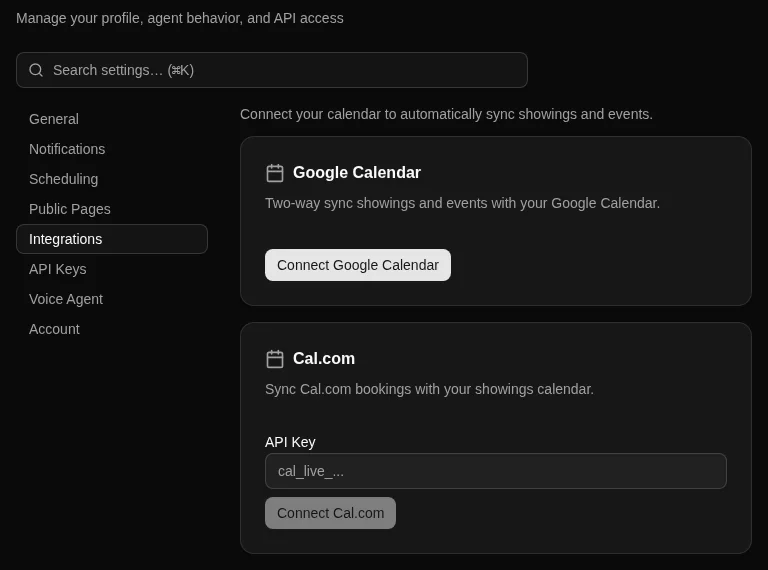
On paid plans, showings sync two ways with your Google Calendar, so the Events calendar and the one you already use stay in step.
Cal.com booking
Connect Cal.com on a paid plan and prospects can book from your open times. After pre-screening, the prospect sees your booking calendar on the completion screen.
Booking links by email
From a prospect's contact page, email them a booking link. Scheduling emails are a setting you turn on.
Book from the management chat
Ask the management chat to book a showing for a contact and it creates the event on your calendar.
Showing reminders
With contact nudges on, Rentalot emails the prospect a reminder before each booked showing, 24 hours ahead by default. In review mode the reminder waits in Approvals until you send it.
Week and month views
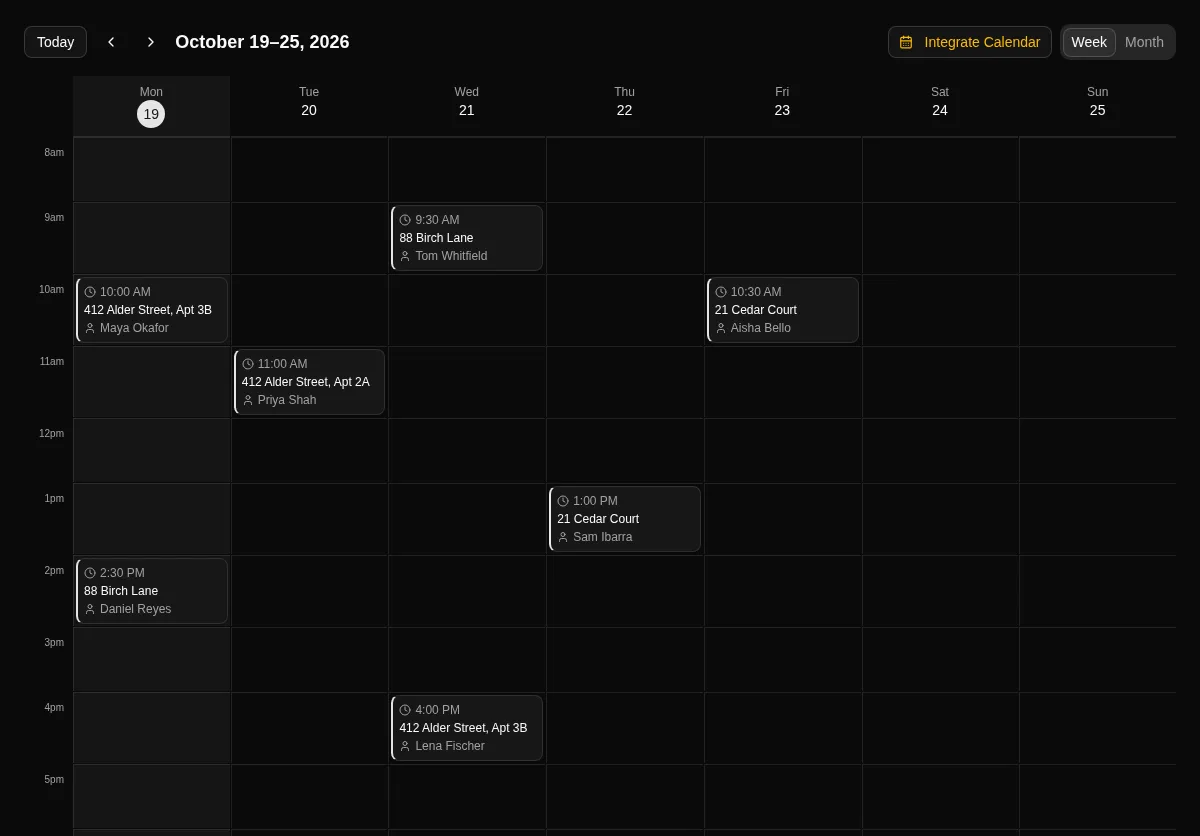
See upcoming showings by week or month, with the property and prospect on each one, and open a showing for its details.
See it in the product
Screenshots from the live app. Names and addresses are example data.
How setup works
- 1
Add the property
Create the listing you are showing, by hand or by pasting an existing listing for AI to fill in.
- 2
Connect your calendar
In Settings, Integrations, connect Google Calendar or add your Cal.com API key. Both need a paid plan.
- 3
Pre-screen first
Share your pre-screening link so you know who you are meeting. When a prospect finishes, they can pick a time if Cal.com is connected.
- 4
Book and track showings
Showings appear on the Events calendar when they are booked through Cal.com, synced from Google Calendar, or created by the management chat. You can also email a booking link from a contact page.
What Rentalot doesn't do
Worth knowing before you start a trial.
- Calendar sync and Cal.com booking need a paid plan. The free trial does not include them.
- Showing reminders go by email and only after you turn on contact nudges. There is no automatic follow-up for missed showings.
- Booking links go out only when you send them or the prospect finishes pre-screening with Cal.com connected.
- No background, credit, or income checks. Showing scheduling is separate from screening.
- No WhatsApp and no phone answering.
Which plan fits
Starter — $29/month
For one active vacancy at a time
Google Calendar sync and Cal.com booking are on every paid plan, starting with Starter at $29/month. Move to Pro for several vacancies at once.
Every plan starts with a 7-day free trial. Upgrade anytime as you grow.
Ready to automate your rental inquiries?
Start your free trial today. No credit card, no commitment.