Property Import Guide
Migrate your properties into Rentalot from any property management tool in minutes. No manual data entry required.
Quick Start
- Export your properties from your current tool (see platform guides below)
- Go to Properties > Import in your Rentalot dashboard
- Drop in the file — Rentalot auto-detects the format and maps columns
- Review, validate, and import
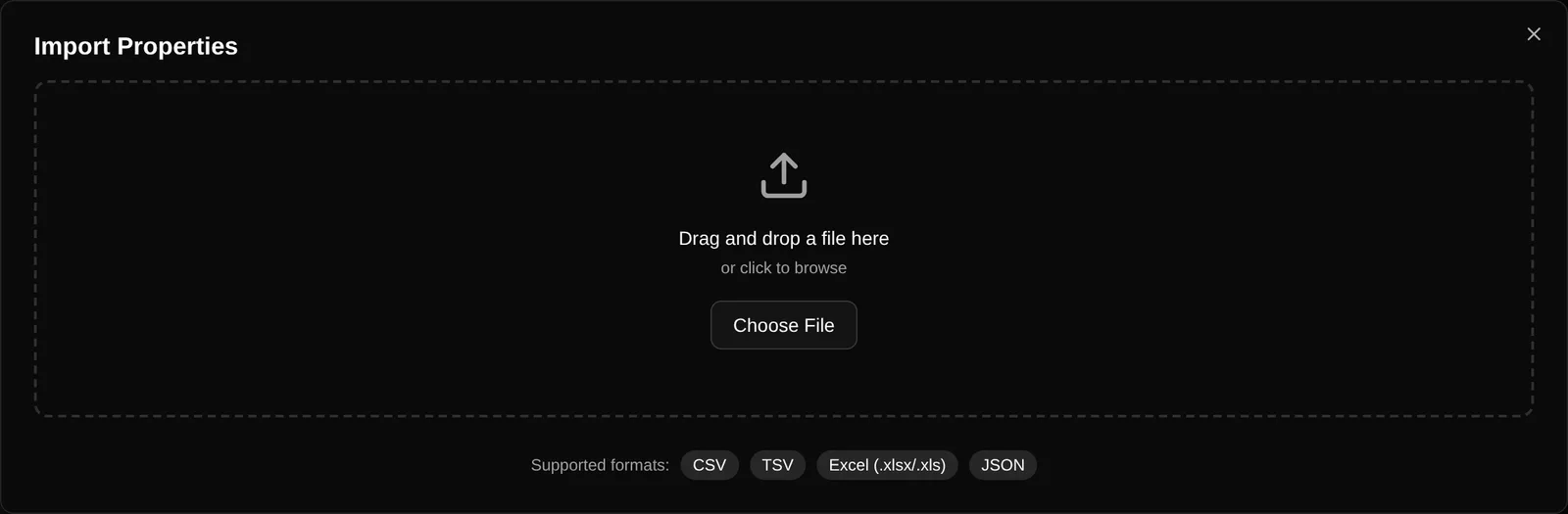
Rentalot accepts CSV, TSV, Excel (.xlsx/.xls), and JSON files. Up to 500 properties per import, 10 MB max.
Platform Guides
Zillow Rental Manager
- Log in to Zillow Rental Manager
- Go to Properties or Listings
- Click Export (top-right) and choose CSV
- Save the file — it will contain columns like
Address Street,Address City,Bedrooms,Price, etc. - Drop the file into Rentalot’s import wizard
Rentalot auto-detects Zillow exports and maps all columns. You’ll see a “Detected: Zillow Export” badge.
Mapped fields: Address, City, State, ZIP, Monthly Rent (from Price), Bedrooms, Bathrooms, Square Footage (from Footage), Description (from Type).
AppFolio
- Log in to AppFolio
- Go to Reports > Unit Directory
- Select the properties/units you want to export
- Click Export to CSV
- Drop the file into Rentalot
Rentalot auto-detects AppFolio’s Unit Directory format and merges split address columns (Unit Street Address 1 + Unit Street Address 2) automatically. You’ll see a “Detected: AppFolio Unit Directory” badge.
Mapped fields: Address (merged), City, State, ZIP, Monthly Rent (from Market Rent), Bedrooms, Bathrooms, Square Footage (from Sq Ft), Description (from Unit Type).
Buildium
- Log in to Buildium
- Go to Rentals > Units
- Click Export to download the unit list as CSV
- Drop the file into Rentalot
Rentalot auto-detects Buildium exports and merges multi-line address fields (Unit address line 1, line 2, line 3, Unit number) into a single address. You’ll see a “Detected: Buildium Unit List” badge.
Mapped fields: Address (merged from address lines + unit number), City (from City/Locality), State (from State/Province/Territory), ZIP (from Postal code), Monthly Rent (from Market rent), Bedrooms, Bathrooms, Internal Notes (from Unit number), Description (from Sub type).
Rent Manager
- Log in to Rent Manager
- Go to Reports > Units (or generate a Unit Report)
- Export the report as CSV
- Drop the file into Rentalot
Auto-detected when columns include Property Name, Unit Name, Street, and Market Rent. Badge: “Detected: Rent Manager”.
Mapped fields: Address (from Street), City, State, ZIP, Monthly Rent (from Market Rent), Bedrooms (from Beds), Bathrooms (from Baths), Square Footage (from SqFt), Neighborhood (from Property Name), Internal Notes (from Unit Name).
Propertyware
- Log in to Propertyware
- Go to Properties > Units
- Click Export to download as CSV or Excel
- Drop the file into Rentalot
Auto-detected when columns include Property Address, Unit, City, Rent Amount, and # Beds. Badge: “Detected: Propertyware”.
Mapped fields: Address (from Property Address), City, State, ZIP, Monthly Rent (from Rent Amount), Bedrooms (from # Beds), Bathrooms (from # Baths), Square Footage (from SqFt), Year Built, Pet Policy, Deposit.
Any Other Tool
Export your properties as CSV or Excel from any tool. As long as you include recognizable column headers, Rentalot will auto-map them.
Recognized column names:
| Property Field | Column Names That Work |
|---|---|
| Address | address, street, street_address, location |
| Monthly Rent | rent, monthly_rent, price, rent_amount |
| Bedrooms | bedrooms, beds, br |
| Bathrooms | bathrooms, baths, ba |
| Square Footage | sqft, square_footage, sq_ft, area |
| Pet Policy | pets, pet_policy, pet_friendly |
| Deposit | deposit, security_deposit |
| Description | description, desc, notes, details |
| City | city, town |
| State | state, province |
| ZIP | zip, zipcode, postal_code |
| Availability | available, availability_date |
| Features | features (comma-separated) |
| Amenities | amenities (comma-separated) |
| Image URLs | images, photos, image_urls (comma-separated) |
If a column isn’t recognized, you can manually map it in the import wizard.
CSV Template
Starting from scratch? Use this template:
address,rent,bedrooms,bathrooms,sqft,description,pet_policy,deposit,available
"123 Main St, Apt 4B, Austin TX 78701",1500,2,1,850,"Renovated 2BR with hardwood floors",allowed,1500,2026-04-01
"456 Oak Ave, Unit 2, Austin TX 78702",2200,3,2,1200,"Spacious 3BR near downtown",negotiable,2200,2026-05-01
Required columns
Every row needs at least: Address, Rent, Bedrooms, Bathrooms.
Value formats
Values are automatically cleaned and converted:
| Input | Converted To |
|---|---|
$1,500 | 1500 |
3 BR | 3 |
Yes / true | allowed (for pets) |
03/15/2026 | 2026-03-15 |
2k | 2000 |
pool, gym, parking | ["pool", "gym", "parking"] |
Image Import
Include image URLs in your CSV to import property photos alongside your listings. Use a column named images, photos, or image_urls with comma-separated URLs:
address,rent,bedrooms,bathrooms,images
"123 Main St, Austin TX",1500,2,1,"https://example.com/photo1.jpg, https://example.com/photo2.jpg"
Images are downloaded and stored in Rentalot automatically. Supported formats: JPEG, PNG, WebP.
API Import
For programmatic imports, use the Properties API. The API supports single-property creation and bulk import with the same field mapping and validation.
Tips
- More fields = better AI responses. The more detail you include (amenities, pet policy, parking, lease terms), the better your agent answers prospect questions.
- Review before importing. The validation step catches missing required fields and formatting issues. Fix or skip problem rows before importing.
- Duplicates aren’t merged. If you import the same property twice, you’ll get two entries. Delete duplicates from the Properties page.
- Status defaults to active. Imported properties are set to
activeby default. Change status from the dashboard after import.