Workflows
Workflows are the automated sequences behind your prospect link: pre-screening questionnaires, property blasts, and custom questionnaires you build yourself. You set them up once; Rentalot handles the questions and the timing.
How Workflows Work
- A workflow starts — either you trigger it manually from the dashboard or management chat, or a prospect clicks a shareable link
- The assistant executes steps in order — sending messages, waiting for replies, asking questions, branching based on responses
- If the prospect replies mid-workflow, the assistant pauses the workflow and handles the reply naturally, then resumes
- The workflow ends when all steps complete, the prospect disengages, or you cancel it
Workflows run in the background. You can monitor progress, pause, resume, or cancel from the dashboard or through the management chat.
Built-In Workflows
Open Workflows in your dashboard and select the Gallery tab to see the built-in templates. Gallery templates are read-only starting points; click Use Template to create an editable copy under My Workflows.
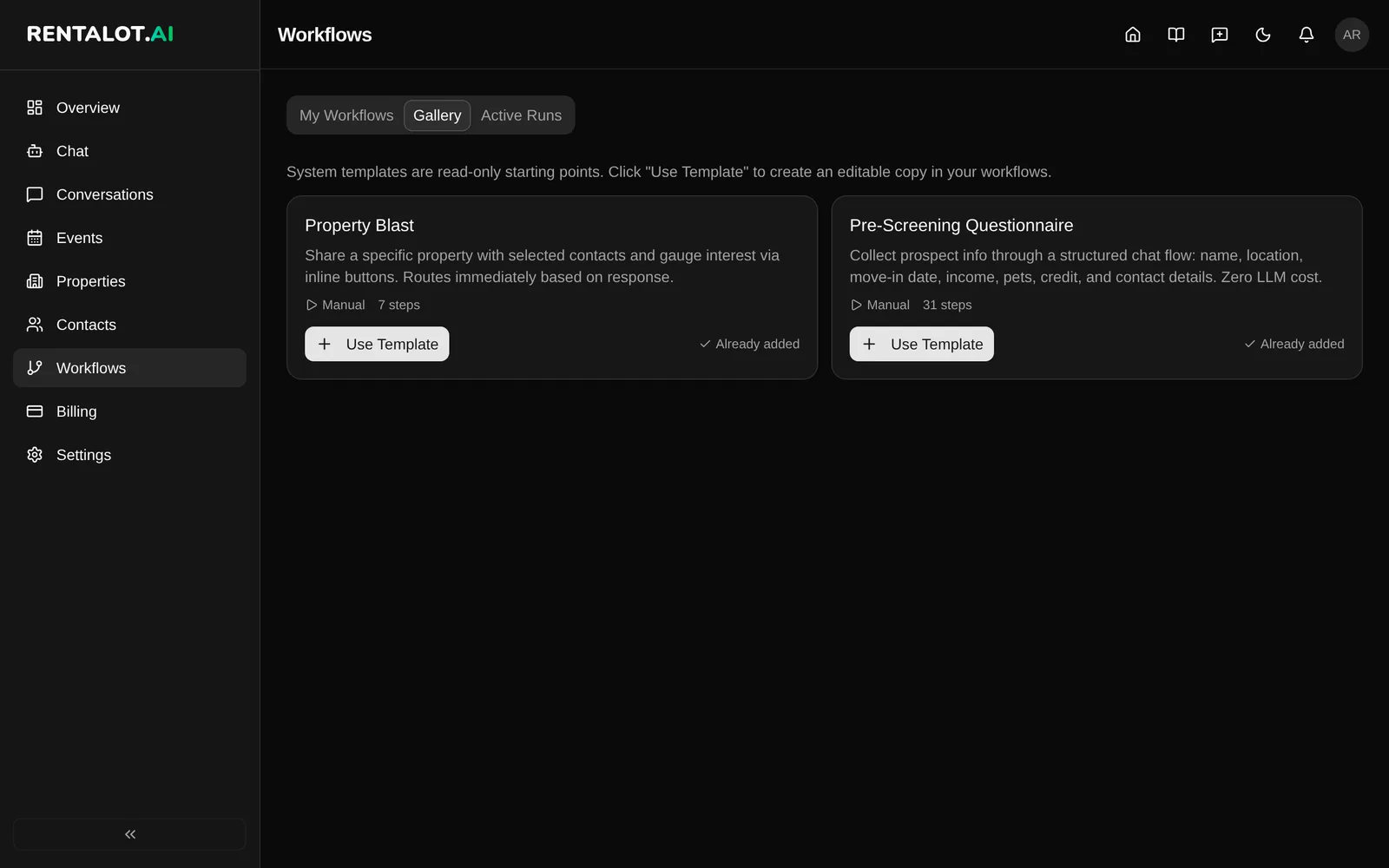
Pre-Screening Questionnaire
Screen new prospects with a customizable questionnaire. Collects name, contact info, budget, move-in timeline, and any custom questions you add.
After completing the questionnaire, the prospect’s answers are summarized and, if Application Completed is on in Settings > Notifications, you receive an email with the submission data and a link to their contact page. You can then review the submission: approve or deny with optional notes.
Trigger: Shareable link. Prospects start it by clicking your prospect link or scanning a QR code.
Property Blast
Share your listings with a prospect so they can browse them and tell you which ones interest them. See Property Blast.
Coming soon: more built-in templates, including lead qualification, showing follow-up, idle re-engagement, renewal check-in, and document collection. Until they launch, you can build a custom workflow for any questionnaire you need.
Custom Workflows
Build your own workflows from scratch with the question builder — no step-graph editing required. You describe what you want to ask; Rentalot compiles it into the underlying workflow steps.
Creating a Workflow
- Go to Workflows in your dashboard. You start on My Workflows.
- Click New Workflow
- Enter a Workflow name (e.g. “Roommate Screening”) and an optional description, then click Create Workflow
- You land on the workflow’s detail page with an empty question builder
Adding Questions
Use the preset picker at the bottom of the builder to add questions. Each preset comes pre-configured with the right field type, validation, and context key — pick one and it’s added to the list.
Common presets include:
- Name — full name with first/last split
- Email — validated email address
- Phone — phone number with format validation
- Budget — monthly rent budget (currency)
- Move-in date — target move-in (date picker)
- Household size — adults + children counter
- Pets — yes/no with follow-up details
- Employment — employer, income, duration
- Free text — freeform question with your own prompt
Any question can be reordered with the up/down arrows, edited inline, or removed. Use Add follow-up question to ask a follow-up based on an answer. The Preview line shows how many workflow steps your questions compile into.
Saving
Unsaved edits show an amber bar at the bottom of the builder. Click Save Questions to keep them, or Discard to go back to the last saved version.
Limits by Plan
Custom workflow caps scale with your plan:
| Plan | Questions per workflow | Total workflows |
|---|---|---|
| Free Trial | 10 | 3 |
| Starter | 25 | 10 |
| Pro | 75 | 50 |
| Scale | 200 | unlimited |
The builder shows a counter (e.g. 7 / 25) so you always know where you stand. When you hit the cap, the Add question picker disables and you’ll see an upgrade prompt. The total-workflow cap covers both custom builds and gallery clones.
Creating from Management Chat
You can also describe a workflow to the management chat in plain English — e.g. “create a workflow that collects name, phone, move-in date, then asks if they have pets with a follow-up for how many.” The assistant compiles your description into questions, shows you a preview, and saves an inactive draft once you confirm. Open it from the Workflows tab to review and activate.
When to Use Custom vs Built-In
- Start with the Pre-Screening Questionnaire if it covers your needs. It’s tuned for rental prospects and comes with notifications set up.
- Build a custom workflow when you need a domain-specific flow (co-signer intake, pet screening, roommate screening) that the built-in template doesn’t cover.
Editing Workflow Steps
You can customize any workflow’s steps directly from its detail page. Click into a workflow from the Workflows tab, and you’ll see the step list with editing controls.
What You Can Do
- Expand a step to edit its configuration and routing
- Reorder steps using the arrow buttons
- Delete steps with the trash button
- Add new steps using the ”+ Add Step” button at the bottom
All changes are local until you click Save Steps. If you change your mind, click Discard to revert.
Step Types
| Type | What it does |
|---|---|
| Send Message | Send a message to the prospect (supports variable interpolation like {contact.name}) |
| Wait | Pause the workflow for a duration (e.g. 30s, 5m, 24h, 3d) |
| Wait for Reply | Ask a question and wait for the prospect’s response |
| Condition | Branch the workflow based on a condition (e.g. “did the contact reply?”) |
| Ask Choice | Present multiple-choice options to the prospect |
| Switch | Route to different steps based on a context value |
| Update Contact | Update contact fields with collected data |
| Notify Agent | Store a notification summary on the contact (visible in dashboard) |
| AI Agent | Run an AI-powered conversation step |
| Property Match | Search your listings and recommend matches |
| End | End the workflow and email you the full application details |
Routing
Each step can route to another step via the Next step dropdown. Condition steps have separate Yes and No branches.
When you delete or reorder steps, routing references update automatically. If a deleted step was referenced by another step’s routing, that reference is cleared — check and fix any “(none)” routing before saving.
Tips
- Always keep at least one End step. The editor won’t let you delete the last one.
- Check routing after reordering. Step numbers shift when you move things around — the editor remaps automatically, but it’s good to verify.
- Save often. Unsaved changes are lost if you navigate away.
- Duplicate first, edit the copy. If you’re making major changes to a working workflow, duplicate it and experiment on the copy.
- Complex step types (Wait for Reply, AI Agent, Ask Choice, Switch, Condition, Property Match) show their configuration as read-only JSON for now. Full editing for these types is coming soon.
Starting a Workflow
From Management Chat
Use natural language:
“Send the property blast for 123 Oak St to Maria”
“What workflows are running right now?”
The assistant finds the right template and contact by name, so you don’t need IDs.
Via Shareable Link
Your prospect link starts the pre-screening workflow for anyone who opens it. Share it wherever prospects find you:
| Placement | Link to share |
|---|---|
| Online listing (Zillow, Craigslist) | Your prospect link, or the property’s own link |
| For-rent sign or flyer | A QR code for the property’s link |
| Email signature or business card | Your prospect link |
| Replies to new inquiries | Your prospect link |
To get a property-specific link, open Properties and click the share icon (Share workflow links) on the property card. It lists the listing link and each workflow link with copy and QR code buttons.
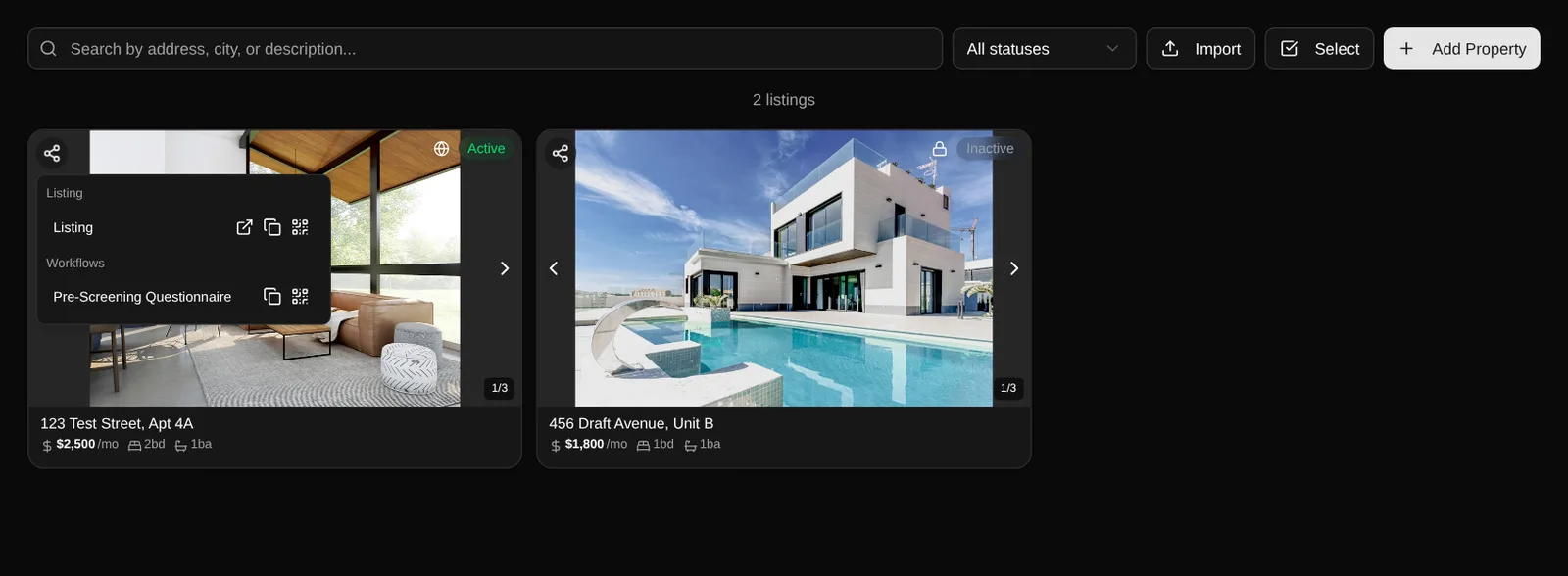
You can also click Copy Link or QR Code on a workflow under My Workflows.
Reviewing Applications
When a prospect completes a pre-screening workflow, their submission appears on the dashboard activity feed and on their contact page.
Approve or Deny
- Go to Contacts and select the prospect
- Under Submissions, open the pre-screening submission
- Optionally add internal notes (only visible to you, not the prospect)
- Click Approved or Denied
By default, the prospect is not emailed when you approve or deny. To enable prospect review emails, go to Settings > Notifications and turn on Notify prospect on review. When enabled, the prospect receives an email with your decision and a link to their status page.
What the Prospect Sees
If you have the status page enabled, prospects can check their application status using their personalized status link. The status page shows:
- Overall application status
- Review decision badge (Approved / Declined)
- Their submitted answers grouped by category
- Any upcoming showings
Managing Active Workflows
Dashboard
The Workflows page has three tabs:
- My Workflows: your editable workflows. Open one to edit its questions or steps, change the intro message, turn it on or off, and share it with a link or QR code.
- Gallery: read-only built-in templates. Click Use Template to copy one into My Workflows.
- Active Runs: workflows currently running, paused, or pending
Each active run shows the workflow name, contact, current step, and buttons to Pause, Resume, or Cancel.
Management Chat
Ask your assistant about workflows in plain language:
“How’s the Oak Street blast going?”
“Pause the workflow for Sarah Chen”
“Cancel all workflows for unresponsive contacts”
“What workflows are running right now?”
How the Assistant Understands Replies
Workflows aren’t just scripted message sequences. When the assistant asks a question (like “What’s your budget?”), it uses AI to understand freeform replies.
If a prospect says “under 2k but flexible for the right place,” the assistant extracts structured data — budget of $2,000, flexible — and moves to the next question. If the prospect asks an off-topic question mid-workflow (“actually, does that place have parking?”), the assistant answers it and then returns to the workflow question.
If the prospect says they’re not interested, the assistant detects the disengagement, sends a polite closing message, and ends the workflow early.
Stopping a Workflow
Prospects can exit a workflow at any time. You can also:
- Pause — temporarily stop, resume later
- Cancel — permanently end the workflow run
- Cancel all — stop all active workflows for a contact
Limits
- Messages per workflow: Default 5 (configurable per template) — prevents over-messaging
- Timeout: Workflows auto-cancel after 30 days of inactivity
- One active run per template: A contact can’t have two instances of the same workflow running simultaneously